An API key lets one of your own systems read from, or write to, YARDtwin: a BI tool reading the audit log, a dashboard reading SLA figures, or an ERP creating bookings. Each key can do only what its scopes allow.
These keys are for your company's own systems. Carriers and their transport systems use separate keys of their own.
API access is part of the Professional and Enterprise plans, as is the carrier API. Today an account on another plan can still create and use keys; YARDtwin records it in the audit trail (once an hour per key in use). Keys made in your sandbox are never counted this way. You can always see and revoke your keys, whatever the plan.
Steps
Open Site Admin and click API keys.
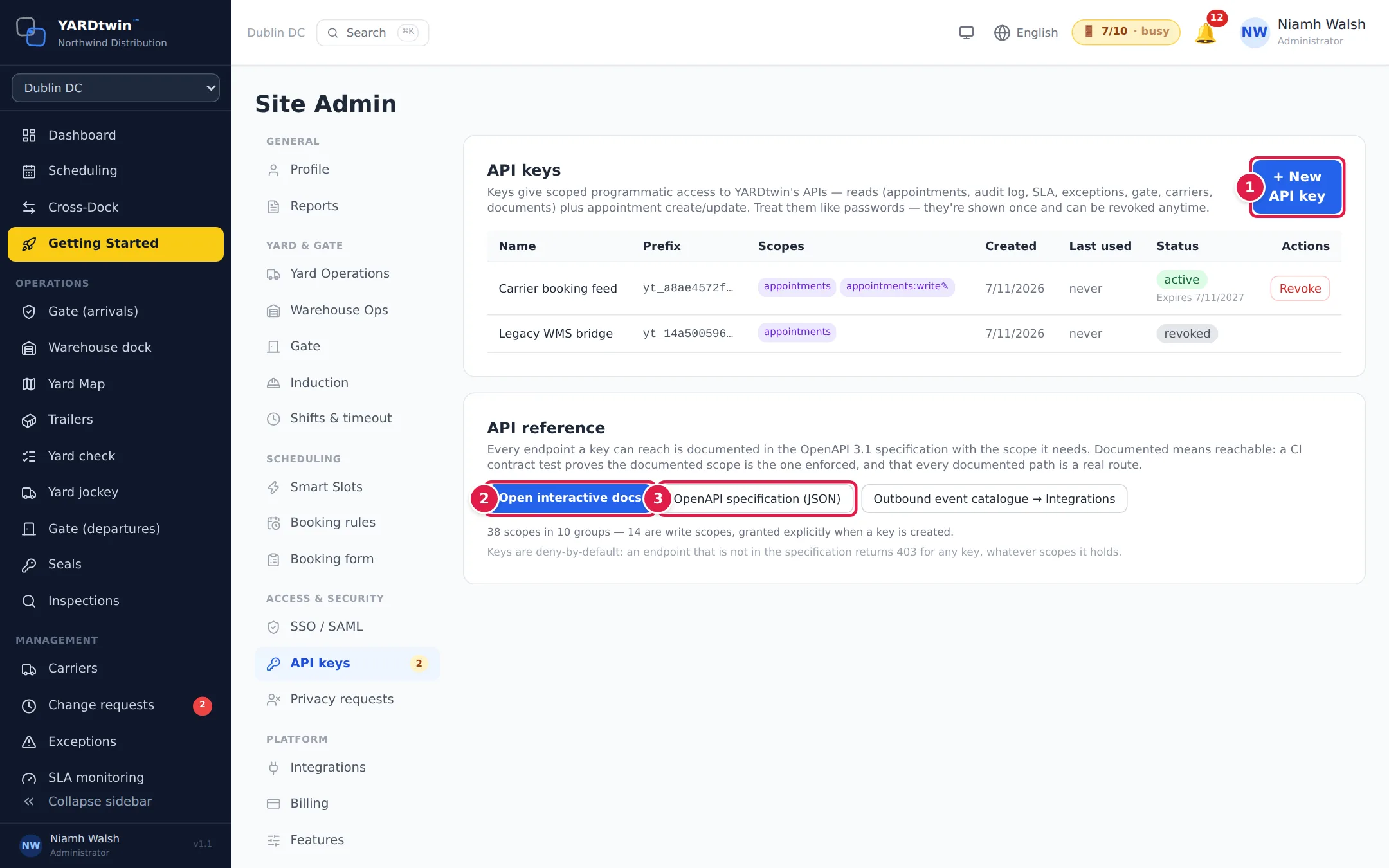
- Click + New API key.
- Open interactive docs shows every API call a key can make, and the scope each one needs.
- OpenAPI specification (JSON) is the same reference as a file for your developers' tools.
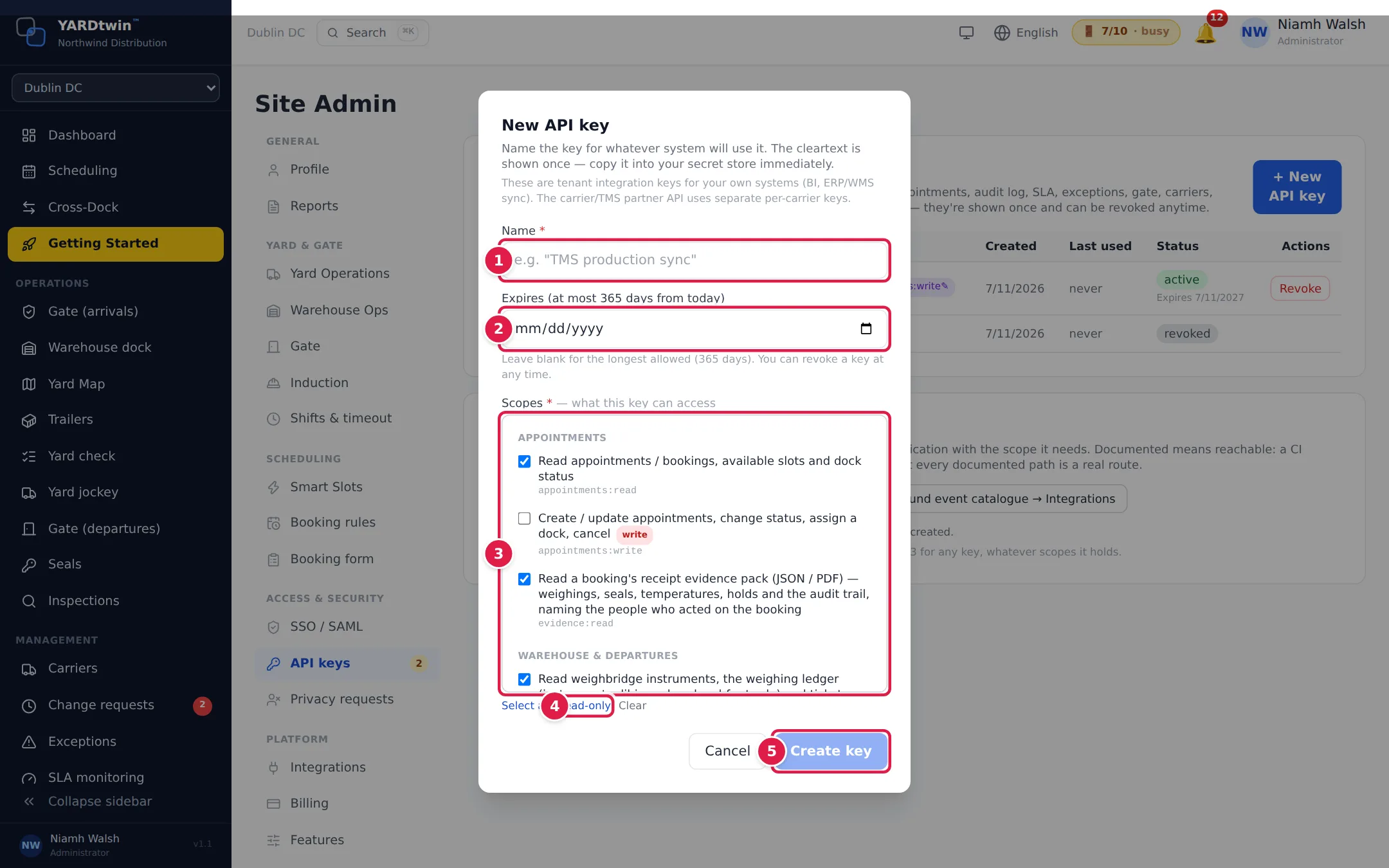
- Enter a Name that says which system will use the key, for example TMS production sync.
- Choose when the key Expires. Every key expires: at most 365 days from today, or fewer if your organisation's sign-in policy says so (Site Admin → Profile). Leave the date blank to get the longest allowed.
- Under Scopes, tick what the key may do. They are grouped by area. All the read scopes are ticked to start with; scopes that change data carry a red write badge.
- Select all, Read-only and Clear change the ticks in one go. Give a key the fewest scopes it needs.
- Click Create key.
What you'll see
The new key is shown once. Copy it straight into your system's secret store; you can't see it again. Your system sends it with each request as Authorization: Bearer followed by the key.
The list shows each key's Name, the first characters of the key (Prefix), its Scopes, when it was Created and Last used, whether it is active, expired or revoked, and when an active key expires.
Keys created before every key had to expire are marked No expiry, and a note above the list counts them. They keep working. Replace each one with a new key, move your system over, then revoke the old one.
Treat a key like a password. Anyone who has it can do everything its scopes allow, at every site of your account.
Revoke a key
Click Revoke on the key's row and confirm. Anything using the key stops working straight away. Revoked keys stay in the list for the record.
Lost a key? It can't be shown again. Create a new one, update your system, then revoke the old one.
To let an integrator build against test data first, create the key inside your sandbox. See Test safely in a sandbox. For the full developer reference, see yardtwin.com/developers.
If something goes wrong
- The system gets "403" back. The key doesn't have the scope that call needs, or the call isn't available to API keys. Check the scope in the interactive docs and create a key with it. If the answer says This feature requires a plan upgrade, API access isn't in your plan: see Choose a plan and pay.
- The key stopped working. It may have expired or been revoked. Check its status in the list. Create a new key before the old one expires, so your system never goes without.
- "An API key may live at most … days". The expiry you chose is beyond your organisation's limit. Pick an earlier date, or leave it blank.