The Yard jockey screen is built for a phone. It shows the trailer moves waiting at your site, one card per move, with large buttons to accept, start and complete each one. It updates by itself as the office and the gate create moves.
Your screen
- ● On shift shows the dispatcher you're available. Tap it to switch to ○ Off shift when you take a break or finish; tap again to come back on shift.
- Next move is the move to do now: a move you've started comes first, then the rest in queue order. It shows its place in your queue (for example 1 / 3), the priority, the booking code, where from and where to, the distance, and the route over the yard map, from where you are to the trailer and on to where it goes. Use Hide map and Show route on the map to fold the map away.
- Scan trailer or tap booking ref…: scan or type a trailer number, truck registration or booking code, then tap Find to jump to that move.
- Mine lists the moves assigned to you, in the order you should do them. Open lists every open move at the site; Done lists completed ones.
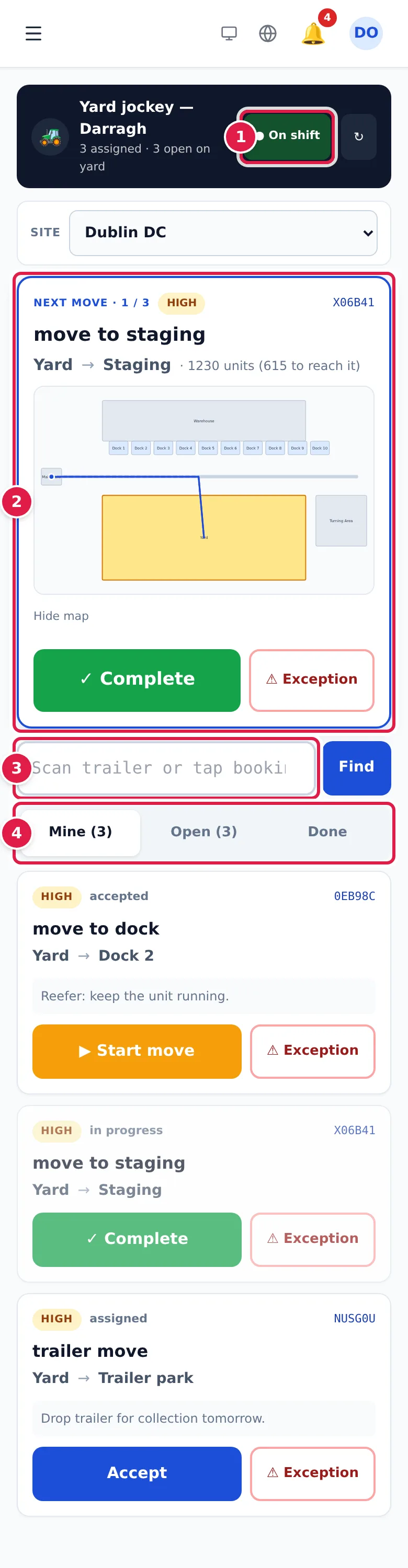
The header shows how many moves are assigned to you and how many are open on the yard. ↻ refreshes the list. If you work at more than one site, pick the site in the Site box; you only see that site's moves.
If your site keeps its yard tractors in YARDtwin, a Tractor box also appears: pick the one you're driving. Picking a tractor also puts you on shift. Your manager uses this for the tractor figures in the jockey KPIs.
Do a move
Each card shows the priority (urgent, high, medium or low), the status (assigned, accepted, in progress), the booking code, any timer such as Due in 12 min or Overdue by 5 min, the type of move, where from and where to (for example Yard → Dock 2), and any notes from the planner.
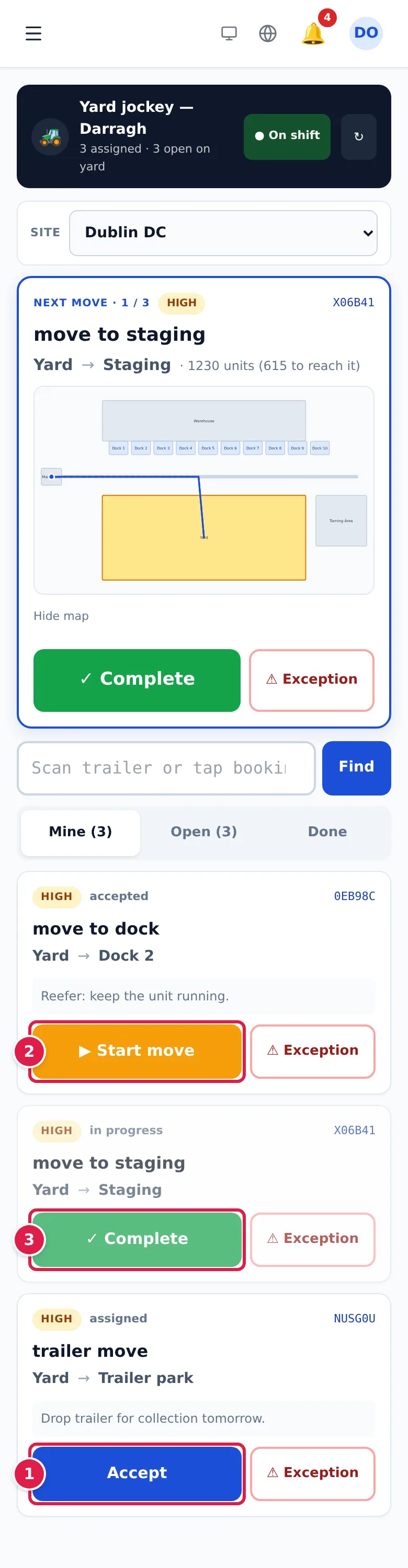
- On a move assigned to you, tap Accept. On an open move nobody has taken, tap Accept this task to make it yours.
- When you set off, tap ▶ Start move.
- When the trailer is in place, tap ✓ Complete. Add a note if you like and tap Complete, or tap Skip to complete it without one. To go back without completing the move, tap × or anywhere outside the box.
The card then shows ✓ Done and how long the move took.
If you can't do a move
Tap ⚠ Exception on the card. Pick what's wrong (Blocked, Trailer missing, Damage, Wrong trailer, Equipment or Other), add What happened? (optional), and tap Raise exception. The planner is told, and the card shows Exception raised — waiting for the planner until they put the move back in the pool. See Plan yard tasks.
Cancel, or a tap outside the box, closes it without raising anything.
If something goes wrong
- "🎉 No tasks assigned to you right now.": nothing is assigned to you. Check Open for moves you can accept.
- "No match": no open move at this site matches what you scanned. Check the number, or your site.
- The note box closed before you tapped Complete. Nothing was saved and the move is still in progress. Tap ✓ Complete again.
- "Select a site to see its move queue.": pick your site at the top of the menu.
- The Yard jockey menu item is missing. Your site has switched the yard jockey screen off. Ask your administrator.