The Getting Started checklist lists the six things a new site needs before trucks can be booked in. Each step ticks itself off when YARDtwin sees it done, so you can work in any order and come back later.
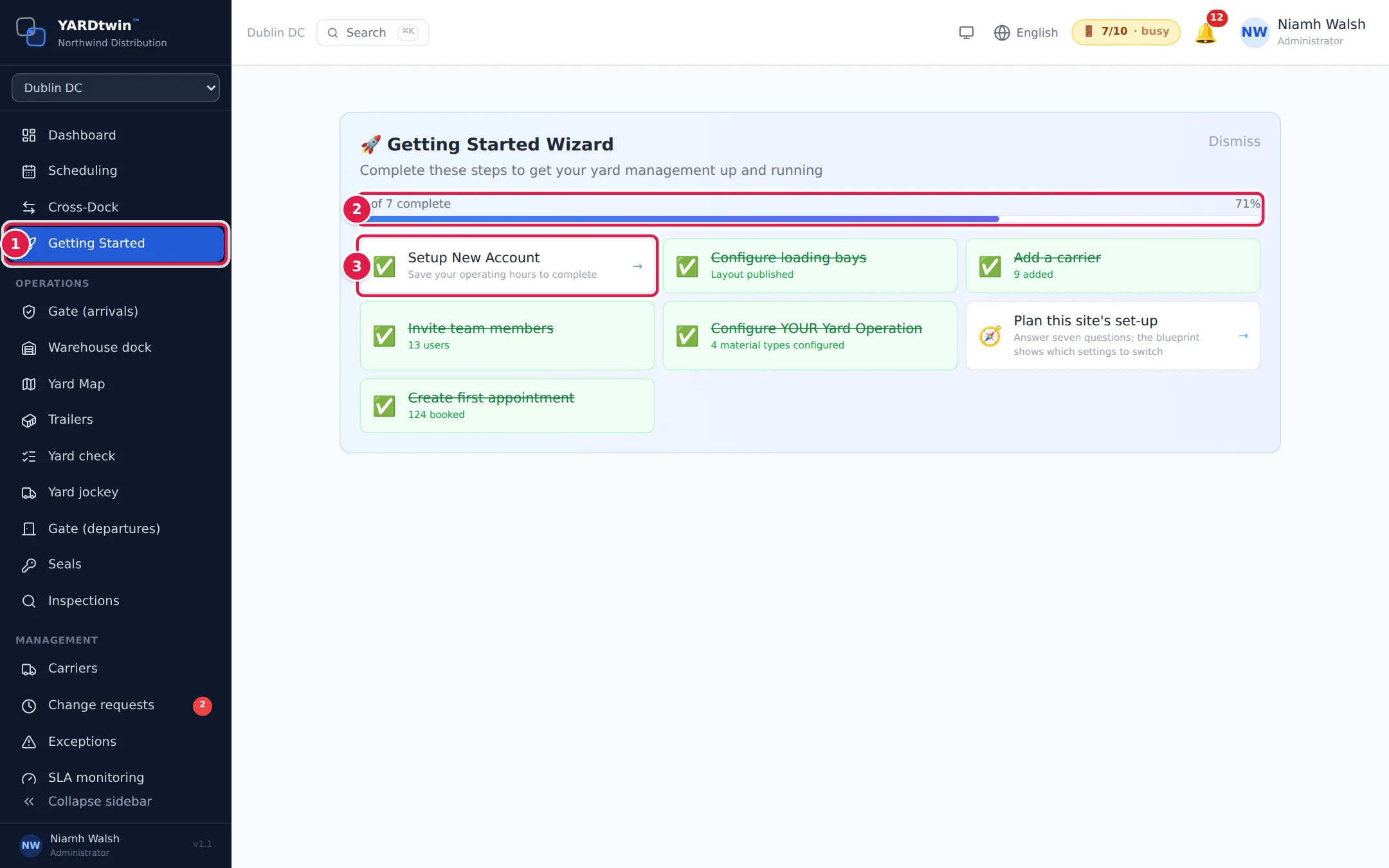
- Getting Started in the menu. Administrators only. It stays yellow until all six steps are done, then turns green.
- Progress. How many steps are done, for example 5 of 6 complete.
- A step. Click any step to go straight to the page where you do it. A finished step is ticked and crossed out, with a short note such as 8 added.
The six steps
| Step | Click it to open | It's done when |
|---|---|---|
| Setup New Account | Settings → Site | You have saved the site's operating hours. See Set your site's details and hours. |
| Configure loading bays | Layout Builder | A yard layout is published. See Draw your yard in the Layout Builder. |
| Add a carrier | Carriers | At least one carrier is on the list. See Carriers. |
| Invite team members | Settings → Users | You have sent an invitation, or there are two or more active users. See Invite and manage users. |
| Configure YOUR Yard Operation | Site Admin → Yard Operations | At least one material type exists. See Set up yard operations. |
| Create first appointment | Scheduling | The site has at least one booking. See Book an appointment. |
The steps about the site (hours, layout and bookings) are checked for the site you have selected at the top of the menu. If your company has more than one site, each site has its own progress.
What you'll see
The same checklist appears at the top of the Dashboard and the Scheduling board until everything is done. Click Dismiss to hide it there for now. The Getting Started menu item always shows it.
When the last step is done, a Congratulations! note replaces the checklist for one day.
Stuck on a step? Open the chat button at the bottom right of the page and ask the YARDtwin assistant. For training or help with your yard set-up, e-mail admin@yardtwin.com.