Drivers never install anything. Each driver gets links to web pages that open on any phone. Each link belongs to one booking, so there is nothing to sign in to. Every page has a language button at the top.
A site can also give a regular driver a YARDtwin account with the Driver role. Signed in, they see their own bookings on Scheduling, their own Documents and their Notifications. See Roles.
How drivers get the links
- When a booking is confirmed, YARDtwin e-mails the driver (if the booking has the driver's e-mail) with the dock and a QR code: Self check-in from your phone → opens the check-in page, and Track your visit live → opens the status page. The carrier's contact gets a copy.
- Reminder e-mails before the slot include Track your visit.
- Scanning the QR code on the gate pass with a phone opens the check-in page.
- When the gate authorises entry, the driver is e-mailed a link to the directions page.
Before the truck arrives, a link stays valid until 48 hours after the start of the booking's day (midnight at the site), so to the end of the following day. Once the truck is on site, it stays valid for as long as the visit lasts. After the truck leaves, the status page can still be viewed within those 48 hours, but the pass can't be used again. If the booking is cancelled or marked as a no-show, every link stops working.
Follow the visit
The status page shows where the truck is in its visit and refreshes itself every 15 seconds.
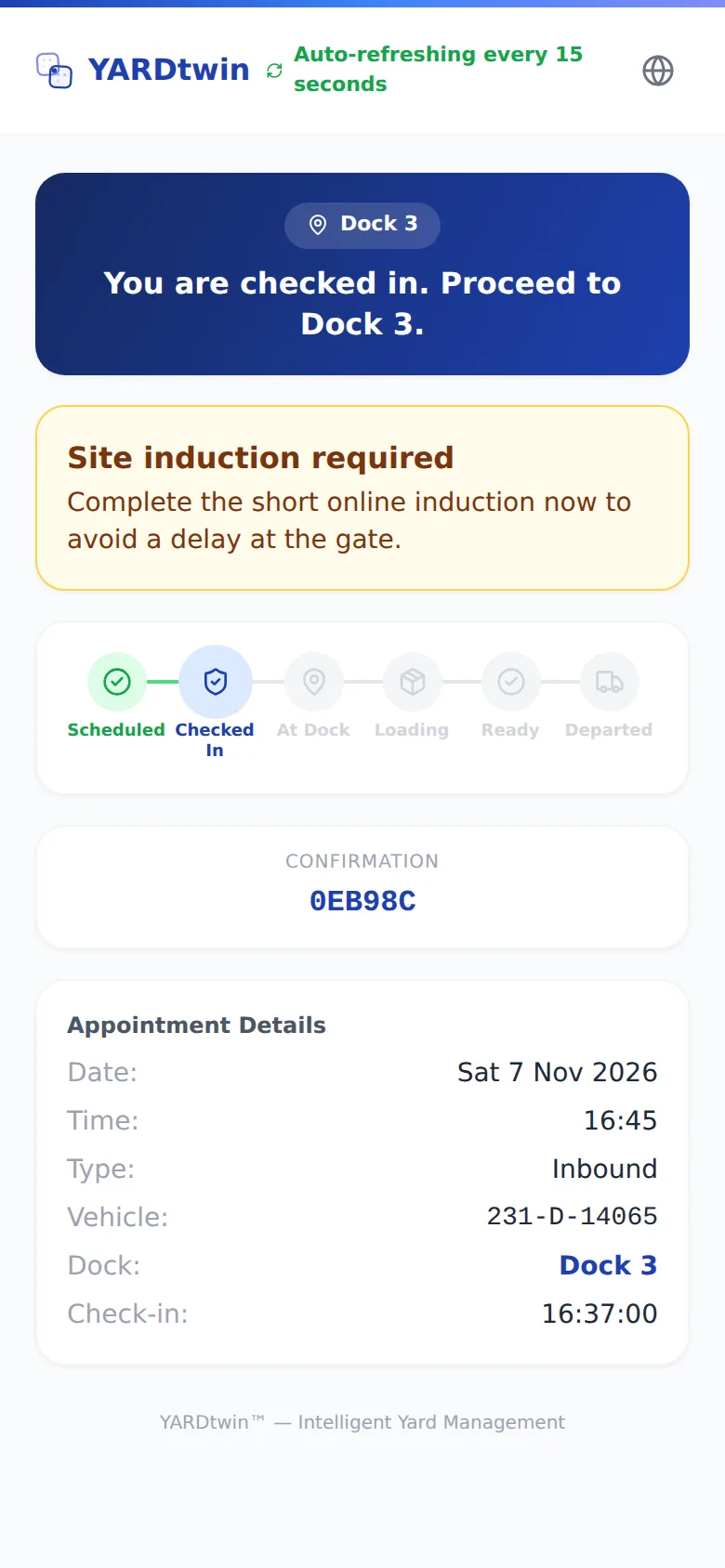
- The blue panel tells the driver what to do now, for example You are checked in. Proceed to Dock 3., with the dock.
- The progress line runs Scheduled, Checked In, At Dock, Loading, Ready, Departed.
- Confirmation is the booking code to quote at the gate.
- When the gate runs a queue, the driver sees their Position in queue and is told when to Proceed to their dock.
- Appointment Details lists the date, time, type, vehicle, dock and check-in time.
- If the site requires an online induction the driver hasn't done, a Site induction required card appears. Tapping it opens the induction. See Complete the site induction.
- After the visit, How was your visit? asks for a rating out of five stars, with optional comments, and Submit Feedback. The rating goes to the site.
Check in from the phone
If the site lets drivers check themselves in, the check-in page shows a short form. If it doesn't, the page says Please report to the gatehouse and shows the booking reference to quote at the gate.
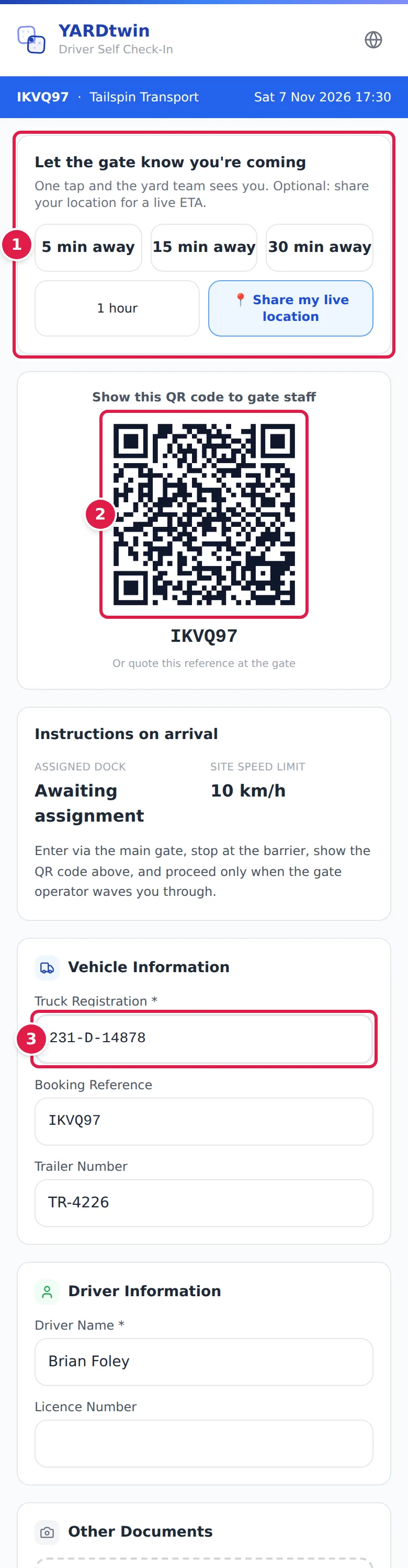
- Let the gate know you're coming. Tap 5 min away, 15 min away, 30 min away or 1 hour, or 📍 Share my live location, and the yard team sees the truck's expected arrival. The page confirms ✓ Gate notified.
- Show this QR code to gate staff on arrival, or quote the reference. Under it, Instructions on arrival gives the assigned dock (or Awaiting assignment), the Site speed limit (10 km/h, the same limit the gate screens and the entry e-mail give) and what to do at the barrier.
- Check the Truck Registration and fill in the rest of the form: Trailer Number, Driver Name and Licence Number, depending on what the site asks for, and any Notes. Tap Submit for Gate Approval.
The page shows Check-In Submitted: the gate staff review it before the truck may enter. The driver waits at the gate. Gate staff approve self check-ins from the gate screens; see Check a truck in.
Entry authorised
When the gate authorises entry, the driver's directions page shows Entry authorised, the dock to go to, and the site speed limit (10 km/h).
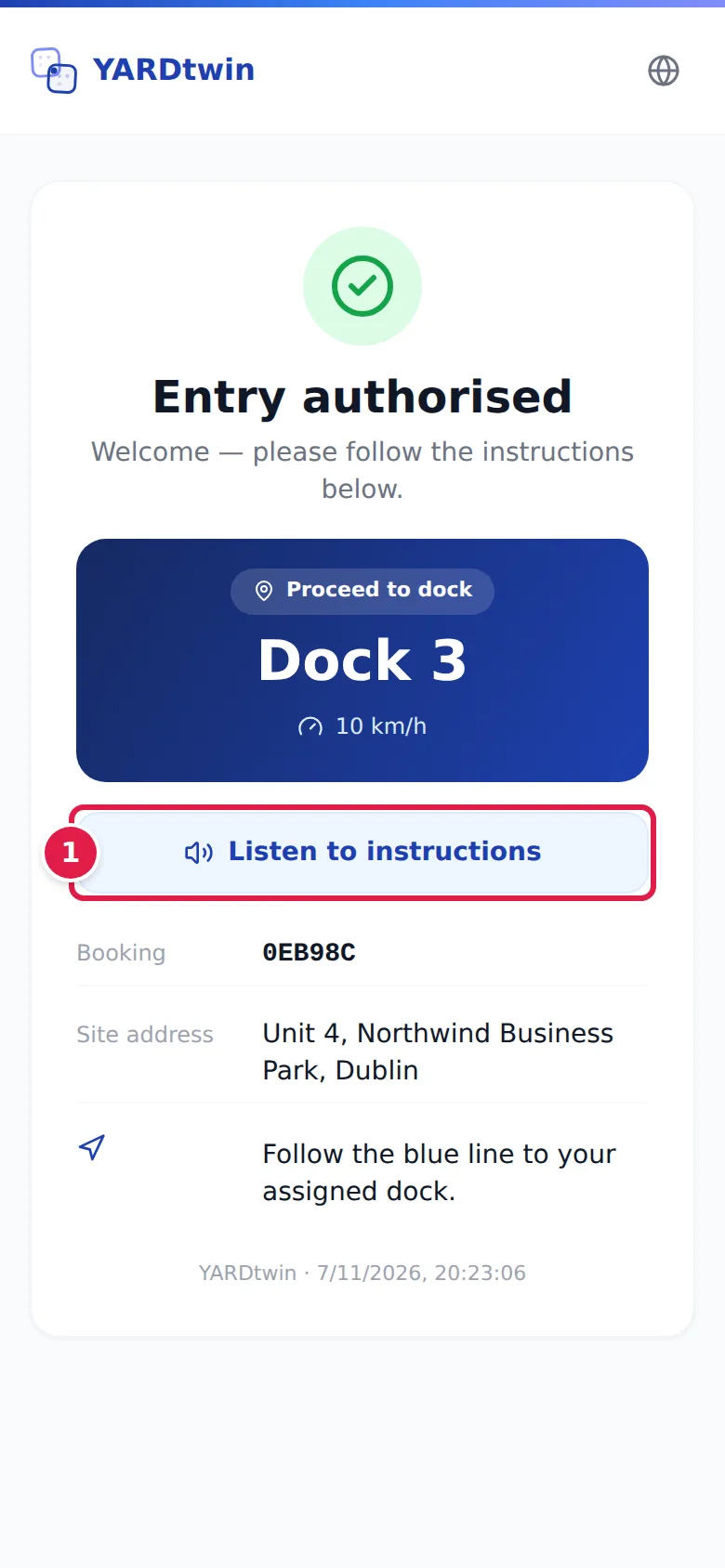
- Listen to instructions reads the directions aloud, on phones that support it.
Below are the booking code, the site address and any special or dangerous-goods instructions on the booking.
Accept a waitlist offer
When a carrier or supplier is on the waitlist for a full day and a slot frees up, the person who joined gets an e-mail, and a text message if the site has their mobile number, with a link to the offer.
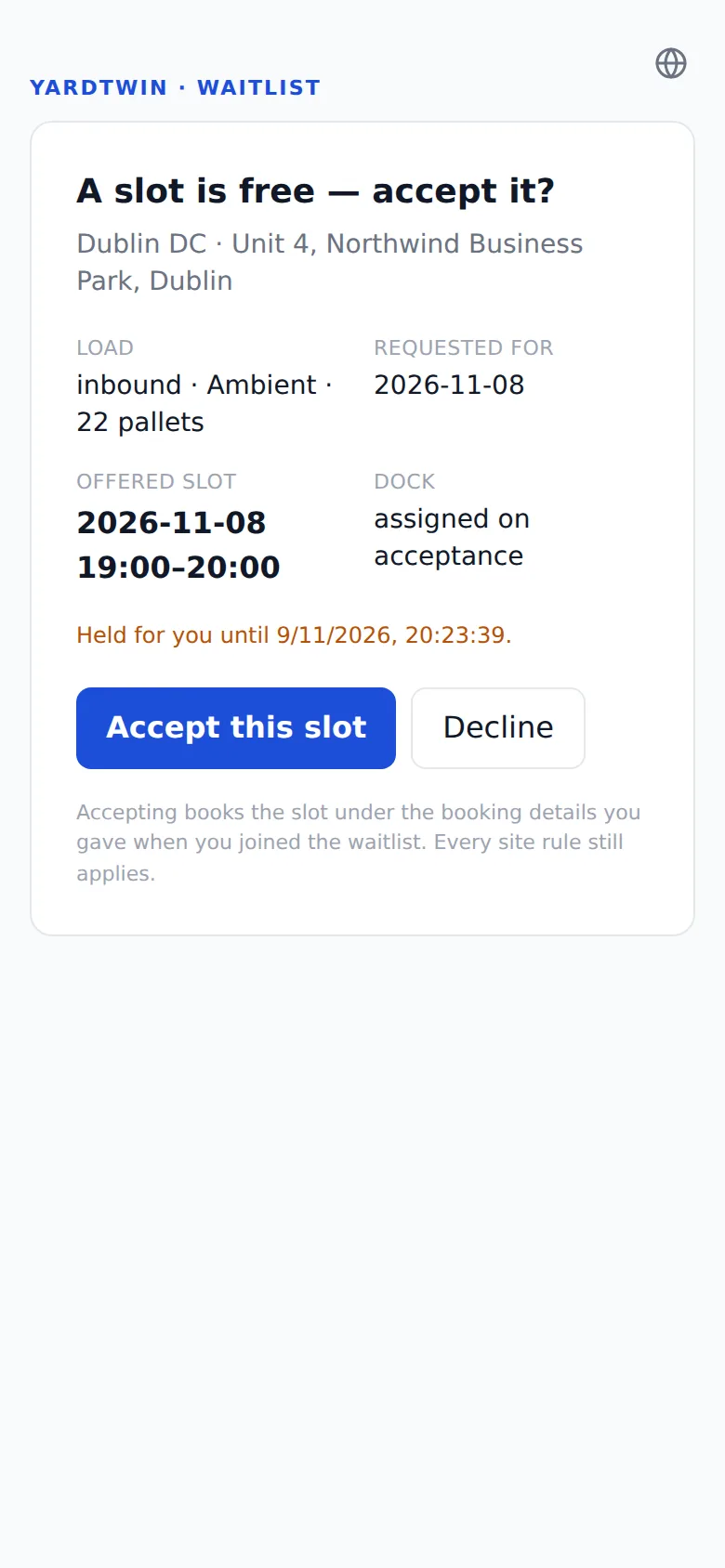
The page shows the load, the day requested, the Offered slot and the Dock, and Held for you until …. Accept this slot books it with the details given when joining; Decline passes it to the next request. If the offer isn't taken in time, it goes to the next request too, and the requester stays on the list. See Book a slot as a carrier.
Confirm receipt of a delivery
When goods leave your site with a consignment note (CMR or bill of lading), the gate can send the receiver a proof-of-delivery link. On the departure screen, open the Consignment note (CMR) panel, click Send proof-of-delivery link, optionally enter the Consignee e-mail, and click Get link. The same link is printed as a QR code on the note. See Clear a truck to leave.
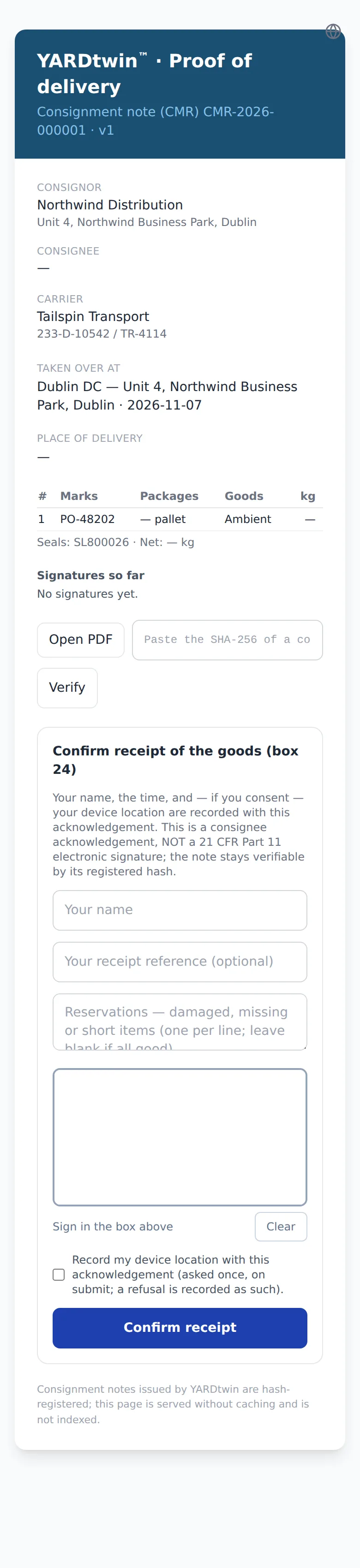
The receiver sees the note: Consignor, Consignee, Carrier, the goods, seals, and Signatures so far. Open PDF shows the note itself. To check that a copy they already hold is genuine, they can paste its SHA-256 fingerprint into the box beside it and tap Verify.
To confirm, they enter Your name, an optional Your receipt reference, any reservations (damaged, missing or short items, one per line), and sign in the box. They can tick Record my device location with this acknowledgement. Then they tap Confirm receipt. The page shows Receipt recorded — thank you. A note can be acknowledged only once.
This is a consignee acknowledgement, not a 21 CFR Part 11 e-signature. The page says so on the form.
If something goes wrong
- "Status Not Available" with "This pass is no longer valid. Please contact the site or the haulier for a new one." The link's 48 hours have run out, or the booking has been cancelled.
- "Invalid or Expired Link" The check-in link is no longer valid. The driver checks in at the gate instead.
- "Driver self check-in is not enabled at this site. Please report to the gatehouse." The site checks drivers in at the gate.
- "Too many check-in attempts for this booking — please report to the gatehouse." The form was sent too many times in a short period.
- "Cannot load summary" with "Booking has not been authorised at the gate yet" The directions page works only after the gate authorises entry. Refresh in a few seconds.
- "This link is no longer valid" (waitlist) The offer was accepted, declined or has expired.
- "That slot was taken in the meantime — you are back on the waitlist." Someone booked the slot first.
- "This proof-of-delivery link is not valid." or "This link has expired. Ask the consignor for a new one." Proof-of-delivery links last 14 days unless the site has set otherwise. The site can send a new one with Get link.
- "This consignment note has already been acknowledged." Receipt was already confirmed.