Not everyone who delivers to you needs a portal login. A booking link lets a supplier or haulier request a slot from a web page: they confirm their e-mail, describe the load, pick a free slot and get a reference. No account is created, and every site rule still applies.
Create a link
Booking links are made by an Administrator in Site Admin → Booking rules, in the Booking by link (no account) card.
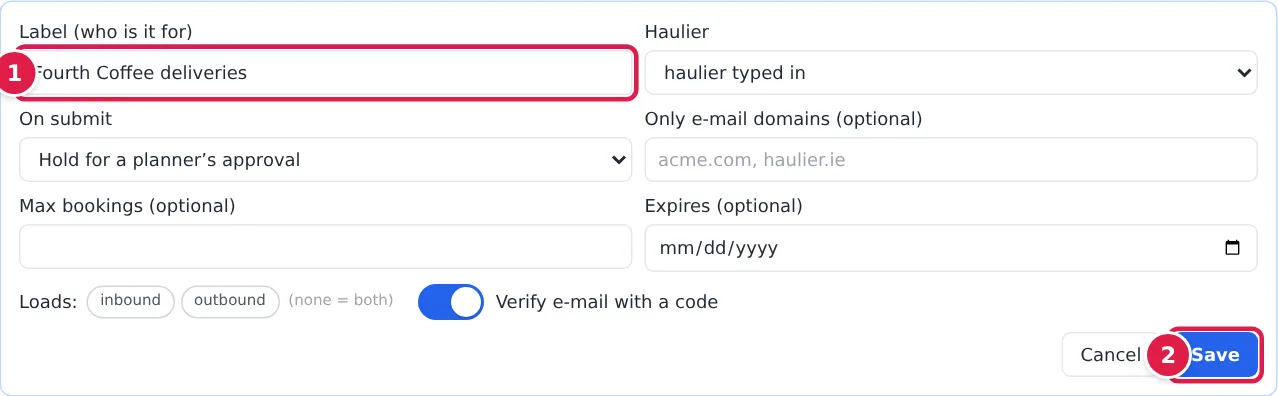
- Click + New link and fill in the form:
- Label (who is it for), so you recognise the link later.
- Haulier: let the visitor type the haulier's name (haulier typed in), pick from your carrier list (haulier from your list), or tie the link to one fixed haulier (then choose Which haulier).
- On submit: Hold for a planner’s approval, or Follow the site’s approval policy.
- Optional limits: Only e-mail domains, Max bookings, an Expires date, and which Loads (inbound, outbound or both) the link allows.
- Verify e-mail with a code: on by default. The visitor must enter a code sent to their e-mail before they can book.
- Click Save, then Copy to copy the link and send it to the supplier.
Each link in the list has Copy, Edit, Rotate (a new address; the old one stops working at once), and Disable or Enable. See Booking rules.
A booking held for approval appears under ✋ Approvals on the scheduling board, marked booked by public link. See Change, move or cancel a booking.
What the visitor does
The page, headed Book a delivery slot, has four steps: Your e-mail, The load, Pick a slot and Review.
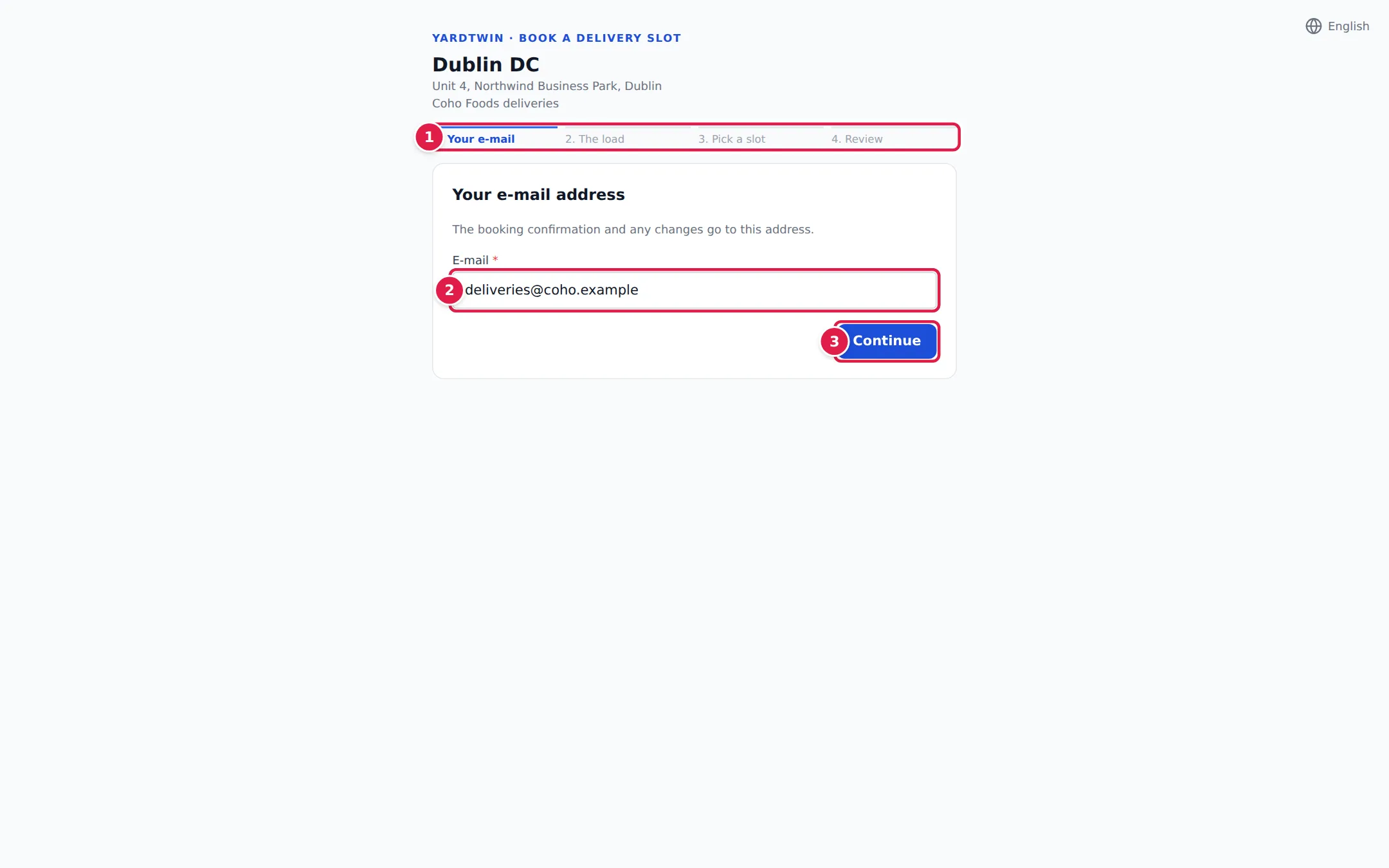
- The steps across the top.
- Enter the E-mail address. If the link verifies e-mail, click Send me a code, type the 6-digit Code from the e-mail, and click Continue. The code is valid for 15 minutes.
- Continue moves on to the load.
In The load, the visitor chooses the Load and Material, the number of pallets, the Vehicle type and the Haulier, and can add their name, company, PO / order reference, vehicle registration, trailer number, driver name and phone. They tick the two declarations about the goods and the vehicle, and click Pick a slot.
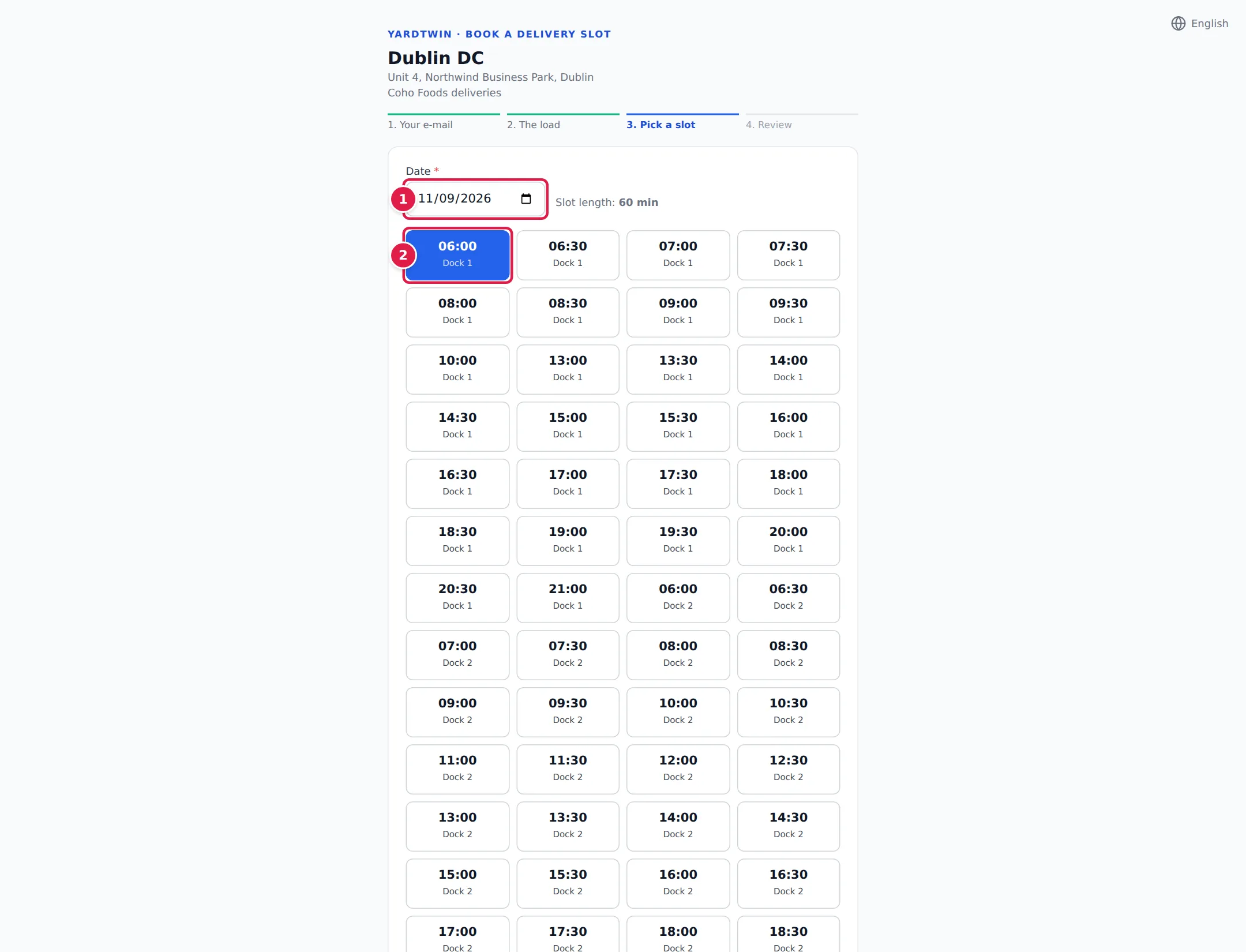
- Choose the Date. The page shows the Slot length, and says if the site is closed that day or bookings for it have closed.
- Click a free time. Each time shows the dock it is on.
Then click Review under the list, check the details under Check and send, and click Send the request.
The page then shows Request received (waiting for the site's approval) or Slot booked, with the reference. The details are e-mailed to the visitor, with a link to check the status.
Check the status
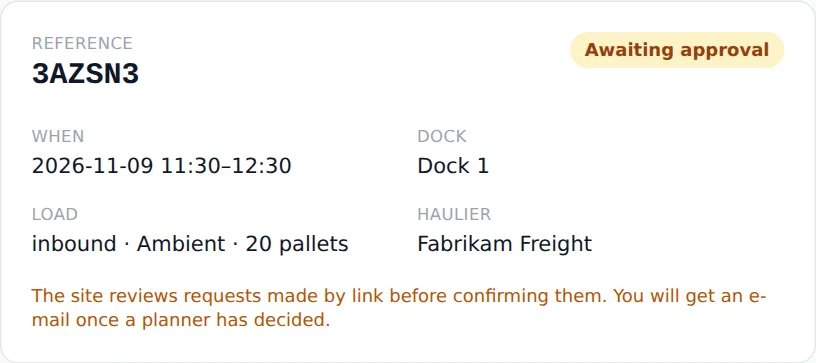
The status page shows the Reference, its status (for example Awaiting approval), When, Dock (or assigned on arrival), Load and Haulier. Once the booking is confirmed, it also gives the Driver page link to send to the driver; see What the driver sees on their phone.
The visitor can't change or cancel a booking from the status page; they contact the site.
If something goes wrong
- "This booking link is not available" The link has been disabled, rotated, has expired or has been used the maximum number of times. Ask the site for a fresh link.
- "Your e-mail verification has expired — verify again." More than 30 minutes passed after verifying. Enter the e-mail and a new code again.
- "That slot was taken in the meantime — pick another." Someone else booked it first.
- "No free slots on this day — try another date." The site is full that day.
- "Booking not found" The reference or e-mail address on the status page doesn't match. Check both.
- Other messages, such as "Appointment cannot be scheduled in the past", come from the site's booking rules; see Book an appointment.
A status link only works while the booking link itself works. If you disable, rotate or use up a link, its status pages stop working too.