At the end of your shift, hand the gate over properly: check what's still on site, leave a note for whoever takes over, and end the shift. Ending the shift also signs you out of the shared tablet.
Steps
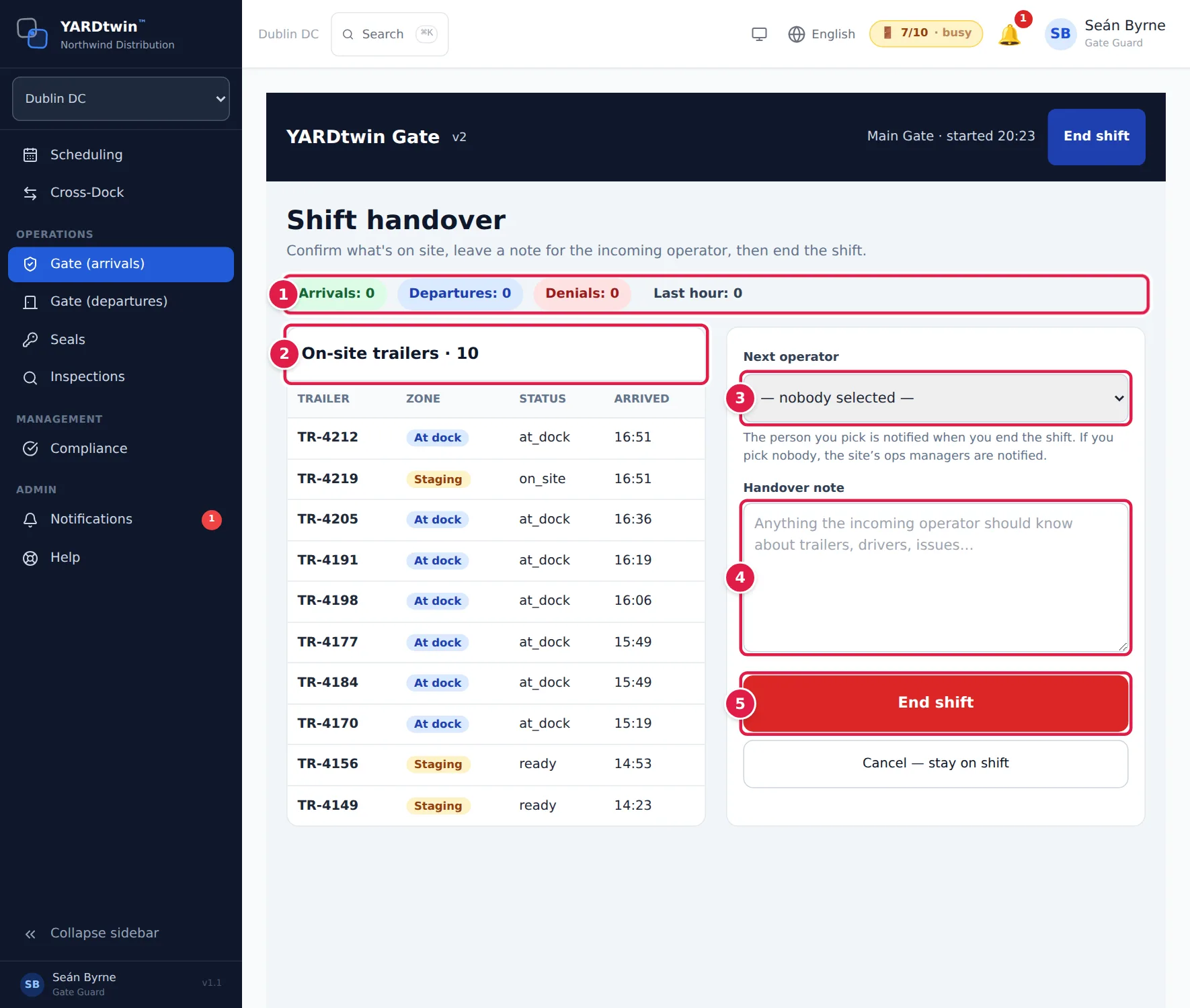
Tap End shift in the dark bar at the top of any gate screen. The Shift handover screen opens.
- Check your shift's totals: Arrivals, Departures, Denials and movements in the Last hour.
- Look through On-site trailers: each trailer still on site, with its Zone (for example At dock or Staging), status and arrival time. Trucks that have left aren't listed.
- Pick the colleague taking over in Next operator. The list shows the active gate guards, ops managers and administrators who can work your site's gate, by name and role. You can leave it as — nobody selected —.
- Type anything the next operator should know in Handover note, such as a trailer waiting for paperwork, a driver who'll be back, or a barrier fault.
- Tap End shift.
The screen shows Shift ended. After a couple of seconds YARDtwin signs you out, so the next operator signs in with their own account on the same tablet. When they open the gate screens, their own shift starts and your handover note is shown at the top. See Start your gate shift.
Who is told
When you end the shift, YARDtwin sends a notification with your handover note (or No handover note):
- to the colleague you picked in Next operator, or
- with nobody picked, to your site's ops managers.
It appears in their notifications bell. See Notifications.
Changed your mind? Tap Cancel — stay on shift to go back to the arrivals list.
What's recorded
Your shift record closes with its summary (arrivals, departures, denials and the departure signatures you gave), your handover note and the next operator you chose. Departures counts the trucks you cleared to leave during the shift, signed or on the classic gate screen. The end of the shift is written to the GMP audit log.
If something goes wrong
- "No open shift found" or "This shift has already been ended": your shift was already closed, for example from another tablet or by a second tap. It's closed once, and only that first close sends the notification. Sign out and back in.
- "That colleague cannot take over a gate shift at this site": their account has been deactivated, belongs to another organisation, has a role that doesn't work the gate, or is limited to other sites. Pick someone from the list, or leave it empty.
- Next operator only shows — nobody selected —: nobody else at your site has a gate guard, ops manager or administrator account. Leave it empty: your site's ops managers are notified, and the next operator sees your note when their shift starts.