Site blueprint turns a few facts about the site — what it handles, how many trucks, which systems it connects to — into a recommendation: the capability packs and the settings that fit, what would change from where the site is today, and what still has to be set up by hand. It is the same configurator as the public Plan your yard page, read against this site's own data.
Nothing changes until a site admin previews and applies the blueprint. An apply is one change set: every setting goes through its own validation, it is recorded once in the audit trail with the old and new values, and Revert puts the same settings back.
Open Site configurator — the first item of the Admin group in the left menu. It is the same page as Site Admin → Site blueprint; either way in works.
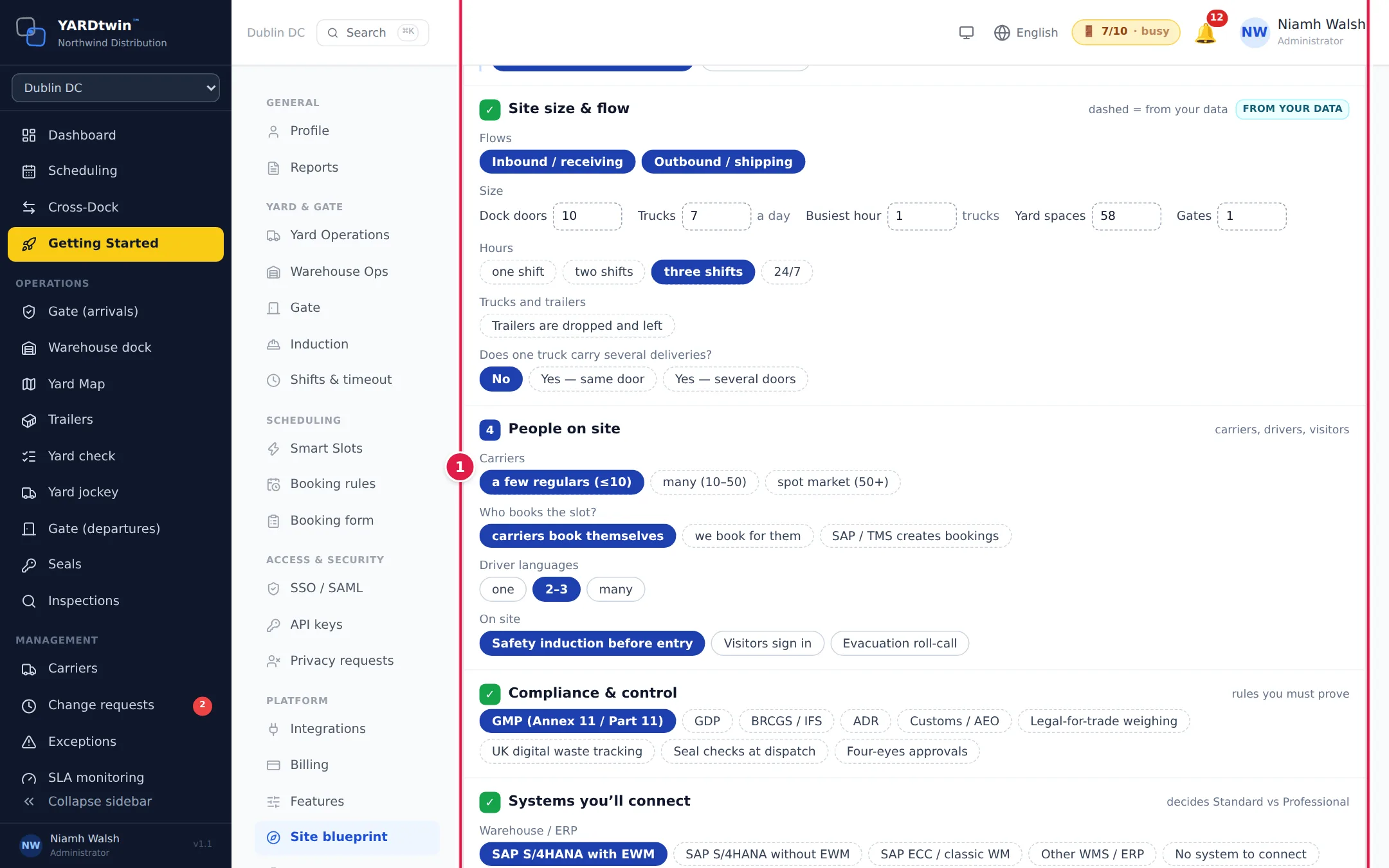
- Answers. The seven sections are pre-filled from the site: dock doors from the layout, trucks a day and the busiest hour from the last 90 days of bookings, dropped trailers and multi-delivery trucks from the bookings, the goods from the material types, the systems from the integrations. A dashed chip means the value came from your data; change anything that is wrong. Fewer than five days of bookings means the volumes are the defaults, not measured.
- Save answers keeps one draft per site, so a colleague can pick up where you left off. The draft never changes a setting. Reset to site data drops your edits.
- Changes lists every setting the blueprint touches, grouped by the Site Admin area that owns it: the value now, the value the blueprint recommends, and why. A blueprint never switches anything off and never lowers a level; a choice the site made on purpose (for example Smart Slots Off) is shown as Kept site choice.
A setting that cannot change says why: Needs Professional (the SAP sync points need a plan that includes integrations), Admin-only (such as the Life Sciences module, when you are an operations manager), or Blocked with the owner's reason (labour checks need docks linked to dock types first). Inactive until SAP marks an SAP setting that would be written now and start working once the SAP EWM connection is on.
Set up by hand lists what no blueprint applies on its own: the SAP connection, sign-in, cameras, weighbridge instruments and the layout. History shows the saved draft and every applied, reverted or re-applied blueprint with who did it and when.
Apply the blueprint
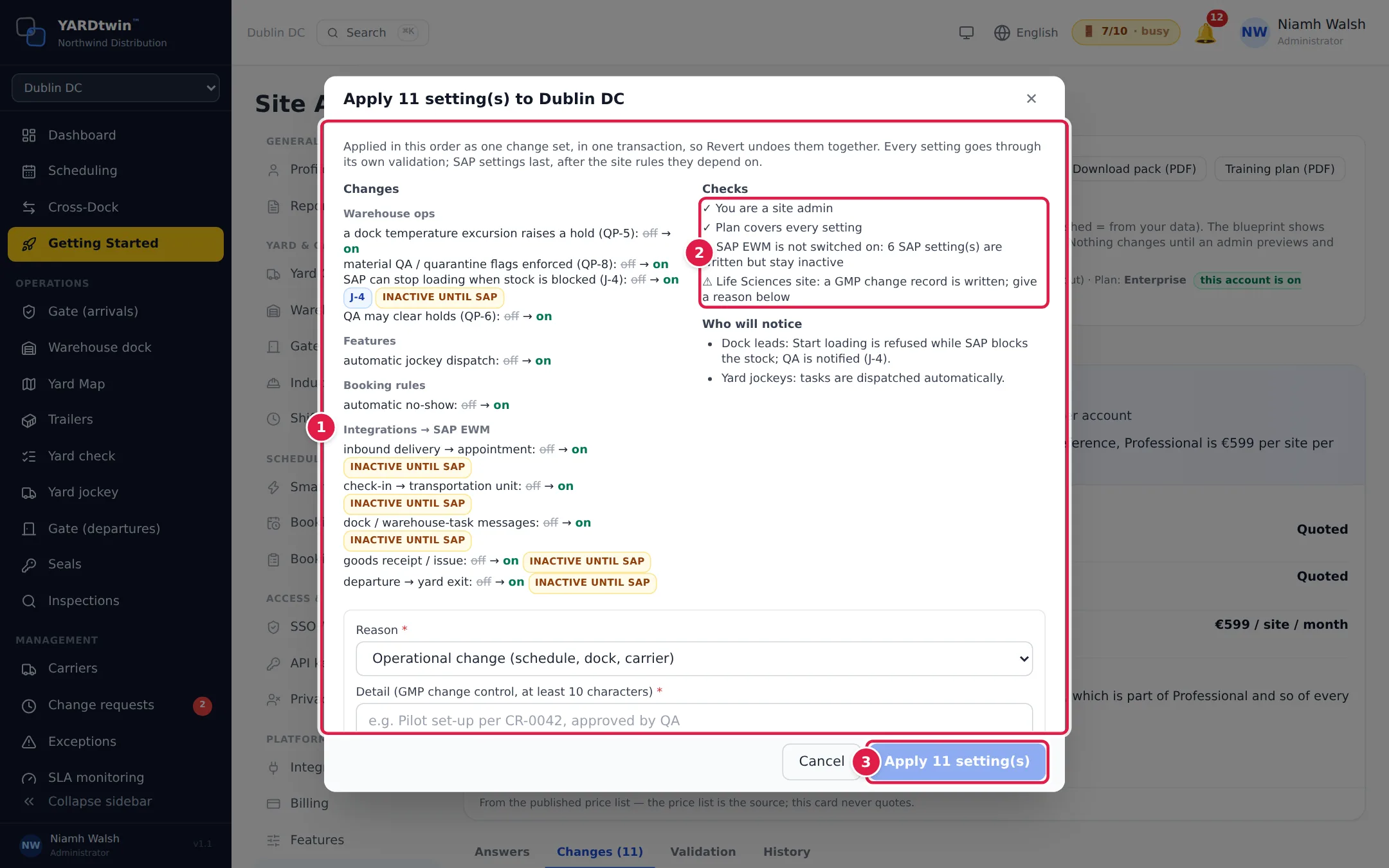
- Preview & apply opens the change set: what changes, grouped by the Site Admin area that owns it; the checks (your role, the plan, the SAP connection, change control); who will notice (carriers in Strict mode, the gate team for "Also on this truck?", QA for the SAP loading block). A setting that cannot change is listed as skipped with its reason; tick Apply the rest to go ahead without it.
- On a Life Sciences site — or when the blueprint switches the Life Sciences module on — choose a reason for change from the controlled vocabulary and give at least ten characters of detail. It is written to the audit trail with the change (GMP change control).
- Apply writes everything in one step. The pill reads Applied … by …, the Changes tab shows every setting in place, and the Getting Started step Plan this site's set-up is done.
Revert puts back the values this blueprint changed — only where the site still holds the value it set. The Life Sciences module is never switched off by a revert. The labour stage goes back through its own rules; SAP sync points reverted while the SAP connection is on are flagged.
Changed outside the blueprint. When someone later changes one of those settings on its own tab, an amber banner names it: blueprint on, site now off. Re-apply blueprint values puts the blueprint's value back; keep as site override records the hand-made value as deliberate, and the setting leaves the banner and a later revert. Both are audited.
Validate the applied blueprint
The Validation tab lists the acceptance scenarios of the applied blueprint — one per capability pack it switched on (dangerous goods, drop & hook, handling units, quality, and the SAP scenarios J-2 / J-4 / J-6 when SAP is connected). Each is a short script: the steps to run on the real site, who runs them, and what counts as a pass. Until a blueprint is applied the tab only says so.
- Tick each step as you execute it. Your name and the time are kept on every step; anyone with the role may tick (admins, ops managers, QA). Nothing is written to the audit trail for a tick.
- Sign the outcome — Mark passed once every step is ticked, Mark failed (say what happened, at least ten characters) or Not applicable (say why). The steps as ticked, the outcome, the note and your name are hashed into the signature and stored with it; the attempt is recorded once in the GMP audit trail and can no longer be edited.
- Run it again with Re-open: a new attempt opens with every step unticked; the signed attempt stays exactly as it was and is listed under Earlier attempts.
Who can do what. Administrators (and ops managers) see the whole tab; administrators alone apply, revert and re-apply. Quality (QA) and an Implementation partner open Site Admin for this tab only: they read the blueprint, can tick and sign the validation scenarios, and cannot apply. A partner reaches only the sites an administrator has named for them (📍 in Settings → Users) — until then the tab refuses them. See Roles.
Life Sciences sites. Signing asks for your password — the electronic-signature password if you have set one under Settings → Profile — and the person who applied the blueprint cannot sign its validation; a second person does (segregation of duties). On other sites the person who applied may sign; the signature is marked self-validated.
Copy evidence summary puts the whole picture on the clipboard — blueprint, when and by whom it was applied, each scenario with its outcome, signer, time and signature prefix, and the number of blueprint records in the audit trail since — ready for a validation report or a change record. The header pill of the tab counts passed and not-applicable scenarios against the total.
Download the blueprint pack and the training plan
Download pack (PDF) and Training plan (PDF) in the header give you two documents built from this site's blueprint. The blueprint pack has what the plan costs per site and why (from the published price list; Enterprise is quoted per account and shows no figure), the set-up, the implementation plan, a site readiness checklist, roles and accounts with suggested seats, the validation protocol with each scenario's status and signer, a one-page carrier notice, the SAP partner brief when SAP is connected, and a measurement plan. The training plan lists, for every role on the site, the modules to cover, the pages of this help centre written for that role, the hands-on exercises, an estimated duration and a training record to sign — on a Life Sciences site, a GMP training record.
Both read the applied blueprint. Before an apply they describe the current recommendation and say so on the first page. Anyone who can open the tab can download them; the same two documents are offered on the public Plan your yard page for the answers given there.
The capability packs the blueprint names are the same ones on the Features tab, and the settings are the same switches you find on their own tabs; the blueprint only puts them in one place with the reason for each.