The booking timeline answers "what happened to this truck, and why did it take so long?" on one page: when it was booked, arrived, checked in, docked, unloaded or loaded, and left, with every action recorded against the booking.
Open a booking's timeline
- From search. Press Ctrl + K (⌘ + K on a Mac), or click Search at the top of any screen. Type at least two characters of the booking code, carrier, truck registration, trailer, driver or reference. Pick the booking under Bookings.
- From Exceptions. Click the booking code on an exception. See Exceptions.
- From the dock. On the warehouse monitor screen for a truck, click 📊 Open timeline. See Monitor unloading.
What you'll see

The header shows the booking code and its current status, and below it the carrier, direction, commodity, dock, pallet count and any temperature requirement.
- Booking-in form opens the dock's booking-in form for this truck. It is read-only once the truck has been closed out.
- Print / Save PDF prints the page as a Booking Audit Trail, or saves it as a PDF from your browser's print window.
Under the header:
- Predicted dwell, when there is enough history: the average time similar loads have taken at your site, and the time 9 in 10 of them finished within.
- Total elapsed and active dock time, with a bar showing each stage in colour: grey for the system, green for the gate, purple for the yard and blue for the warehouse. The bar starts at the earliest stage, so a truck that arrived before its slot is shown too. Scheduled and Departed are moments, drawn as thin lines; point at one to see its time.
- All times are in the site's time zone.
- A table of the stages with their start, end and duration:
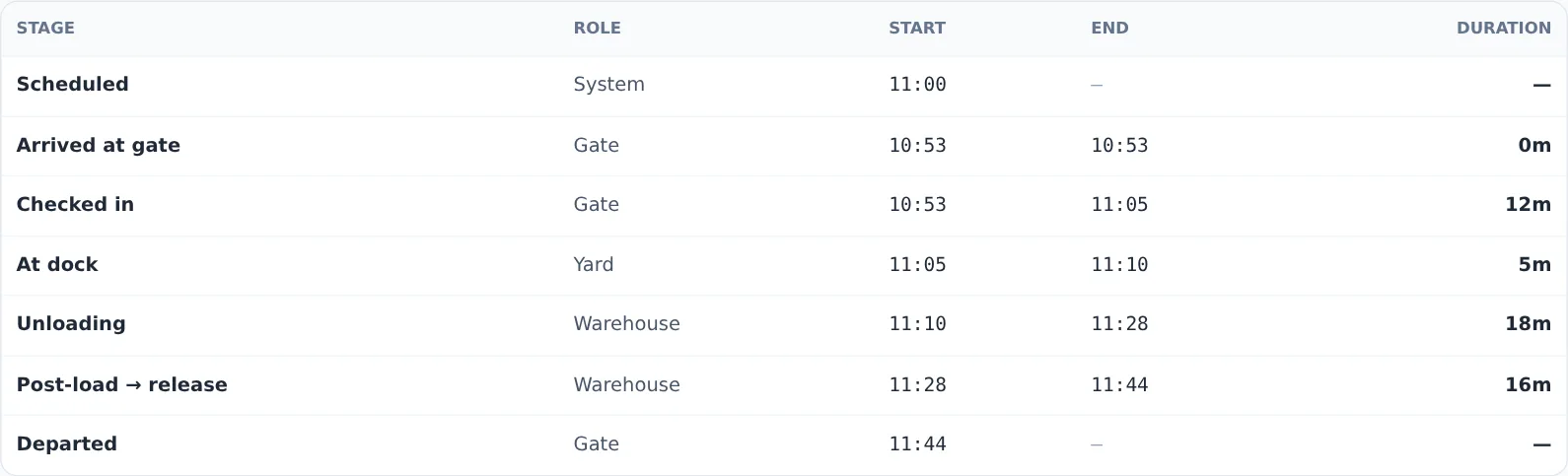
| Stage | From | To |
|---|---|---|
| Scheduled | the booked start time | |
| Arrived at gate | arrival | check-in |
| Checked in | check-in | arriving at the dock |
| At dock | arriving at the dock | the start of unloading or loading |
| Unloading or Loading | start | finish |
| Post-load → release | finish | departure |
| Departed | departure |
Stages that haven't happened yet are left out.
- Holds, if the load was put on hold at the dock: each hold's reason, note, and when it was raised and cleared.
- Audit trail: every action recorded against the booking, oldest first, with the time, the action, a description and who did it.
- For a temperature-controlled booking, a chart of the temperatures recorded during the visit.
← Back returns to the page you came from.
The timeline is read-only. To change a booking, see Change, move or cancel a booking.
If something goes wrong
- "Booking not found" The booking doesn't exist at your company, or the link is wrong. Search for it again by its code.
- The booking isn't in the search results. Search shows up to 8 matching bookings and starts after two characters. Type more of the code or registration to narrow it down.
Stages and their sources
Below the segments, Stages lists every stage of the visit — gate in, at dock, work started, work complete, left dock, gate out, and for a drop visit dropped and collected — with the time YARDtwin chose and where it came from: the gate's workflow stamp, the operator's Start / Complete, a connected WMS, a dock sensor, or the truck's own GPS. Hover a time for the other sources that saw the same stage; a ⚠ marks a GPS fix on another dock than the one booked. A drop visit shows the trailer's own row. Stage durations against their targets compares each measured gap with its stage target: amber when running long, red when over.