The Cold chain page is the site-wide view of temperature-sensitive consignments: what's out of controlled storage now and how much of its permitted time it has used, and which temperature excursions are still waiting for a QA decision. It covers the consignments recorded on the Consignments page, and appears in the menu when the site's Life Sciences & Clinical Trials feature is on.
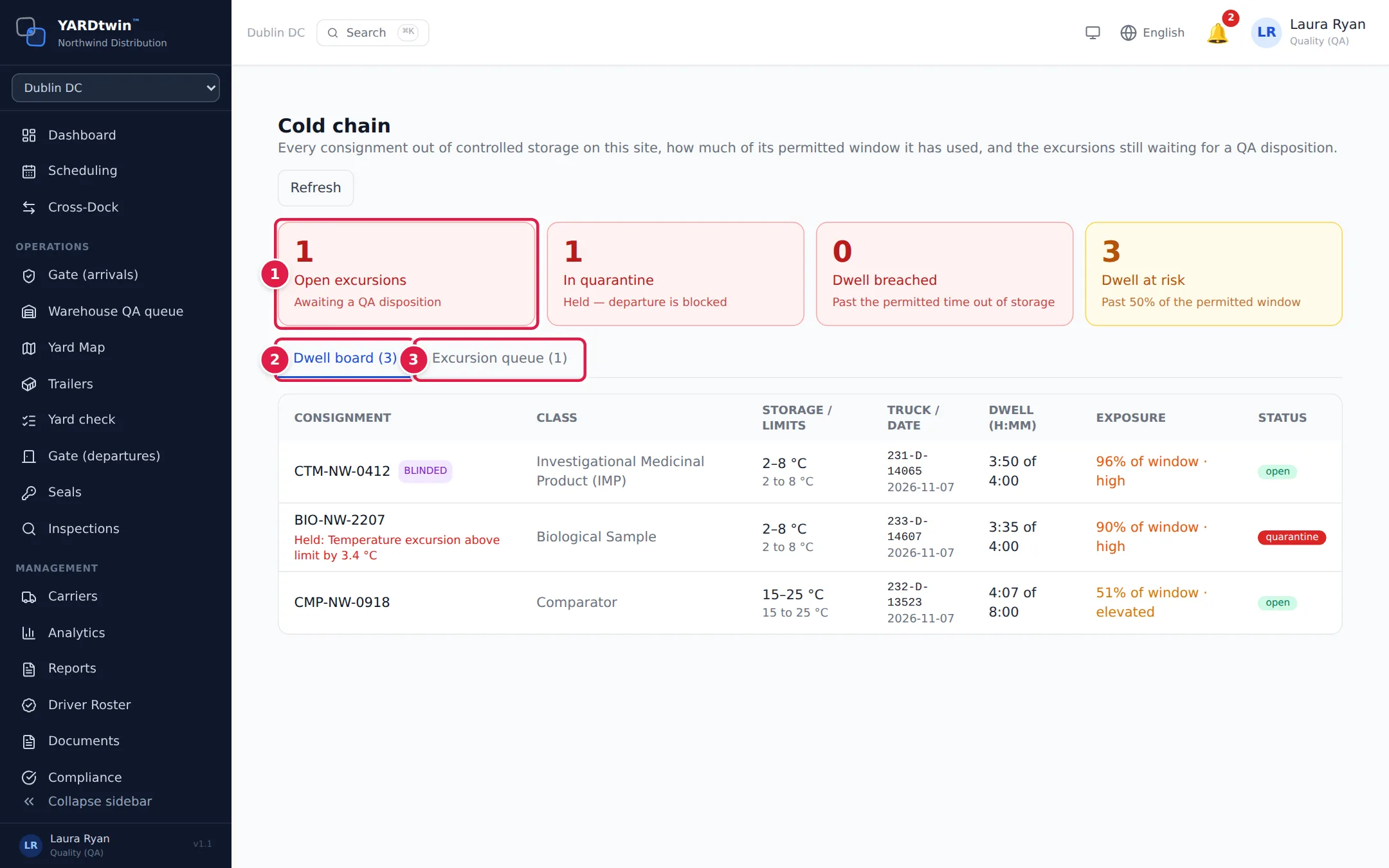
- The four tiles:
- Open excursions: excursions awaiting a QA disposition.
- In quarantine: consignments held; their departure is blocked.
- Dwell breached: consignments past their permitted time out of storage.
- Dwell at risk: consignments past 50% of their permitted window.
- Dwell board lists every consignment that is open or held on the site, most at risk first.
- Excursion queue lists the excursions.
Click Refresh to update the page.
The dwell board
Each row shows the Consignment (with BLINDED or SAME-DAY CRITICAL tags where they apply, and the reason it's held), its Class, its Storage / limits, the Truck / date, and:
- Dwell (h:mm): how long it has been out of storage against its window, for example 1:20 of 4:00. The clock starts when the truck is gated in; before that the cell shows —. No window means none is set for it.
- Exposure: the share of the window used, with the risk: normal, elevated, high or BREACHED.
- Status: open or quarantine.
Give a disposition to an excursion
A reading outside a consignment's required range creates an excursion and puts the consignment in quarantine at once. Only a QA disposition releases it; it can't be overridden at the gate.
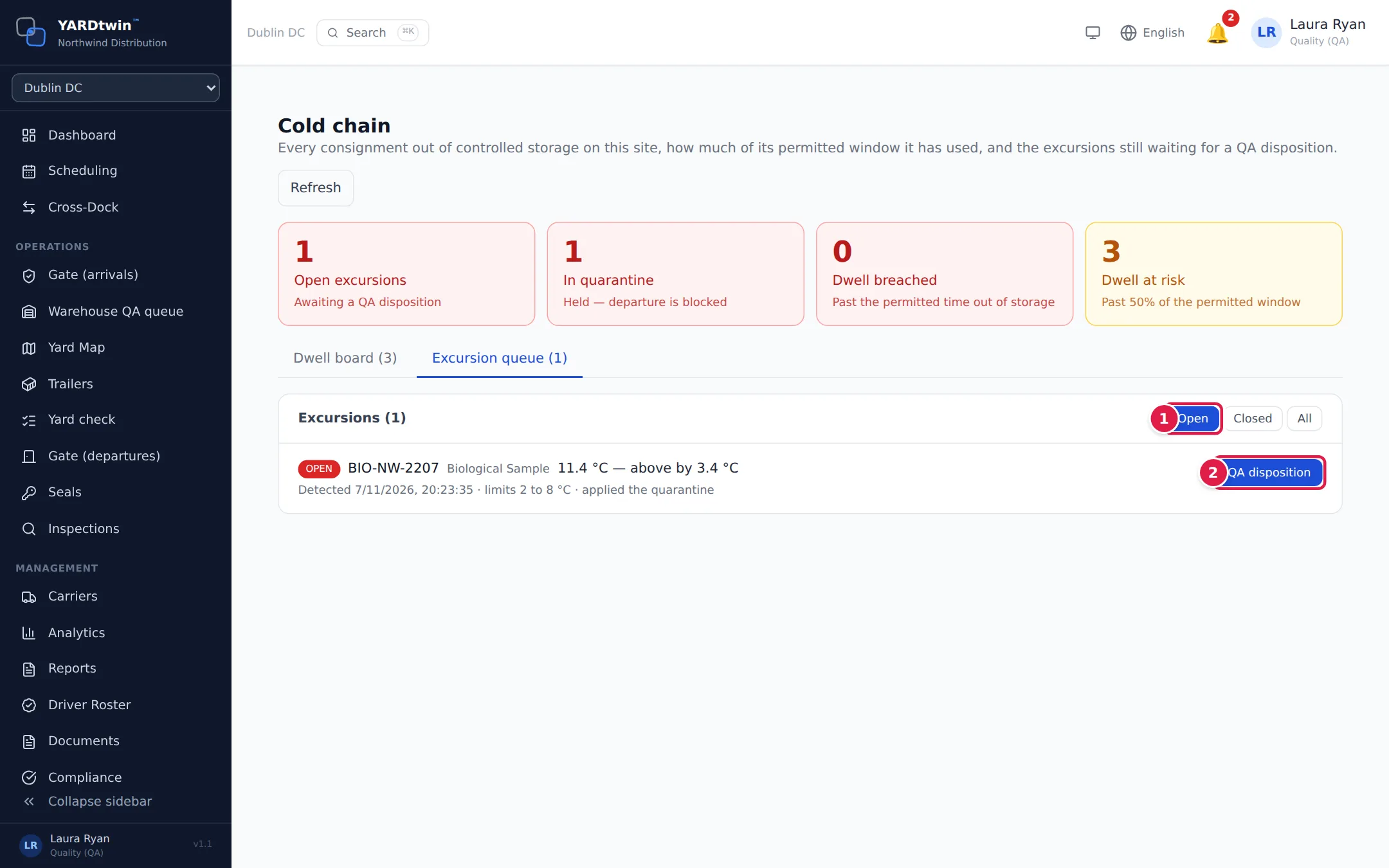
- Choose Open (the default), Closed or All. Each excursion shows the reading, how far and in which direction it was out, when it was detected, the limits, and whether it applied the quarantine.
- Click QA disposition on the excursion.
In the QA disposition of excursion dialog:
- choose the Disposition: Release — product fit for use, Reject — do not use or Destroy;
- write the Rationale, at least 10 characters. This is the record an inspector will read: say what you checked and why you decided as you did;
- click Record disposition.
The disposition is recorded as a custody event under your name. When it releases the last open excursion, the quarantine is lifted: Disposition recorded — quarantine lifted. If others are still open, the consignment stays held.
By default only QA and administrators can give dispositions; your site can add roles. Other users see QA, admin or super-admin role required to disposition — the server enforces this.
If something goes wrong
- "Life Sciences module is not enabled for this site": ask an administrator to switch it on, or choose the right site.
- Record disposition is grey. Write a rationale of at least 10 characters.
- "Disposition recorded. … excursion(s) still open; the consignment remains held." Give a disposition to the remaining excursions too.
- No QA disposition button. Your role can't give dispositions.