Checking a truck in has three parts: find the booking, work through the paperwork checklist, and authorise entry. YARDtwin then tells you, and the driver, which dock to go to.
Find the booking
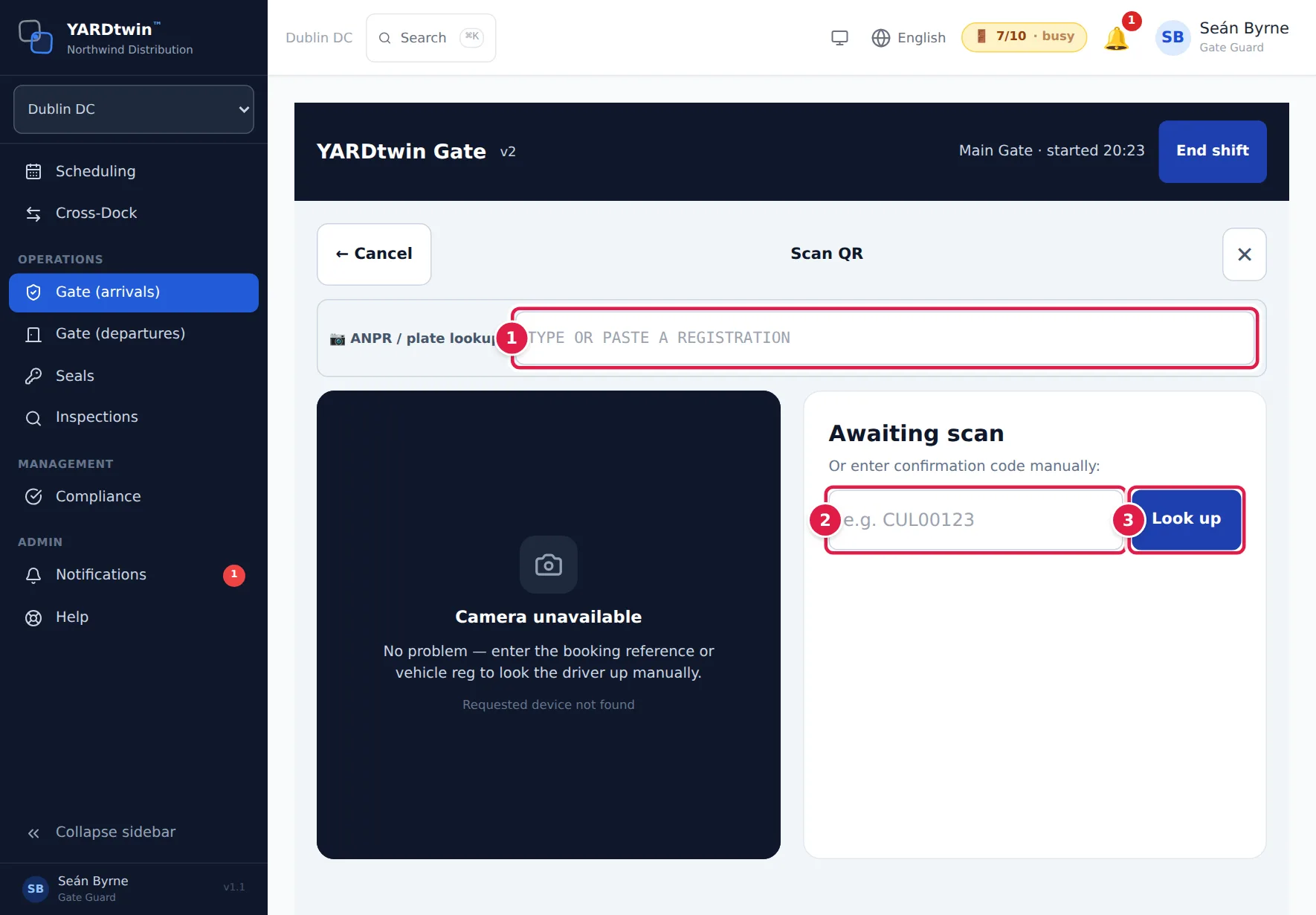
Tap Open on the truck's row in the arrivals list, or tap Scan QR. The scan screen opens the tablet camera: hold the QR code from the driver's booking confirmation inside the frame. When it reads the code, a green ✓ QR matched booking banner appears and the booking opens.
If the camera can't read the code, or the tablet has no camera (the screen then shows Camera unavailable), look the booking up instead:
- Type the truck's registration in ANPR / plate lookup:. After five characters, matching upcoming bookings appear underneath. Tap the right one.
- Or type the booking's confirmation code under Or enter confirmation code manually:.
- Then tap Look up.
The booking card shows what was booked, marked ✓ System data: carrier and contact, driver, truck, trailer, booked time, dock, load, quantity, purchase order, Expected seal, hazmat and cold-chain details, and any notes. A field left blank on the booking shows —. If the driver or carrier has no e-mail on the booking, a yellow ⚠ no driver email — won't be notified tag warns you that they won't get the entry confirmation.
Work through the checklist
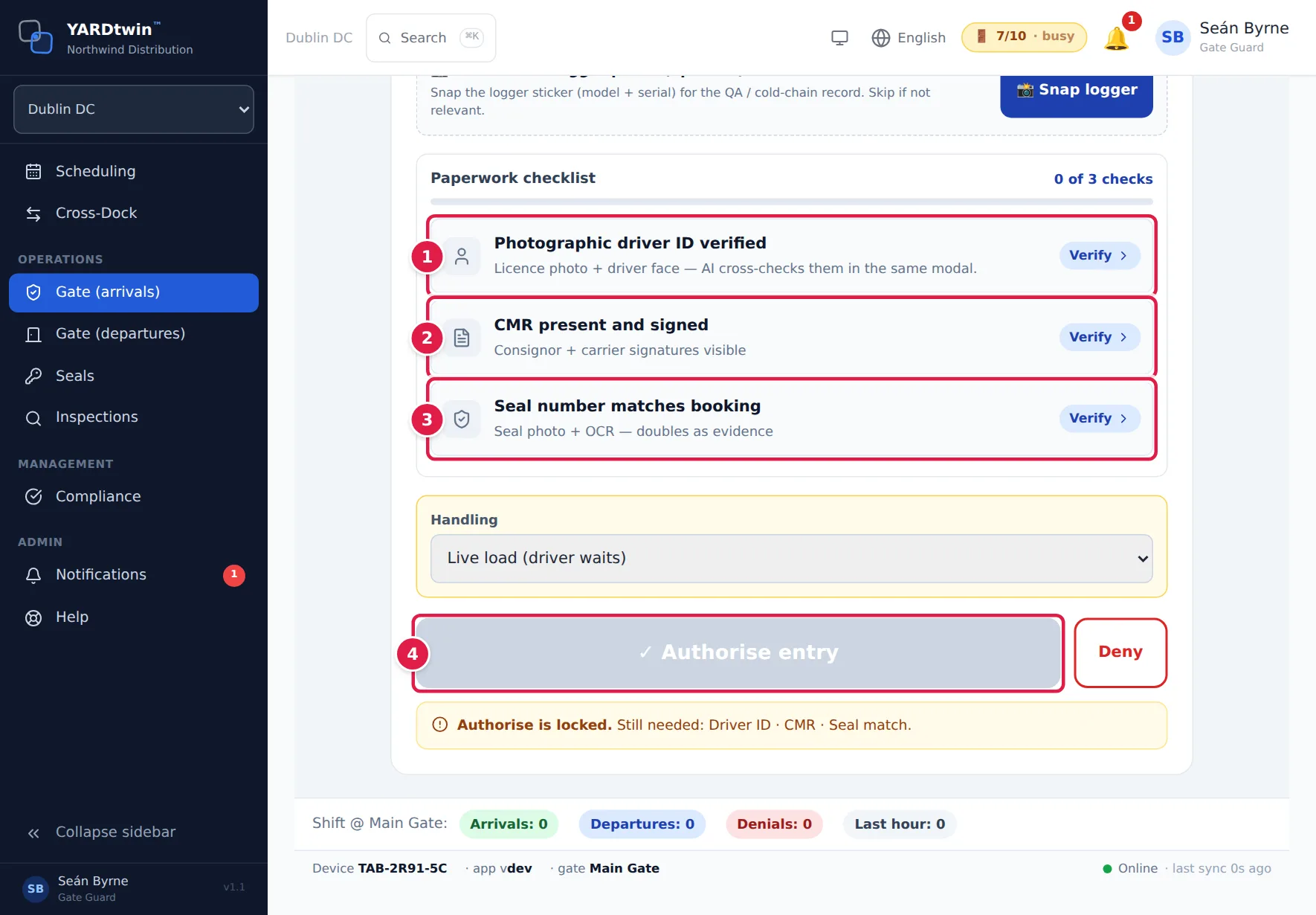
The Paperwork checklist lists the checks this booking needs, with a count such as 0 of 3 checks. Tap each item, record the evidence, and confirm it. The item turns green and shows Done.
Photographic driver ID verified: take or upload a photo of the driver's licence (1. Driver licence) and of the driver (2. Driver face). What happens next depends on the site's AI face-compare setting:
- Off (the default): the photos are not compared by AI. Compare the driver in front of you with the licence photo yourself, tick I compared the driver with the licence photo, and tap ✓ Confirm verified.
- On: YARDtwin compares the two photos automatically. If the match is confirmed, tap ✓ Confirm verified. If it can't confirm the match, check the driver yourself and type a reason of at least 30 characters in Manual override. The comparison counts for this check-in only, for 30 minutes; if YARDtwin asks you to repeat the ID check, open it again and retake a photo.
Either way, how the driver was checked, the AI result as YARDtwin recorded it, and any override reason are written to the GMP audit log when you authorise entry. The step also shows the data-processing notice to read to the driver.
CMR present and signed: tap Capture CMR to photograph the consignment note, tick Shipper signature visible and Carrier signature visible, then tap ✓ Confirm CMR.
Seal number matches booking: photograph the seal. YARDtwin reads the number from the photo and fills in Seal number; correct it if needed. If it matches the booking you'll see ✓ Matches the booking seal. Tap ✓ Confirm seal. If it doesn't match, see Problems at the gate.
When every required check is done, tap ✓ Authorise entry.
Other checks appear only when they apply:
- Cold-chain product intact, for a booking with a temperature range. Photograph the trailer's temperature display, or type the Current temperature reading (°C). YARDtwin shows whether it's within the booked range. You can also tick Temperature logger attached and started. If the gate check doesn't apply, tap No cold-chain or Check at dock; either records a reason.
- Placards and orange plates correct and ADR safety equipment on board, for a dangerous-goods load at a site that checks them. If SAP flagged the delivery as dangerous goods but sent no UN details, the booking shows a red Dangerous goods — flagged by SAP. banner and Flagged by SAP — no UN details under hazmat, and you get the same checks. There is no class to tick: check the placards and orange plates match the load and the transport document, then record what you saw (for example class 3 placards, orange plates front and rear) before you confirm.
- Weighbridge — Gate In, when the load's material must be weighed on arrival. Accept the reading the weighbridge sends (Auto-read (EDI)) or switch to Manual entry and type the Gross weight (kg). A difference of more than 5% from the booked weight is flagged for review but never blocks entry.
An item tagged OPTIONAL can be skipped. Your administrator decides which checks your site requires, and which materials need a seal check or a weighing.
No camera handy? Every photo step has Upload image and ✎ Confirm manually (no photo). A manual confirmation asks for a reason, which is recorded in the GMP audit log with your name and the time.
Below the booking card you'll also find:
- Trailer data-logger photo (optional): tap 📸 Snap logger to photograph the logger's sticker for the cold-chain record. It doesn't count towards the checklist.
- Handling: how the truck is being handled, as booked. Change it if the driver tells you otherwise: Live load (driver waits), Drop trailer, Hook trailer (arrive bobtail) or Drop and hook. For a drop, enter the Trailer being dropped; for a hook, the Trailer being hooked.
The line under the buttons tells you what's still missing, for example Authorise is locked. Still needed: Driver ID · CMR · Seal match. When everything is done it says All checks complete — ready to authorise entry.
A truck carrying several deliveries
Sometimes one truck brings several deliveries that were booked separately, each with its own booking (for example two SAP deliveries). Check the truck in once, for all of them.
If your site has Pair deliveries at the gate switched on, the scan screen shows an Also on this truck? box under the booking card when there are other bookings for the same number plate that have not been let in yet (booked from yesterday to tomorrow). Each line shows the booking (the SAP delivery number in amber, then the booking code), the booked time, the supplier and the plate.
- Tick the deliveries the driver is carrying (check the delivery notes).
- The line under the list says what will happen:
- One check-in, one SAP TU, worked together at one dock: the bookings become one combined truck, unloaded together at the booking's dock. Its slot is extended to fit all the deliveries.
- Gated in once, handed over on site: the bookings become one truck visit. The truck is unloaded for one delivery after another, and each next delivery is handed over on site when the previous one's departure is signed.
- A red line explains why they can't be paired, for example a booking that has already arrived on its own.
- Tap Pair and gate in once. The screen reloads the truck's main booking (the one you opened). Work through the checklist and tap ✓ Authorise entry once: every delivery on the truck is checked in.
Until you authorise, ↺ Undo pairing puts the bookings back exactly as they were (their own times, docks and status). After the truck has been authorised, only a planner can split it.
Whatever your site's settings, a delivery of a truck visit that is already on site can't be checked in a second time. You'll see This delivery is on visit V-…, which is already on site under … — do not gate it in again, on this screen, on the classic gate screen, when you approve a driver's self check-in (the request stays open) and when a camera or the unmanned gate reads the plate (it becomes a gate exception). The delivery is checked in on site when the previous delivery's departure is signed.
A camera that reads a plate shared by several bookings that have not been paired can't tell which one it is, so it raises a gate exception for you to resolve. Once the bookings are paired, the plate finds the truck.
Tell the driver where to go
After you authorise, the Entry authorised screen shows the instructions the driver also receives:
- Proceed to the dock (or the staging area), the yard route and the 10 km/h speed limit, in the driver's language where the screen supports it. Under it, a line says whether an e-mail with these instructions is being sent to the driver, or that there is no driver e-mail on the booking, in which case read them out.
- 🔊 Play instructions reads them out in the driver's language.
- 📷 Scan next arrival goes straight to the next check-in.
- 🖨 Print paper slip prints a small entry slip with the booking, carrier, driver, truck, dock, time and route.
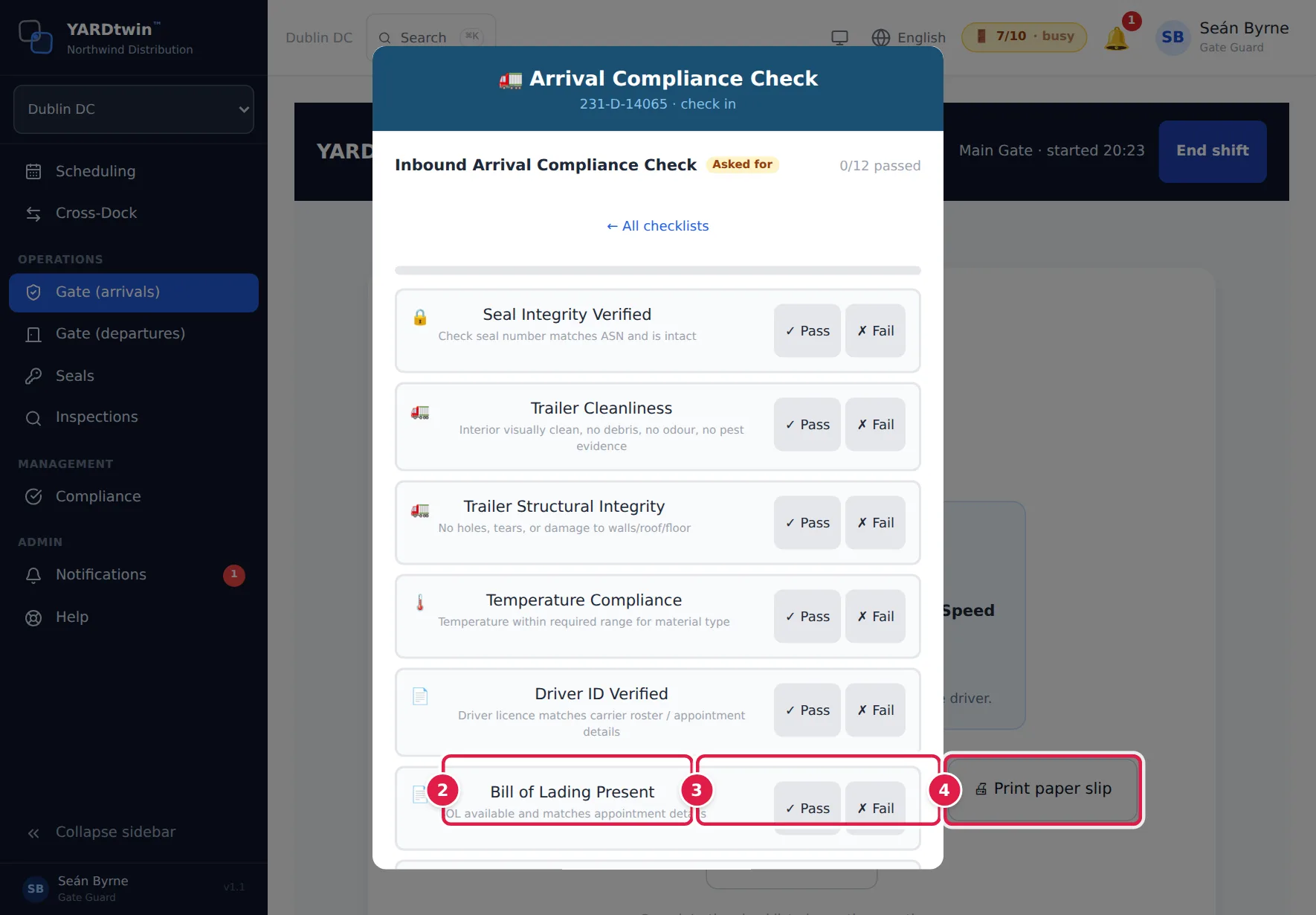
The screen returns to the arrivals list after five seconds, or use Back to arrivals. If a weighing was recorded, 🧾 Weighbridge ticket opens the weighing ticket.
Check-in checklists
If compliance checklists apply to this truck at check-in, the first one opens over the Entry authorised screen. Answer every item and submit; the next mandatory one follows. Mandatory checklists are tagged:
- Asked for: your site asks for it, but the truck isn't held for it. If you close it, a yellow box says Your site asks for a check-in checklist that is not completed; 📋 Complete checklist reopens it, or complete it later on the departure screen.
- Required: at a site that holds departures for mandatory checklists, the truck can't leave site until it's completed, or until an administrator, ops manager or QA releases it. While one is open, the screen doesn't return to the arrivals list by itself: a red box says A mandatory check-in checklist is not completed, and 📋 Complete checklist reopens it. If you close it with Not now — departure stays blocked, it can still be completed later, on the departure screen.
What YARDtwin does when you authorise
- Checks the dock is free. If the booked dock is taken, it sends the truck to another free dock of the right type and shows a yellow ⚠ Dock reassigned box. If no dock is free, a red 📍 No dock available — send to staging box tells you to send the driver to the staging area; operations will call the truck to a dock once one frees up.
- E-mails the entry confirmation to the driver and the carrier, with the dock, the route and a link to the instructions in the driver's language.
- Puts the truck on the yard map and on the departures board, records the arrival against the trailer, and writes the check-in to the audit log.
- Records the seal you checked against the booking, so the warehouse can compare it when the doors are opened.
If the tablet is offline when you tap Authorise entry, you'll see Offline — authorisation queued. It will sync once the tablet is back online. A yellow bar at the top of the scan screen counts the queued actions until they're sent.
If something goes wrong
- Authorise entry is grey. A required check is still open; the line under the button names it. If every check is done, a required document is missing: see the documents panel above the buttons.
- "No matching booking. Tried: …": the code or QR didn't match a booking. A typed confirmation code is searched among this site's bookings from two days ago to two weeks ahead. Check the code with the driver, try the plate lookup, or see A truck with no booking.
- "Paperwork checklist incomplete": a required check wasn't confirmed. Open the item and confirm it.
- "Weighbridge reading required — record the truck weight at the gate before authorising": this load must be weighed on arrival. Record the weight in the weighbridge panel.
- "Cold-chain evidence required — record a temperature reading or attach a photo of the trailer logger display": open Cold-chain product intact and add a reading or a photo.
- "Required documents missing at gate: …": the load's material needs these documents before entry. Upload them in the documents panel.
- "Already authorised": the truck has already been checked in, perhaps at another gate. Go back to the arrivals list.
- "Another gate is processing this appointment": a colleague at another gate has the same booking open. Agree who checks it in.
- "Booking … is awaiting a planner's approval" or "Booking … is cancelled": the booking can't be admitted yet. Ask the planner to approve it, or book a new slot.
- A red panel says Check-in blocked: the driver is blocked on the carrier's roster, hasn't completed the site induction, or is on the site watchlist. Your role may not be able to override it; if it says so, call an ops manager, QA or an administrator. See Problems at the gate.