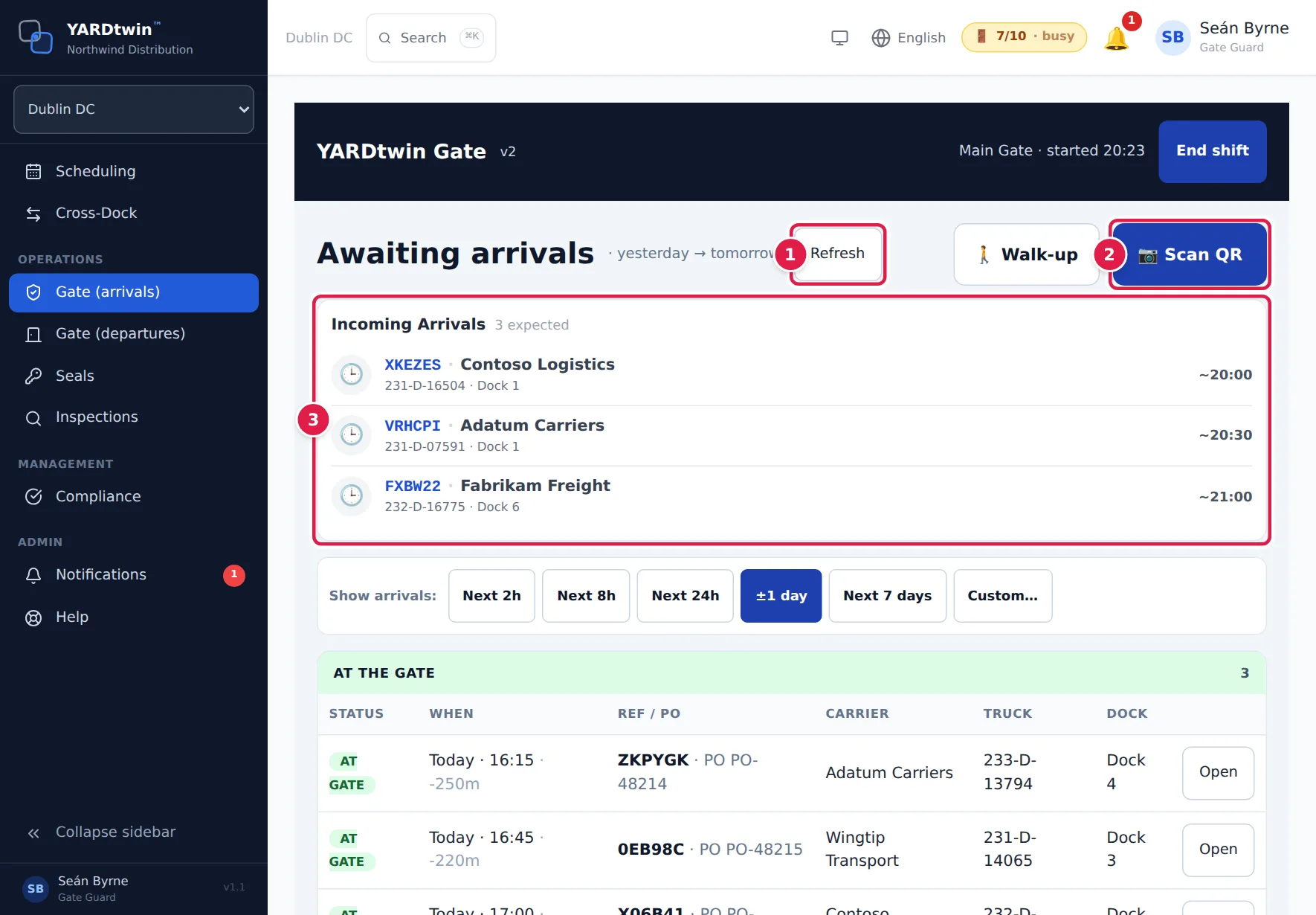
Awaiting arrivals is the gate's home screen. It lists the bookings due at your site, grouped by how urgent they are, and it's where you start every check-in.
The top of the screen
- Refresh reloads the list now. You rarely need it: the list updates itself every 30 seconds.
- Scan QR opens the camera to scan the QR code on the driver's booking confirmation. See Check a truck in.
- Incoming Arrivals shows the trucks due from 30 minutes ago to four hours ahead that haven't arrived yet, soonest first. Each line shows the booking code, carrier, truck registration, dock and expected time. When a driver shares their location from their phone, the line turns green with a 📍, shows the live ETA and the distance, and says Driver-shared.
Find a truck and open it
- Pick how far ahead to look under Show arrivals:. Choose Next 2h, Next 8h, Next 24h, ±1 day (yesterday to tomorrow, the default), Next 7 days, or Custom… to enter your own From and To.
- Find the right group. Bookings are grouped into:
- At the gate: trucks that have arrived or been checked in and haven't reached a dock yet.
- Overdue — not yet arrived: due more than 15 minutes ago and not here.
- Due now: due within 15 minutes either side of now.
- Later today, Tomorrow and Further out.
- Check the status tag: AT GATE, OVERDUE, DUE, DELAYED (a few minutes past its time) or ON TIME. The When column shows the date and time, plus how many minutes away or late it is.
- Tap Open on the truck's row. The booking opens on the check-in screen, with the checklist ready. See Check a truck in.
Every time on this screen is the site's time, and Later today and Tomorrow follow the site's calendar, whatever time zone the tablet is set to.
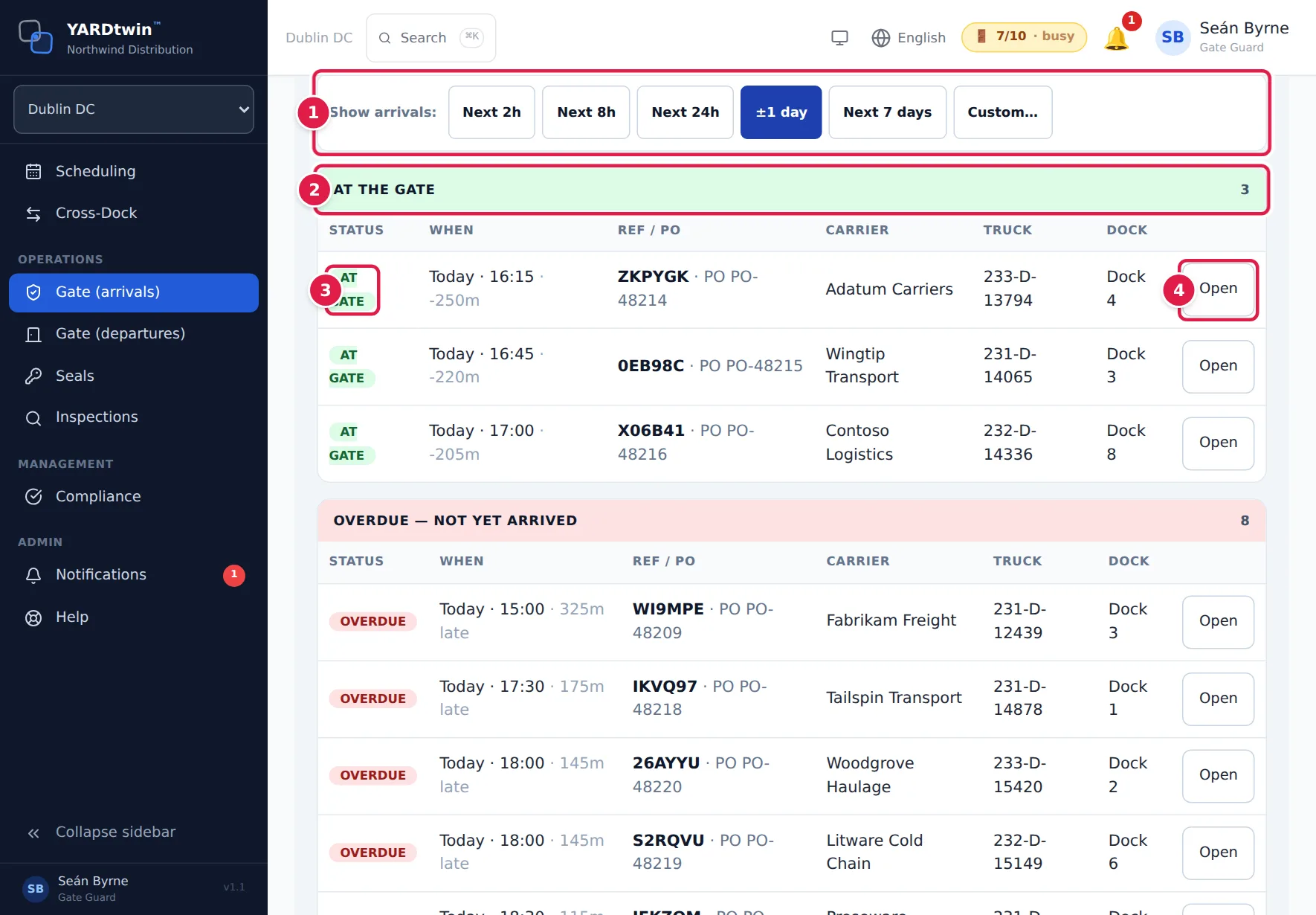
Each row also shows the booking code and purchase order (Ref / PO), the Carrier, the Truck registration and the Dock. Two small tags can appear:
- A red VERIFY or amber tag next to the carrier means the carrier's record needs attention, for example its insurance is expiring. Hover over the tag for the reason. It's for information only and doesn't stop the check-in.
- A 🧩 tag such as 1/2 next to the truck means one truck is bringing several deliveries. Check it in once, on its first delivery.
Cancel a delivery (ops managers and administrators)
Ops managers and administrators also see a red ✕ Cancel button on each row. Use it when a delivery won't happen, for example the site is closed or the paperwork is wrong.
- Tap ✕ Cancel on the row.
- Type the Reason. It's required and can be up to 500 characters.
- Tap Cancel delivery, or Keep booking to back out.
The carrier gets an in-app notification and an e-mail with your reason, everyone at the site is notified, the dock is freed, and the cancellation is written to the audit log.
A late cancellation, by default one within 24 hours of the slot, is flagged as late on the carrier's scorecard. A booking that has already departed or been cancelled can't be cancelled.
If something goes wrong
- "No arrivals scheduled in the selected range": nothing is booked in that window. Pick a wider range, such as Next 7 days.
- A truck you're expecting isn't listed. It may be booked at another site; check the site switcher at the top of the menu. It may also have no booking at all. See A truck with no booking.
- A red error message replaces the list. The tablet couldn't load the arrivals. Check that the device bar at the bottom says Online, then tap Refresh.