Yard Operations holds what YARDtwin needs to know about your yard: its docks, the kinds of goods you handle and the checks each one needs, your suppliers, and the rules for which truck goes to which dock.
It is a long page. The sections, from the top, are: Yard map transit time, Dock Doors, Material Types & Staging Buffers, Material rules at this site, Suppliers, Yard Jockey, Scheduled yard checks and Scheduling Rules Engine.
Docks
Open Site Admin and click Yard Operations.
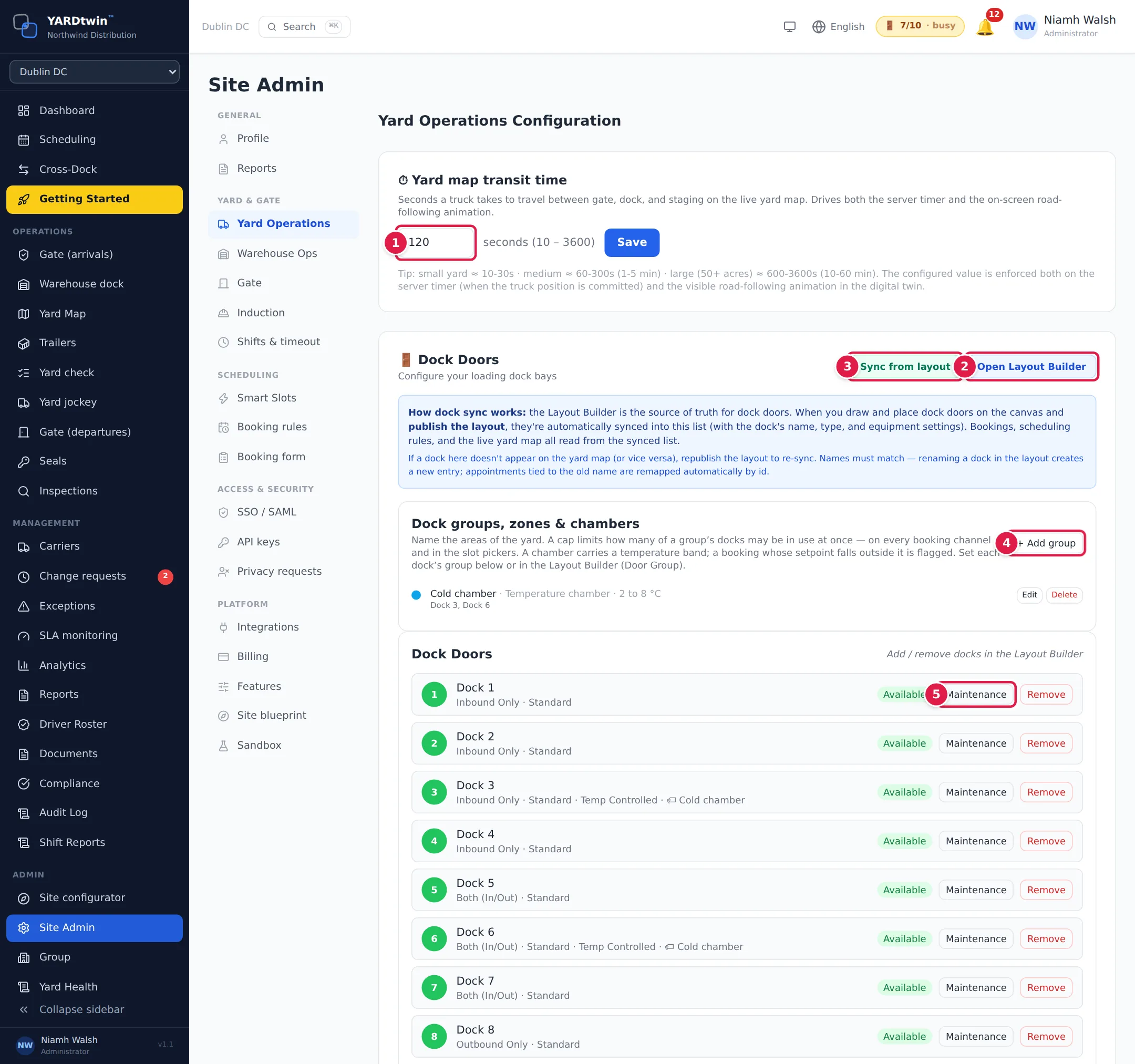
- Yard map transit time. How many seconds a truck takes to drive between the gate, a dock and staging on the live yard map, from 10 to 3600. Small yards suit 10–30 seconds, large ones several minutes. Click Save.
- Open Layout Builder. Docks are added and removed by drawing them. See Draw your yard in the Layout Builder.
- Sync from layout. Copies the dock doors from the published layout into the list below, without publishing again. Use it if the list and the yard map disagree.
- Add group. Names an area of the yard, such as a wing, a zone or a temperature chamber. Give it a Label, a Key, a Kind (Area, Zone or Temperature chamber) and, if you want, Max docks in use at once to cap how many of its docks can be booked at the same time. A chamber can have a temperature band (Band min °C, Band max °C); a booking whose setpoint is outside it is flagged.
- Maintenance. Takes a dock out of service between a start and end time, with a reason. Enter the times in the site's time zone, which is named under the fields, whatever your computer's time zone. The bookings counted as falling in the window, and the bookings refused while it lasts, are judged in site time too. You can Edit or Clear the window later.
Click a dock's name to edit it: its Name, Type (Inbound Only, Outbound Only or Both (In/Out)), Equipment, Dock group / zone / chamber, whether it is Temp Controlled, and whether Dangerous goods permitted (and which classes). Remove takes a dock out of use: it no longer appears in scheduling or automatic dock choice.
Material types
Material types are the kinds of goods you handle, such as Ambient, Chilled or Pharma (GMP). Each booking carries one, and it decides the staging time around the slot and the checks the gate and the dock must do. Material types are shared by all your sites.
Click + Material to add one, or Edit on an existing one.
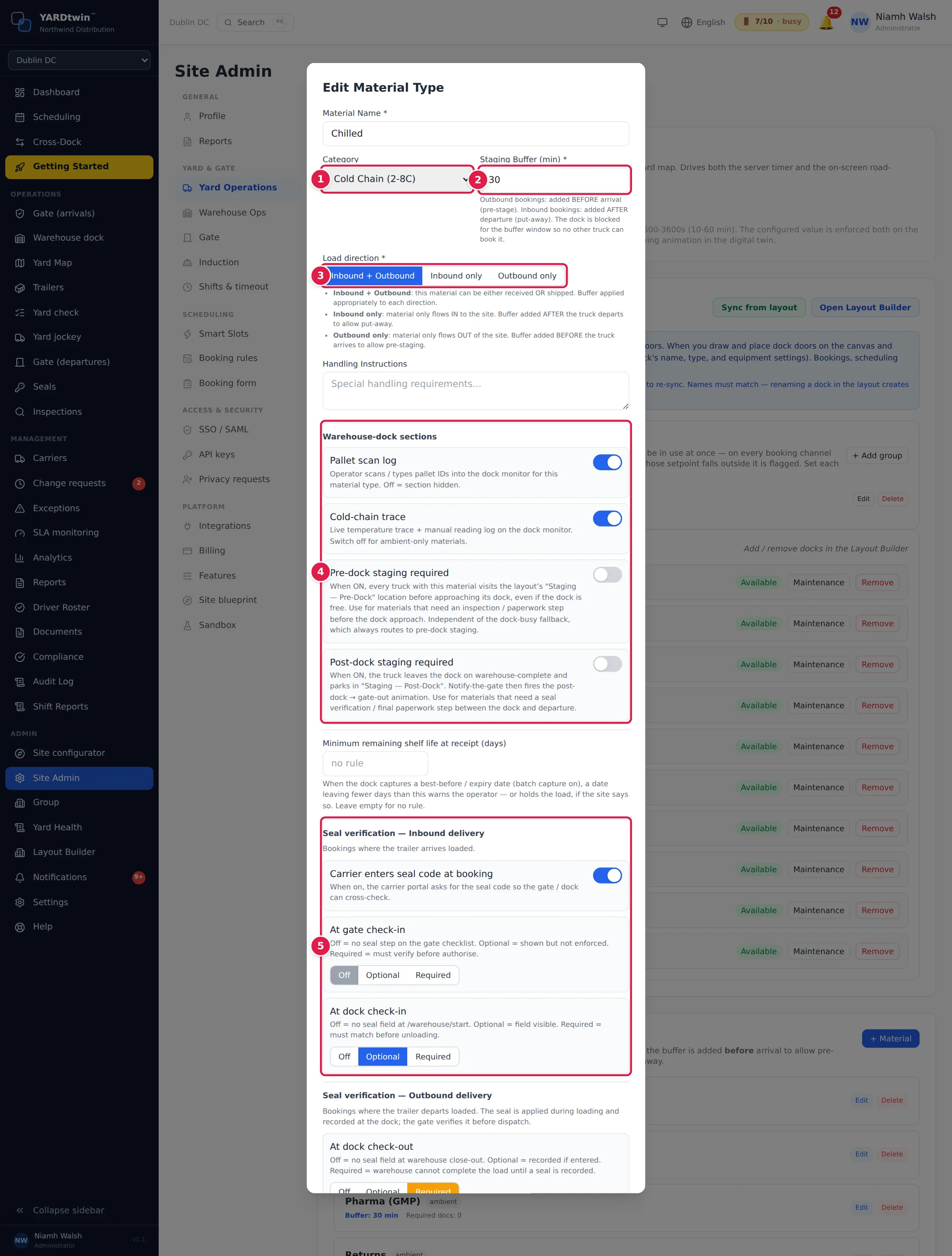
- Category: Ambient, Cold Chain (2-8C), Frozen (-20C) or Hazardous.
- Staging Buffer (min): extra time the dock stays reserved. For outbound loads it comes before the truck arrives, to stage the goods; for inbound loads it comes after the truck leaves, to put the goods away. No other truck can book the dock in that time.
- Load direction: Inbound + Outbound, Inbound only or Outbound only. Carriers can only pick the material for loads in that direction.
- Warehouse-dock sections: whether the dock screen shows the Pallet scan log and Cold-chain trace for this material, and whether trucks must stop at pre-dock or post-dock staging. See Draw your yard in the Layout Builder for the staging locations.
- Seal verification: for inbound loads, whether the carrier enters the seal number when booking, and whether the seal is checked At gate check-in and At dock check-in. For outbound loads, the same At dock check-out and At gate dispatch. Each check is Off, Optional or Required.
Further down the same form:
- Minimum remaining shelf life at receipt (days): used when the dock records best-before dates. See Set up the warehouse docks.
- Weighbridge: whether the truck is weighed at gate check-in and at dispatch (Off, Optional or Required), and the Net-weight method: Two-pass (in & out) or Carrier tare.
- Required Documents (max 5): documents the carrier must provide, such as a certificate of analysis. For each, choose whether it is needed At booking, At gate and At dock, and attach a sample file for carriers to follow if you like.
Click Save Changes (or Add Material Type for a new one).
A different rule at one site
Material rules at this site lets one site differ from the shared material rules, for example a stricter seal check at one warehouse. Anything left on Inherit follows the material type. Click Back to the tenant rules to remove the site's own value.
Suppliers
Suppliers is the list of companies whose goods you receive. They appear as a drop-down on the booking forms, and the name shows at the gate and on the scheduling board. Click + Supplier and fill in the Supplier Name, Code, contact details and a Default Material Type.
Invite to portal e-mails the supplier's contact an invitation to the supplier portal, where they can book and track their own deliveries. See The supplier portal.
Yard jockeys and yard checks
- Yard Jockey: the switch shows or hides the Yard jockey page in the menu for everyone at this site. It saves as soon as you click it; refresh the page to update the menu. See Do your move tasks.
- Scheduled yard checks: when a yard check is due. Click Add schedule, name it, choose how it Repeats (Daily, Weekly, on chosen days or Every N hours), the time, the Grace before overdue (min) and the role it is Assigned to. That role is told when a check falls due; if nobody starts one within the grace time, they and the ops managers are alerted. See Do a yard check.
Dock rules
The Scheduling Rules Engine applies your own rules to every booking. Click + Add Rule, give it a name and a Rule Type, set the conditions it matches (load type, carrier, material category, pallet count, weight, time window, days of the week…) and what it does. A lower Priority number runs first.
| Rule type | What it does |
|---|---|
| Assign Dock | Sends matching bookings to the docks you choose. |
| Block | Refuses matching bookings, with the reason you give. |
| Notify | Alerts the roles you choose. |
| Priority | Sets the booking's priority. |
| Inspect | Requires an inspection on arrival. |
| Blackout | Blocks all bookings for a date range, for example an audit. |
| Capacity Limit | Limits how many docks matching loads may use at once, across the site or in one dock group. |
| Gate Throttle | Limits how many trucks may arrive within a time window. |
| Vehicle Compatibility | Matches vehicle types and equipment to docks. |
| Dwell Alert | Alerts when a truck stays longer than a time or a percentage over plan. |
| Product Routing | Sends a product class to a dock type. |
Each rule shows Active or Inactive; click it to switch the rule on or off. Edit and Delete are next to it.
Trucks that bring several deliveries
Three switches decide what happens when one truck brings several deliveries booked separately. They are under Site Admin → Integrations → Yard-map operations, and only an administrator can change them. Every change is recorded in the audit log.
- Combined deliveries: planners can put several inbound deliveries on one truck, worked together at one dock in one slot. See Combine deliveries onto one truck.
- Multi-delivery visits: one truck, several deliveries worked one after another. The truck is checked in once; each next delivery is handed over on site when the previous one's departure is signed.
- Pair deliveries at the gate (off until you switch it on): the gate screen offers the other bookings for the same number plate under Also on this truck?, so the guard can pair them and check the truck in once, and SAP gets one transportation unit for it. With Combined deliveries on the bookings become a combined truck; otherwise, with Multi-delivery visits on, they become one visit. It needs at least one of the two. See Check a truck in.
With Multi-delivery visits on, a delivery of a visit that is already on site is never checked in a second time, whichever way the gate tries (gate screen, classic gate, self check-in approval, kiosk, camera or unmanned gate).