Every YARDtwin screen has the same frame: the menu down the left, and a row of controls across the top. What's in the menu depends on your role. A gate operator sees the gate screens; an administrator sees everything. See Who can see what.
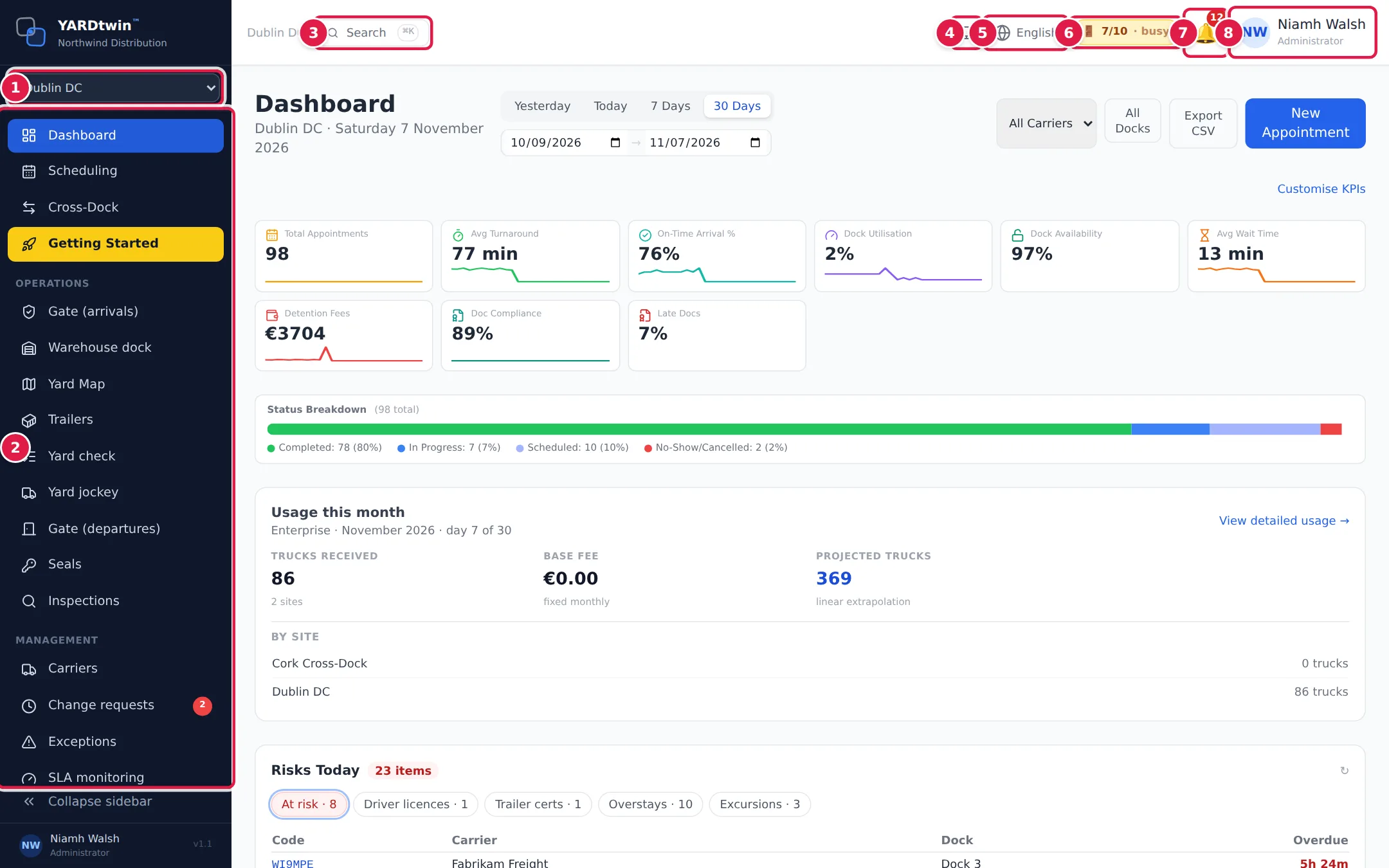
- Site switcher. If your company has more than one site, pick the one you're working at. Every screen then shows that site's bookings, yard and docks. YARDtwin remembers your choice.
- Menu. Grouped into Operations (gate, docks, yard), Management (carriers, analytics, reports, compliance) and Admin. Help at the end of the menu opens short help articles. Click Collapse sidebar at the bottom to shrink it to icons.
- Search (or press Ctrl + K, ⌘ + K on a Mac). Type a few letters of a page name, such as seal or carriers, and press Enter to jump there.
- Light or dark. Each click cycles light → dark → match your computer.
- Language. YARDtwin is available in 26 languages. Your choice is remembered on this device.
- Dock occupancy. How many docks are in use right now, for example 8/10 · busy. Click it to open the dock board.
- Notifications. The bell shows a count of unread alerts, such as a carrier asking to change a booking or a truck held at the gate. Click it to read them, mark them read or dismiss them.
- Your name. Opens Profile & Settings (your details and password), the Help Centre (this manual) and Sign Out. See Your profile and password.
Pages you'll use most
| If you work… | Start from |
|---|---|
| at the gate | Gate (arrivals), then Gate (departures) — see Work the arrivals list |
| on the docks | Warehouse dock — see Start your dock shift |
| moving trailers | Yard jockey — see Do your move tasks |
| in the office | Dashboard and Scheduling — see Read the dashboard |
| for a haulier | Self-Service Booking — see The carrier portal |
When you sign in, YARDtwin opens the page for your role. Gate operators start at the gate, warehouse operations staff at the dock board, yard jockeys at their task list, and office roles at the scheduling board. A link or bookmark to a page your role can't open takes you to your own start page instead. See Roles.
Every page has its own address. Bookmark the pages you use most, or keep them open in browser tabs. The yard map and dock board update live, so you never need to refresh them.
On a phone or tablet
On a narrow screen the menu folds away. Tap ☰ at the top left to open it. The gate and yard jockey screens are designed for tablets and phones. The scheduling board and reports are easier on a laptop or larger screen.
Getting help on any page
The round chat button at the bottom right of every screen opens the YARDtwin assistant. It knows which page you're on and what your role can do. Ask it things like "how do I move this booking to Dock 4?". See Get help.