Sign up once for your company. You become the account's first Administrator, and you can then invite your team. The person who signs up is usually the operations or site manager who will set YARDtwin up.
If a colleague has already set up YARDtwin for your company, don't sign up again. Ask them to invite you instead. See Invite and manage users.
Steps
Go to yardtwin.com and choose to sign up, or open the sign-up page directly.
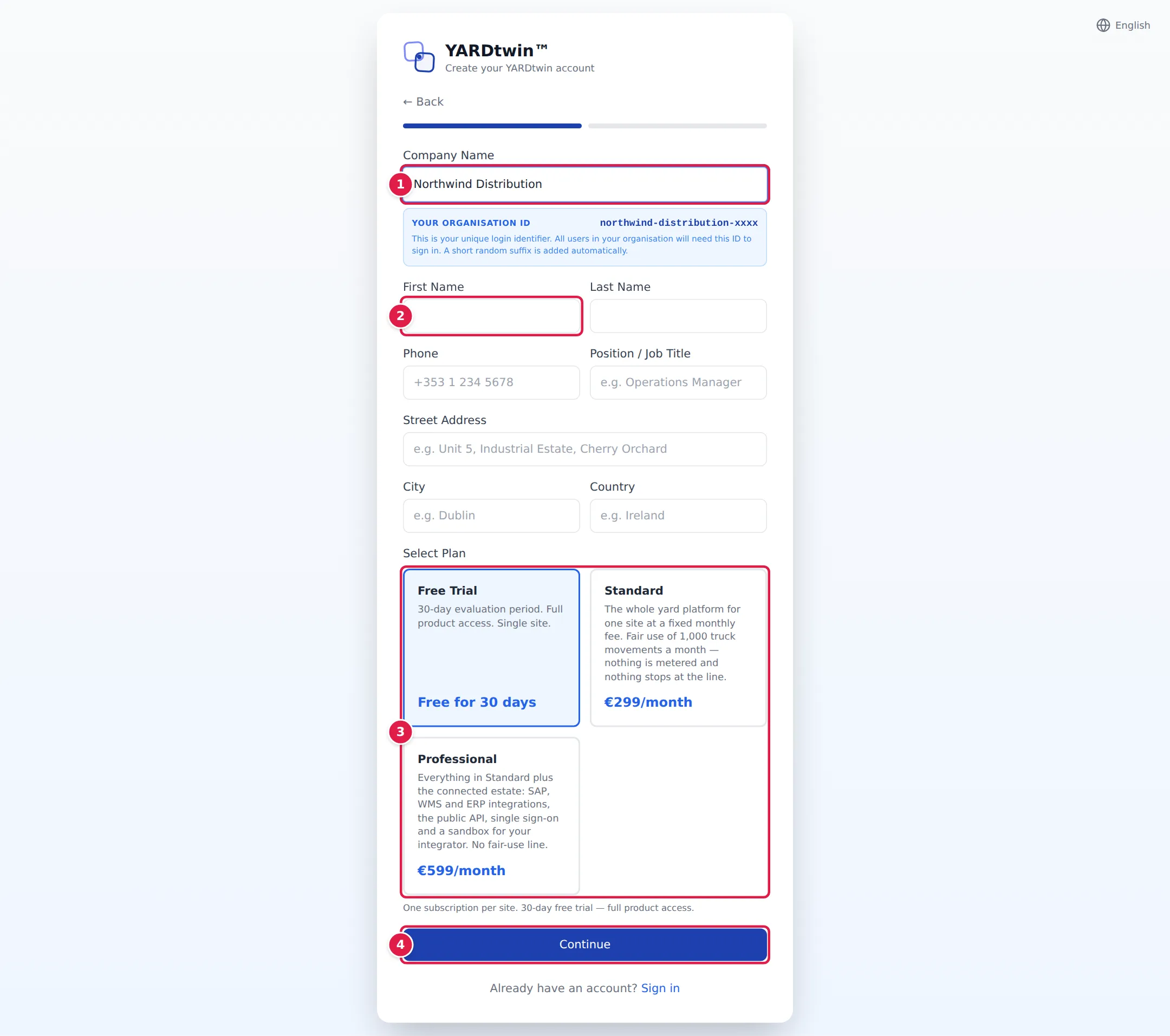
- Enter your Company Name. YARDtwin shows the Organisation ID it will create from it, for example northwind-distribution-xxxx. A short random code replaces the xxxx.
- Enter your First Name and Last Name. Phone, Position / Job Title and the company address are optional, but the address is copied onto your first site.
- Under Select Plan, pick Free Trial, Standard or Professional. For a paid plan you can switch between Monthly and Annual — 2 months free in year one.
- Click Continue.
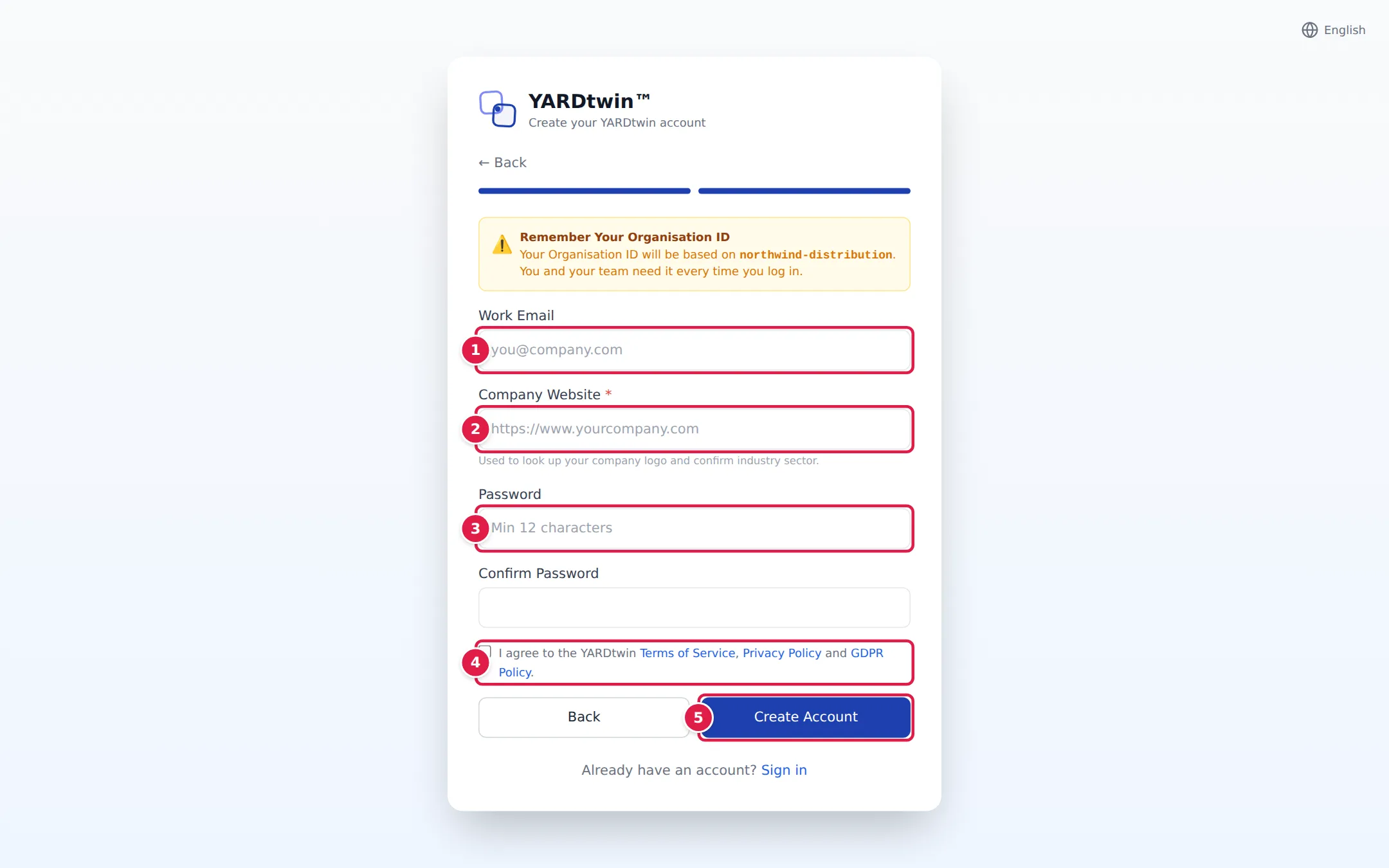
- Enter your Work Email.
- Enter your Company Website.
- Choose a Password of at least 12 characters, and type it again under Confirm Password. Remember it: you need it again in a moment.
- Tick the box to agree to the Terms of Service, Privacy Policy and GDPR Policy.
- Click Create Account.
Confirm your e-mail address
YARDtwin shows Check your e-mail. Nothing has been created yet.
- Open the e-mail from YARDtwin and click the link in it. The link works for 24 hours.
- The page shows the Account e-mail address. Under Password chosen at signup, enter the password you chose on the form.
- Click Create my account.
The account is created only when the password matches. If you didn't start this sign-up, close the page and enter nothing.
What you'll see
Account Created Successfully! shows your Organisation ID and your login details. A welcome e-mail with the same details is on its way. Click Go to Dashboard to start.
Write down your Organisation ID. You and everyone in your company enter it each time you sign in. See Sign in.
Your new account contains:
- One site, named after your company (for example Northwind Distribution - Main Site), with the address you entered.
- Four starter docks, D1 to D4: two inbound, one for both directions and one outbound. You can change them in the Layout Builder.
- You, as the account's Administrator.
Whichever plan you pick, the account starts on the 30-day free trial with the full product for one site. Your choice tells us which plan you intend to take. To pay for a plan, go to the Billing tab. See Choose a plan and pay.
Next, work through the Getting Started checklist.
Other ways to sign up
If your company uses Google or Microsoft accounts, Sign up with Google or Sign up with Microsoft may appear under the first page of the form. Fill in the company name, your name and phone number first; the buttons stay grey until you do.
If something goes wrong
- No e-mail after a few minutes. Check your spam or junk folder. Or click Use a different e-mail and check the address you typed.
- "This link is not valid" The link has expired (after 24 hours) or was already used. Click Sign up again.
- "That password does not match the one chosen when signing up" Enter the password from the sign-up form, not a new one. After five wrong passwords the link stops working, and you need to sign up again. Forgot the password you chose? Click Sign up again.
- "You already have an account" That e-mail address already has a YARDtwin account. Click Sign in, or Reset password if you've forgotten it.
- "Password must be at least 12 characters" Choose a longer password.