Everyone at your company signs in with their own account. Invite each person by e-mail and choose their role: the role decides which pages they see and what they can do. See Roles: who does what.
The Settings page has other tabs too. Your own name, password and language are on Profile: see Your profile.
Invite a user
Open Settings in the menu and click the Users tab. Administrators and ops managers have this tab.
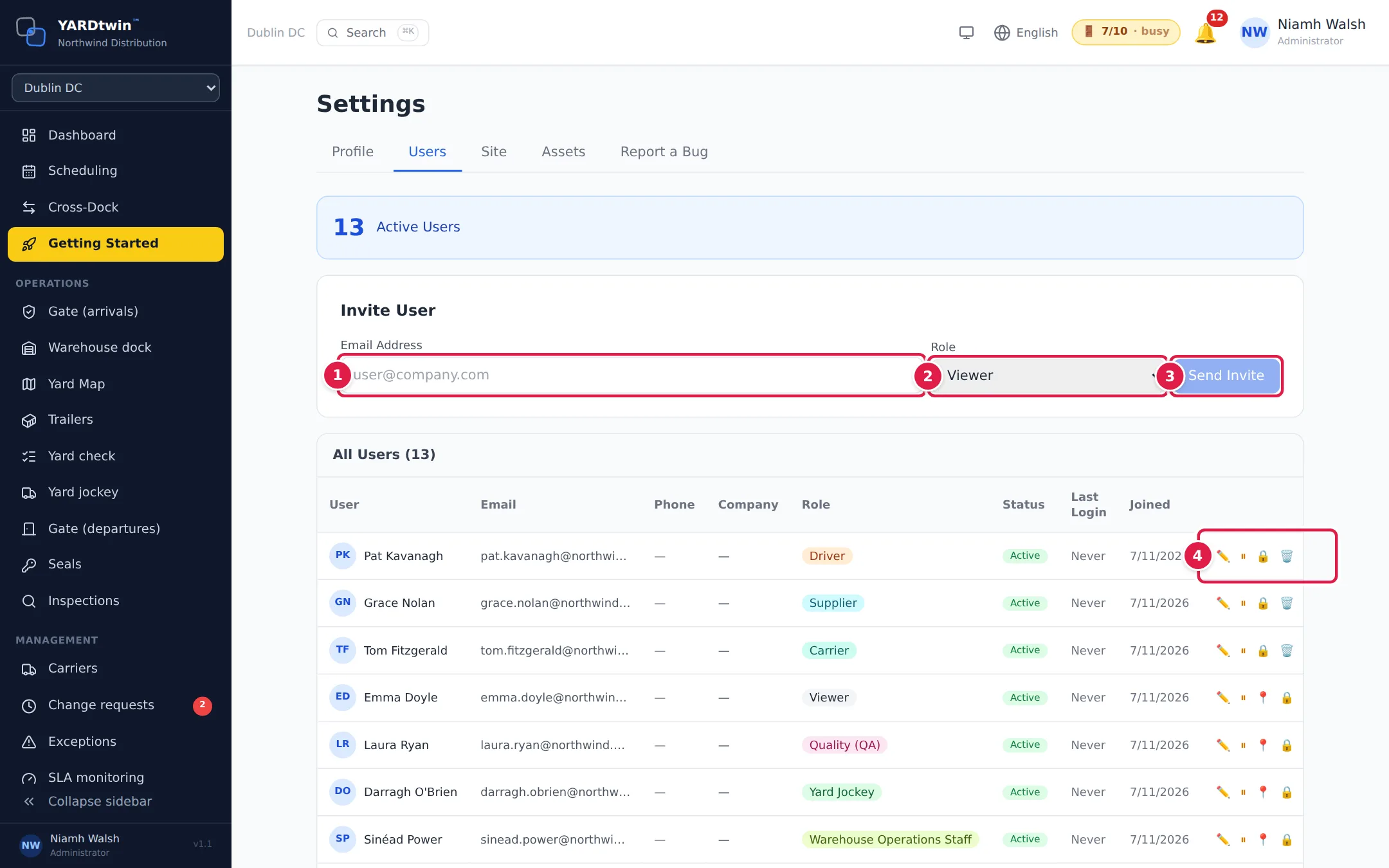
- Enter the person's Email Address.
- Choose their Role: Ops Manager, Yard Manager, Operations, Viewer, Gate Guard, Warehouse Operations Staff, Yard Jockey, Carrier or Driver. Administrators also see Administrator and Quality (QA). Suppliers are invited from the supplier's own record instead. See The supplier portal.
- Click Send Invite.
- Every user in the list has buttons at the end of their row. You only see the ones you're allowed to use:
- ✏️ Edit: change their name, e-mail, phone, company and role.
- ⏸ Disable or ▶ Enable the account.
- 📍 Site access: let the user reach every site, or only the sites you tick. Administrators only.
- 🔒 Reset PW: give the user a temporary password. Administrators only.
- 🗑️ Delete the account. Administrators only.
An ops manager doesn't get buttons on an administrator's row. Nobody gets buttons on their own row: change your own details on Profile.
What you'll see
A green box says the invitation e-mail was sent. The person gets a link to set their own name and password; the link works for 7 days. Until they accept, they're listed under Pending Invitations, below the users, as Awaiting, with the date you invited them and the date the link expires. When they accept, or the link runs out, the invitation leaves that list.
If e-mail isn't set up for your account, YARDtwin shows the Invite Link instead. Click Copy and send it to the person yourself.
When they accept, they join your account with the role you chose. They sign in with your Organisation ID, their e-mail and their password.
At the top of the tab, Active Users shows how many people can sign in. If your plan has a user limit, it also shows the limit and how many places are left; when the limit is reached, inviting is switched off until you disable someone or change plan. Most plans have no user limit.
Change someone's role
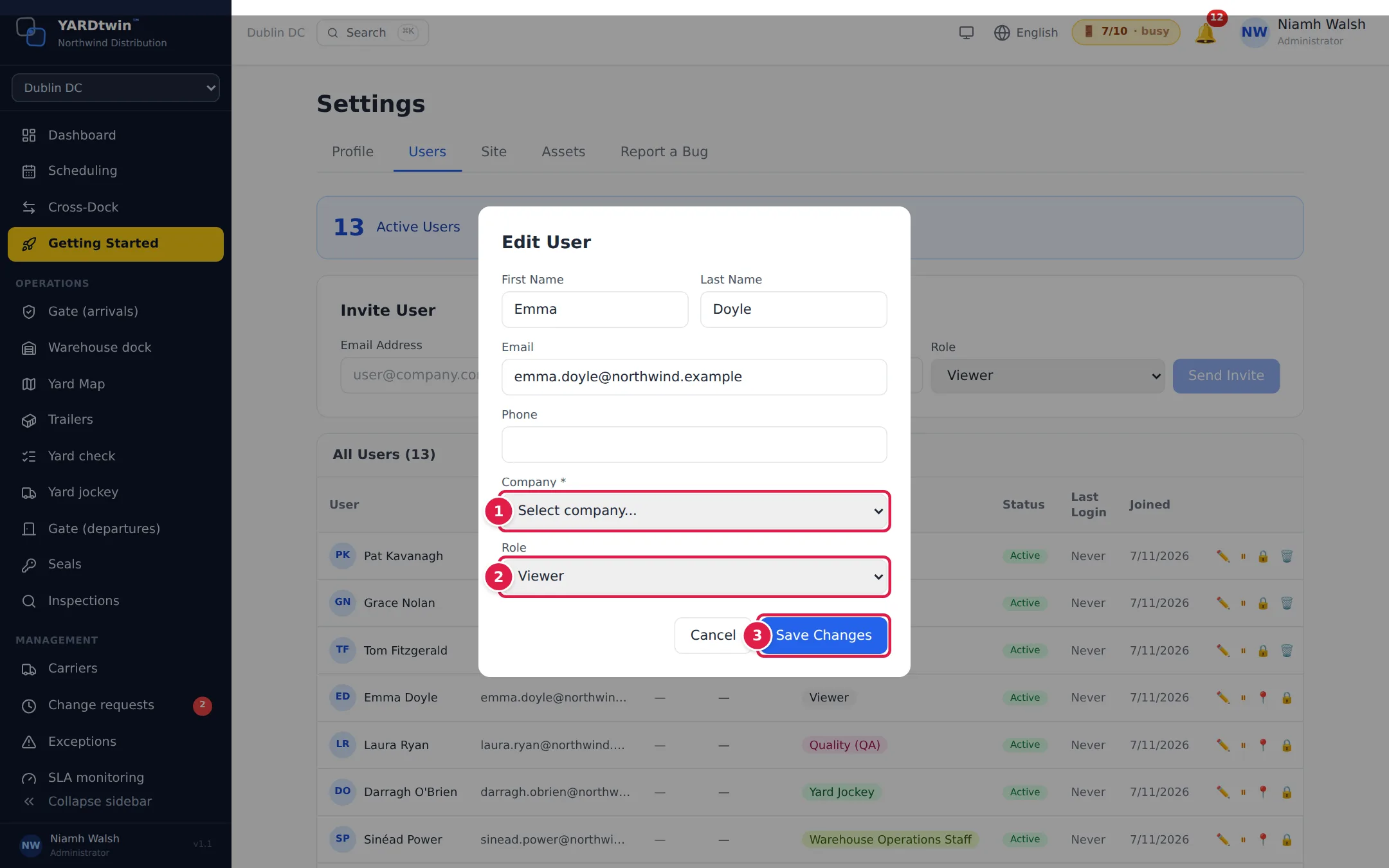
- Click ✏️ on the user's row. Under Company, choose your own company, or the carrier the person works for.
- Choose the new Role. Administrators also see Administrator and Quality (QA) in this list. The user's current role is always shown as it is, even an older one such as Operator that is no longer given to new users.
- Click Save Changes.
Only an administrator can make someone an administrator, or edit an administrator's account. To add a new administrator, invite the person with another role first, then change it here.
Only an administrator can give someone the Quality (QA) role or take it away. Quality reviews and signs off what operations do, so the two are kept apart. An ops manager can still change a QA user's name, phone and company.
Limit someone to some sites
If your account has several sites, an administrator can limit a user to some of them. That user only sees those sites in the site switcher, and only sees and changes their bookings, yard and gate.
- Click 📍 on the user's row.
- Choose Every site (no restriction), or Only these sites and tick the sites.
- Click Save.
A user limited to some sites shows 2 site(s) only (with their number of sites) next to their role; point at it to see which. Carrier, supplier and driver accounts always reach the sites they work with, so they have no 📍 button. Someone who is limited to some sites can only change users within those sites.
Disable or delete an account
- Disable (⏸) stops the person signing in straight away, and keeps their account and history. Their status shows Disabled. Click ▶ to let them back in. This is the right choice when someone leaves.
- Delete (🗑️) removes the account. Only administrators can delete.
Deleting a user can't be undone. Disable the account instead if you might need it again.
You can't disable, reset or delete your own account here.
Reset a password
Reset a password. Click 🔒 on the user's row, then Reset password. YARDtwin creates a temporary password and shows it once: copy it and give it to the person in a secure way. They must change it the first time they sign in. The reset is recorded in the audit log.
Shift PINs are retired. A shift PIN set in the past is still kept on the person's profile, but YARDtwin does not currently ask for it at sign-in, at the gate tablet or for electronic signatures, so there is no button to set or reset one any more.
Reset someone's two-factor authentication
If someone has lost both their authenticator app and their backup codes, an administrator can reset their two-factor authentication. Click 🛡️ on their row, enter your own password (or your electronic-signature password if you sign in with single sign-on) and a reason, and confirm. Their authenticator and backup codes stop working, they are signed out everywhere, and they set two-factor authentication up again the next time they sign in. They are told by e-mail — at their current address and at any address the account had in the last 30 days — and the reset is recorded in the audit trail. You can't reset your own this way; use your profile instead.
Resetting an administrator's two-factor authentication needs two administrators. Your request waits (the row shows ⏳); another administrator opens it with 🛡️✓, enters their own password and approves or rejects it. Only an approved request resets anything, and a request lapses after 24 hours.
If someone other than the user changed the account's sign-in e-mail in the last 7 days, its two-factor authentication can't be reset until that week has passed. This stops a changed address being used to take over an account.
If something goes wrong
- "A user with this email already exists" That address already has an account. Find it in the list; if it is disabled, click ▶ to enable it.
- The invitation has expired, or an invited person is no longer under Pending Invitations but isn't in the user list either. The link ran out. Send a new invitation to the same address.
- Send Invite is greyed out. Enter an e-mail address first. If the box says Plan user limit reached — upgrade to add more, disable an unused account or see Choose a plan and pay.
- "Invalid role" or "Unknown role" The role isn't one YARDtwin gives. Pick one from the list.
- "Only an admin can give or remove the Quality (QA) role" Ask an administrator to make the change.
- There's no Users tab. Only administrators and ops managers manage users. Ask one of them.
- A user has no buttons. It's your own account, an administrator's account (if you're an ops manager), or a user outside the sites you're limited to.