Yard Tasks is the planner's board for the yard jockeys' work: moving trailers between the gate, staging, parking and the docks, and inspections. Jockeys pick the tasks up on their phones on the Yard jockey screen.
Tasks appears in the menu only when your site has the Yard Jockey Task Management module switched on. An administrator turns it on in Site Admin → Platform → Features. See Features.
Create and assign a task
Tap + New Task, then:
- Pick the Task Type: Move → Dock, Move → Parking, Move → Departure, Move → Staging, Move (a reposition) or Inspect.
- Pick the Priority: Low, Normal, High or Urgent.
- Type where the trailer is (From, for example Lot A-1) and where it goes (To, for example Dock 5). Add Notes if the jockey needs them.
- Tap Create.
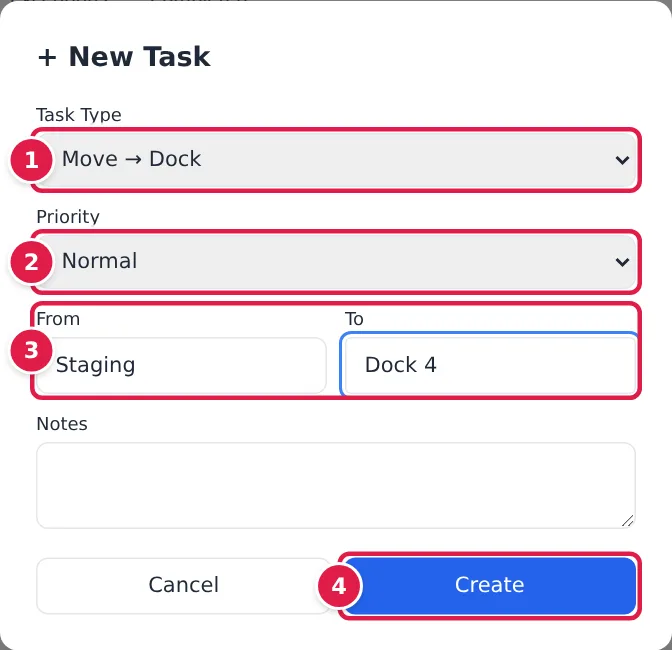
The task appears on the board as pending. Any jockey can accept it from their phone, or you can assign it.
The board
- + New Task creates a task.
- The tabs filter the board: Active (everything not completed or cancelled), My Tasks, Pending, Exceptions and Completed.
- Each card shows who the task is assigned to, and whether a planner assigned it or it was assigned automatically.
- Cancel cancels a task that isn't finished.
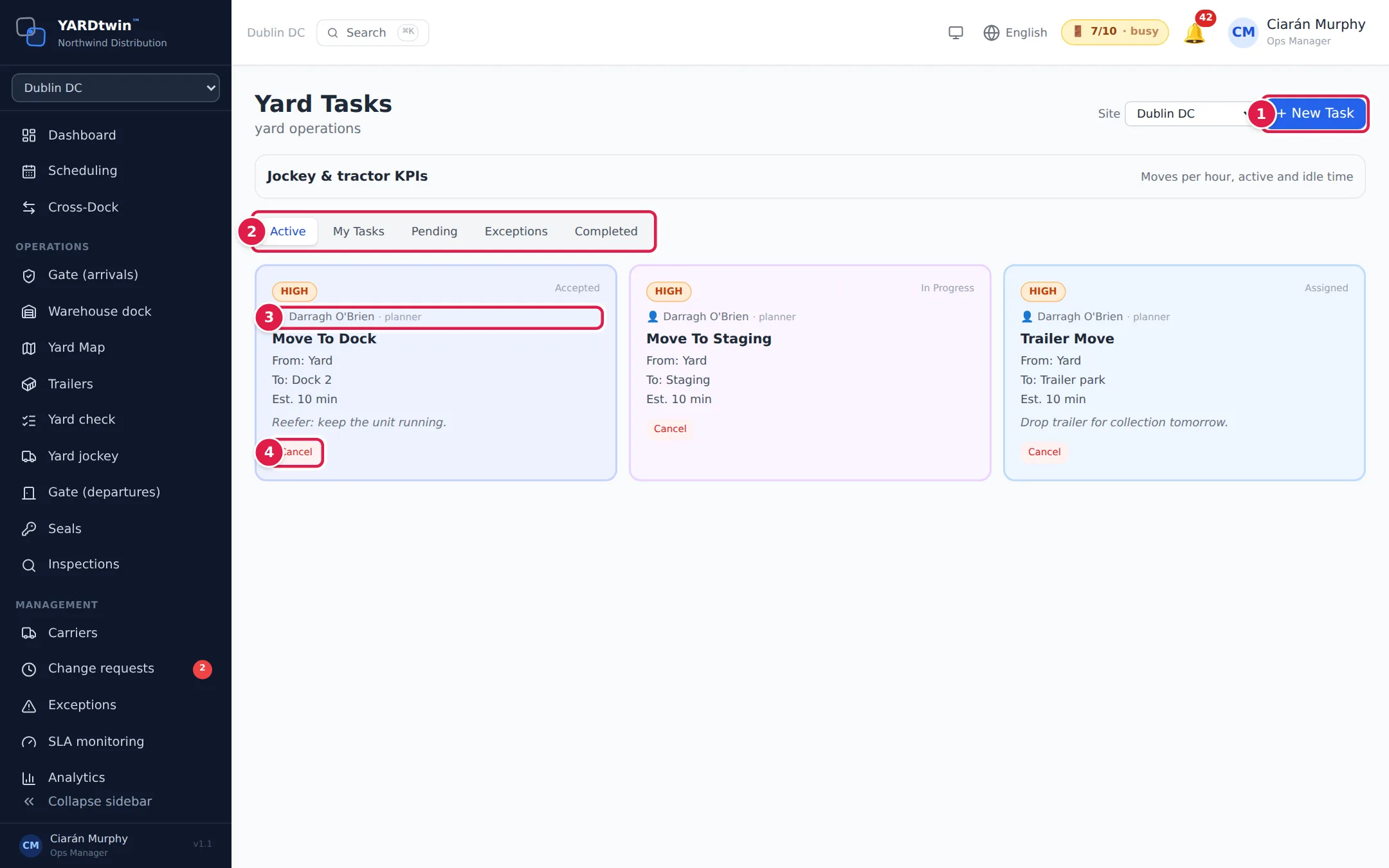
A card also shows the priority, the status (Pending, Assigned, Accepted, In Progress and so on), the move, any due time (Due in … min or Overdue by … min) and the planner's notes. Some tasks are created by your site's task rules, for example when a truck is checked in at the gate; their cards show Rule: and the rule's name.
On a pending task, administrators and ops managers also see Assign followed by the jockey's first name (for example Assign Sam), one button for each yard jockey account, to hand the task to that jockey. A card with an estimated duration shows it as Est. … min.
The jockey a task is assigned to moves it on from the card: Accept, then Start when they begin the move, then ✅ Complete.
Exceptions
When a jockey can't do a move, they raise an exception with a reason, such as Blocked or Trailer missing. The card turns red and shows the reason. Fix the problem, then tap Return to pool so the move can be picked up again, or Cancel it.
Jockey & tractor KPIs
Administrators, ops managers, yard managers and operations staff see Jockey & tractor KPIs above the tabs. Open it for moves per hour, active and idle time, and utilisation, per jockey, per tractor and per day, over Today, 7 days or 30 days. How these are calculated explains each figure.
Automatic dispatch
If your site dispatches moves automatically, a green chip next to + New Task shows the dispatch policy (for example Nearest available) and how many jockeys are available. Planners can tap Re-plan now to share the open moves out again across the jockeys on shift.
If something goes wrong
- No Assign button on a task. Assign appears only on pending tasks, and only for administrators and ops managers. It also needs at least one yard jockey account.
- "No tasks assigned": nothing matches the tab you're on. Try Active.
- The Tasks menu item is missing. The module is switched off for your site. See the note at the top.