This page is for carriers.
You book slots yourself in the carrier portal: pick the site, day and load, choose a time from the free slots, and add the truck. The booking gets a reference and a QR code for the gate.
Steps
Click Book Appointment at the top of the portal. The booking form has three steps: 1. Schedule, 2. Driver & Vehicle and 3. Review. Fields marked with a red * are required.
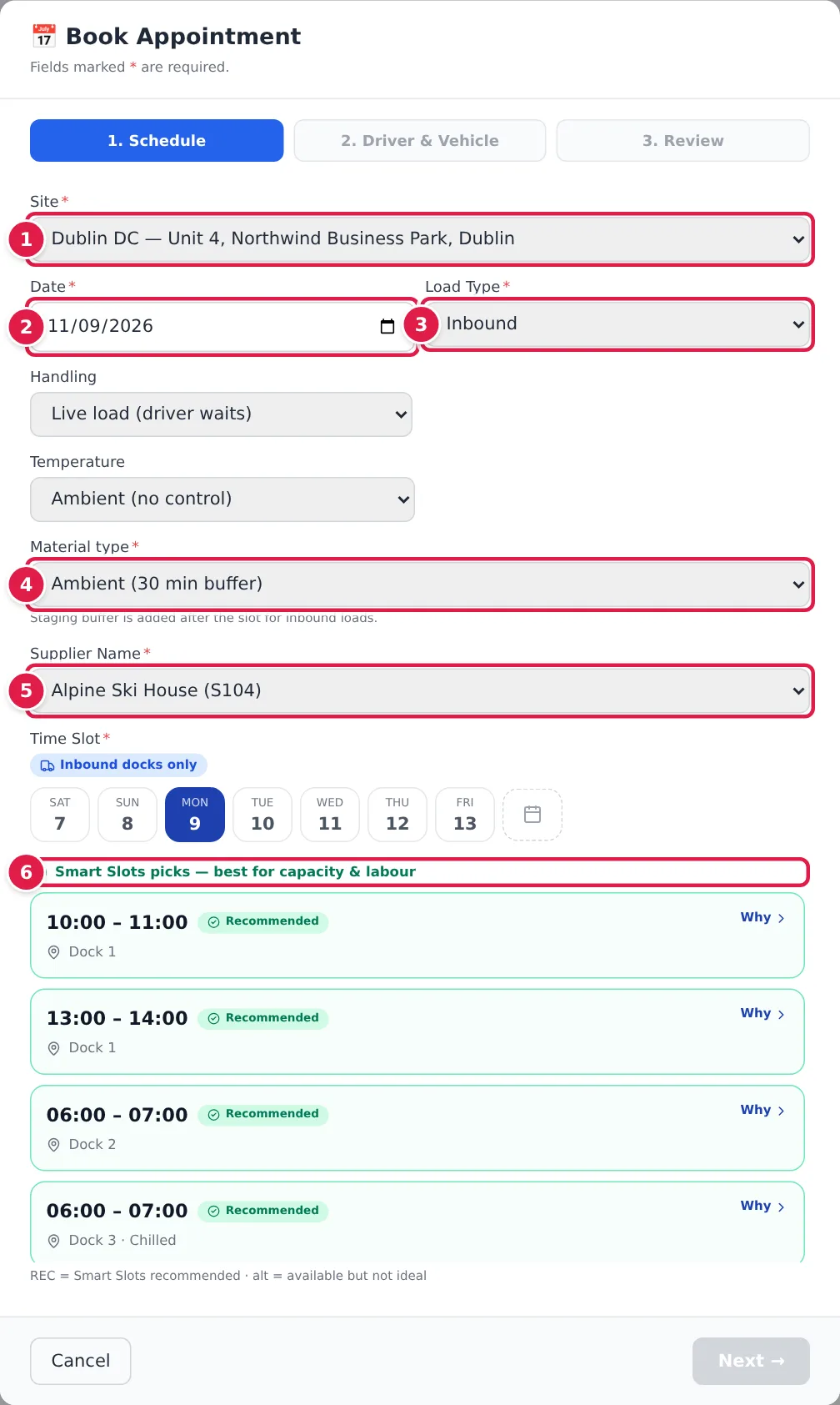
- Choose the Site.
- Choose the Date. If the site has booking rules, such as how much notice it needs, they are shown under the date.
- Choose the Load Type: Inbound, Outbound or Both / any dock. Set Handling if the trailer is being dropped or collected rather than loaded live, and Temperature for a chilled or frozen load.
- Choose the Material type. It decides which docks fit, the buffer the site keeps around your slot, and which documents you'll need.
- Choose the Supplier Name: the company the goods come from. If it isn't listed, choose Other — not listed and type it.
- Pick a time. Smart Slots picks are the times that suit the site best, marked Recommended; click Why to see the reason. Other free times are grouped by morning, afternoon and evening. If the site doesn't use Smart Slots, the free times are listed by morning, afternoon and evening, and none is marked Recommended. Use the day strip or the calendar to look at other days. The slot comes with its dock.
Picking a slot takes you to step 2.
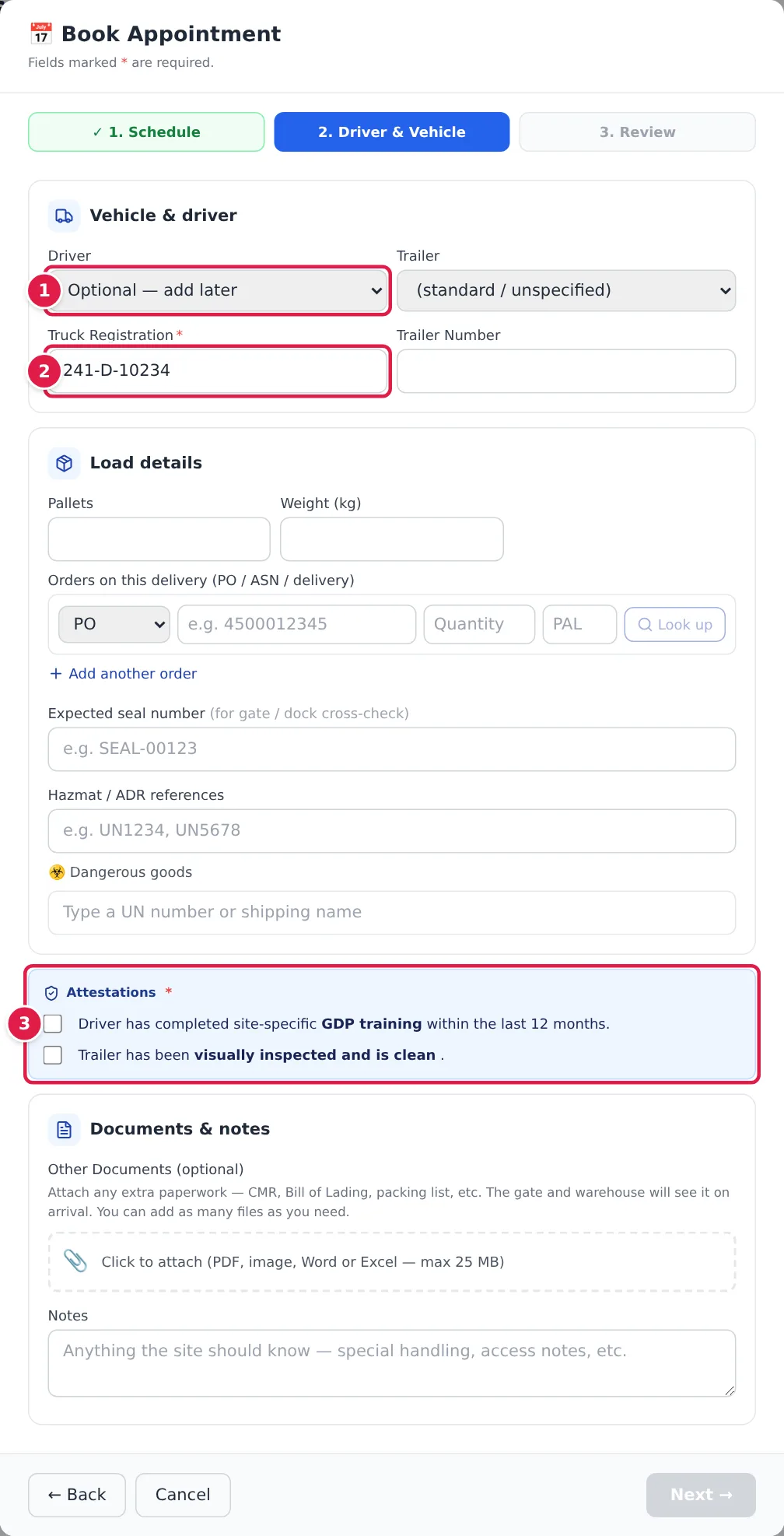
- Pick the Driver from your roster, or leave it on Optional — add later. If you name a driver now, they get their gate pass by e-mail.
- Enter the Truck Registration. Pick a trailer from Your fleet under Trailer, or choose a type and type the Trailer Number.
- Tick both Attestations: the driver has completed the site's GDP training in the last 12 months, and the trailer has been inspected and is clean. They're required unless the site has switched them off.
Fill in the Load details you have: Pallets, Weight (kg), the order numbers under Orders on this delivery (PO / ASN / delivery), the Expected seal number, and any Hazmat / ADR references or Dangerous goods. Under Documents & notes, attach the documents the site asks for (marked REQUIRED; you can't continue without them) and any others, and add Notes for the site. Click Next →.
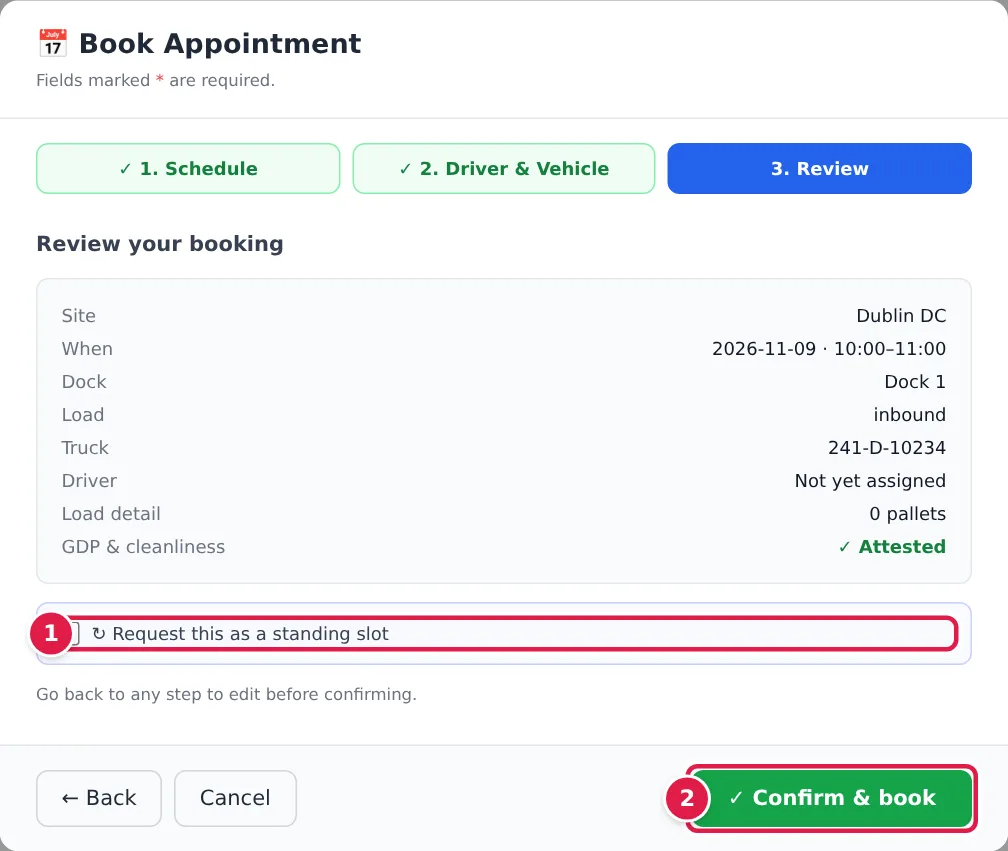
- To book this slot every week, tick ↻ Request this as a standing slot (see below).
- Check the summary and click ✓ Confirm & book. ← Back returns to any step to change it.
What you'll see
Appointment Confirmed shows the date, time and dock, your Booking Reference (with Copy), and a QR code to scan at the gate. You can Add to Calendar, Print it or click Done. The booking appears in your Self-Service Booking list:
- Accepted, if you gave both a truck registration and a driver;
- Needs action as Scheduled, if the driver is still to be added. Assign one before the day; see The carrier portal.
- Needs action as Awaiting approval, if the site checks some bookings before confirming them. The slot is held for you, and you get a notification when the site decides.
When the booking is confirmed, the driver and your company's contact e-mail get the pre-arrival details with the QR code.
Ask for a standing slot
If you deliver on the same days every week, tick ↻ Request this as a standing slot on the review step. Choose the days under On and the end date under Until, then confirm. Nothing is booked yet: the site approves or rejects the request, and you get a notification. Once approved, each booking appears in your list for you to add a driver and vehicle. The portal shows your requests under ↻ Standing slot requests, marked Awaiting the site, Approved, Declined or Ended.
Join the waitlist when a day is full
If the site runs a waitlist and the day you want is full, the slot picker offers Join the waitlist for this day. The same offer appears if a slot is taken while you book.
When a slot frees up, the site offers it to the first matching request. You get an e-mail with a link (and a text message if the site has your number), and the offer appears on the Waitlist tab marked 🎯 Slot offered.

- Accept this slot books it. Do this before the time shown under Held until.
- Decline passes the slot on.
An offer you don't take goes to the next request, and you stay on the list; after a few unanswered offers, your request closes. Remove from the waitlist withdraws your request. You can also accept from the link in the e-mail; see What the driver sees on their phone.
If something goes wrong
If the site refuses a booking, the form explains why and, where it can, suggests the next free time (Next free: …).
- "This dock is already booked for the selected time …" or "No dock available on …" Someone took the slot while you were booking. Pick another time, or join the waitlist.
- "Appointment cannot be scheduled in the past" Pick a later time.
- "Site is closed on …", "Site is not operating on this day" or "Appointment must be within operating hours (… - …)" Pick a time when the site is open.
- "Bookings need at least … notice at …", "Same-day bookings are not accepted at …", "The booking cut-off for … has passed" or "Bookings open … days ahead at …" The site's booking window applies. The message tells you the earliest or latest date you can book.
- "Missing required documents: …" Attach the documents marked REQUIRED in step 2.
- "… is already booked under …. Contact the site if this is a genuine split delivery." The order number is already on another booking.
- "Carrier insurance has expired. Please update before booking." Send the site your new insurance certificate.
- "This site has reached its booking limit for the month and is not accepting new bookings. Please contact the site directly." Phone the site to book.
- "No slots available — try another date." Nothing is free that day. Try another date, or join the waitlist if the site offers one.
- "You are already on the waitlist for that day." You have an open request for that day and load already.