The dock board is where the dock team runs the shift. It has one column for each dock on your dock shift, with the truck being worked at the top and the trucks still to come underneath. It updates itself every 15 seconds; click Refresh to update it now.
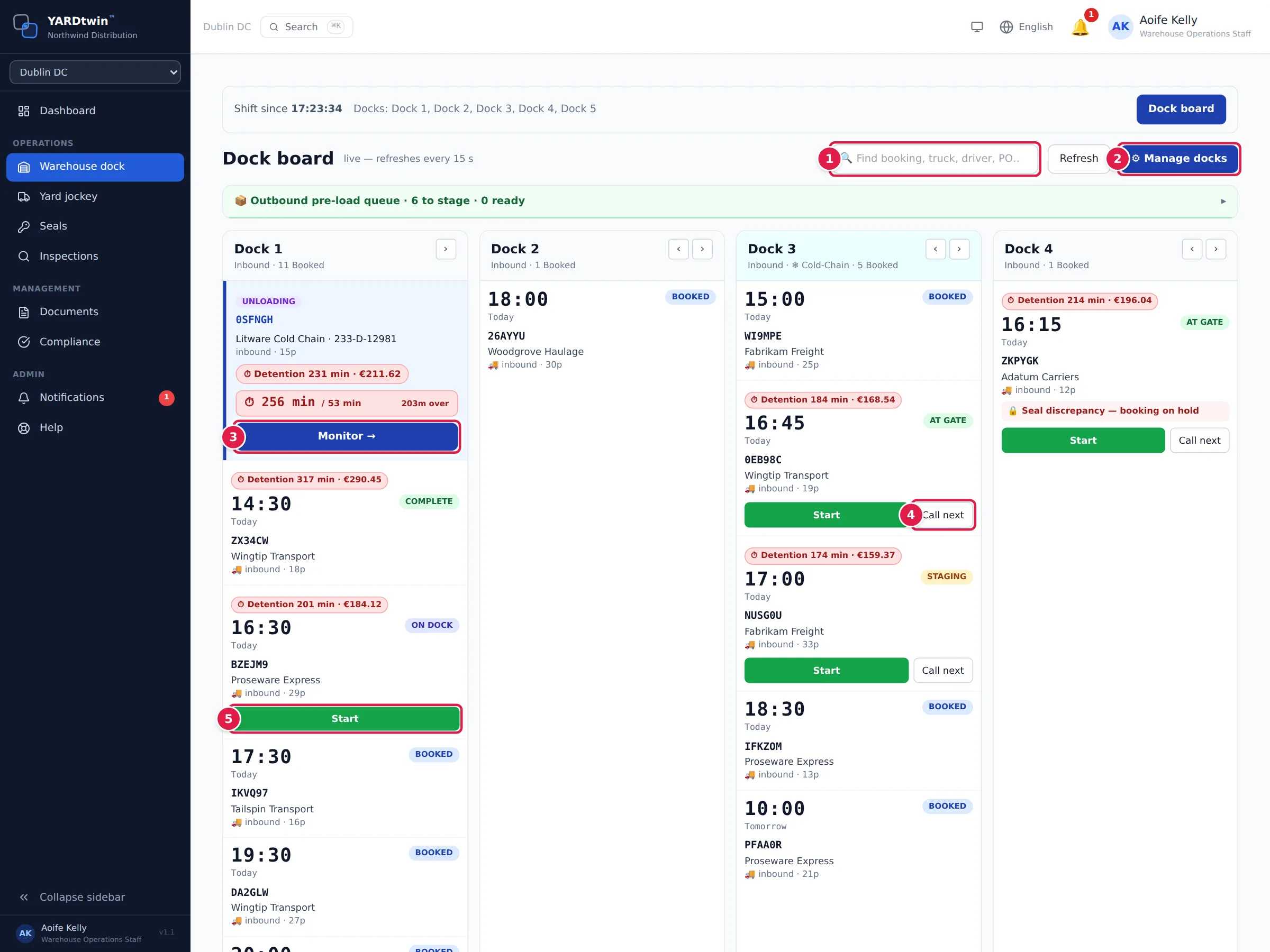
- Find booking, truck, driver, PO… Type a few characters to show only the matching cards. It searches the booking code, carrier, truck registration, trailer number, driver, PO and commodity.
- ⚙ Manage docks adds docks to your shift or drops them, without ending it.
- The truck being worked sits at the top of its column with a blue edge. It shows UNLOADING or LOADING, the booking code, carrier, truck, load and pallet count, and a timer: minutes worked against the target, and how many minutes are left (12m left) or over (8m over). The timer is green, turns amber within 10 minutes of the target and red once it's over; it shows paused while the clock is held. Tap Monitor → to open the monitor.
- Call next calls a trailer to the dock. It appears only on a truck that is on site and waiting for its dock (AT GATE, STAGING, or a dropped trailer), not on one that hasn't arrived, is already at the dock or is finished. The card then shows 📣 Called at and the time, the button changes to Called, and YARDtwin creates a high-priority move task for the yard team to bring the trailer to your dock (see Do your move tasks). The call is recorded in the audit log.
- Start appears once the truck is through the gate. It opens Check the seal and start a trailer.
Reading a card
Each waiting truck shows its planned time in large figures, with Today, Tomorrow or the date underneath, then the booking code, carrier, 🚚 inbound or 📦 outbound, the commodity and the pallet count. The badge says where the truck is:
| Badge | Meaning |
|---|---|
| BOOKED / CONFIRMED | Not arrived yet. |
| AT GATE | Checked in at the gate. |
| STAGING | Waiting in the yard for a dock. |
| ON DOCK | At the dock door, not started. |
| UNLOADING / LOADING | Work in progress. |
| COMPLETE | Dock work done; the truck stays on the board until it leaves through the gate. |
A waiting truck's card may also show:
- 🛑 ON HOLD: and the reason, when a hold is open on the load. See Clear a hold in the QA queue.
- 🔒 Seal discrepancy — booking on hold, when a seal on the truck was recorded as mismatched, tampered or damaged. An administrator, ops manager or QA can tap 🔓 Review & release on the card, give a reason (at least 10 characters) and release it. See Seals.
- ⛔ Blocked in SAP — no loading, when SAP reports the stock of an outbound load blocked or not releasable (at sites that block loading on SAP blocks). Loading can't start until SAP or QA / an admin releases it; see Check the seal and start a trailer. Once QA or an admin has released it, the chip turns amber: SAP block — released by QA.
- ⛟ Dock stop 1 of 2 for a truck that visits more than one dock, or 🧩 Delivery 1 of 2 on this truck for a truck carrying several deliveries.
- A detention clock, for example Detention 46 min · €42.29, when your site tracks detention. See Track detention.
The column header shows the dock name, its type, ❄ Cold-Chain for a temperature-controlled dock and how many trucks are booked, for example Inbound · 11 Booked. A dock closed for maintenance shows OUT OF SERVICE with Maintenance until and the reason. Where a dock reports door and restraint sensors, small chips show Door open or Door closed and Restraint on or Restraint off; they turn red when the door is open and the restraint isn't engaged.
Use the ‹ and › buttons in a column header to put the docks in the same order as they are on your floor. The order is remembered on this device for the rest of the shift.
Which trucks appear
The board shows:
- trucks booked on your docks from yesterday to tomorrow that haven't arrived yet, and
- every truck that is physically at one of your docks according to the yard map, until it leaves the site.
If a truck is placed on a different dock than it was booked for, the board follows where it actually is.
Suggestions and alerts
- Pull forward. When the truck being worked is more than 20% over its target and another truck for the same dock is already waiting, an amber banner appears, for example Dock 2: current load is 14 min over target. Tap Pull forward and the booking code to open the start screen for the waiting truck.
- Truck in staging. When a truck is sent to staging because its dock is still busy, a message pops up at the bottom right, for example ABC123 in staging — bay Dock 4 blocked by XYZ789. Tap it to return to the dock board.
Change your docks during the shift
Tap ⚙ Manage docks.
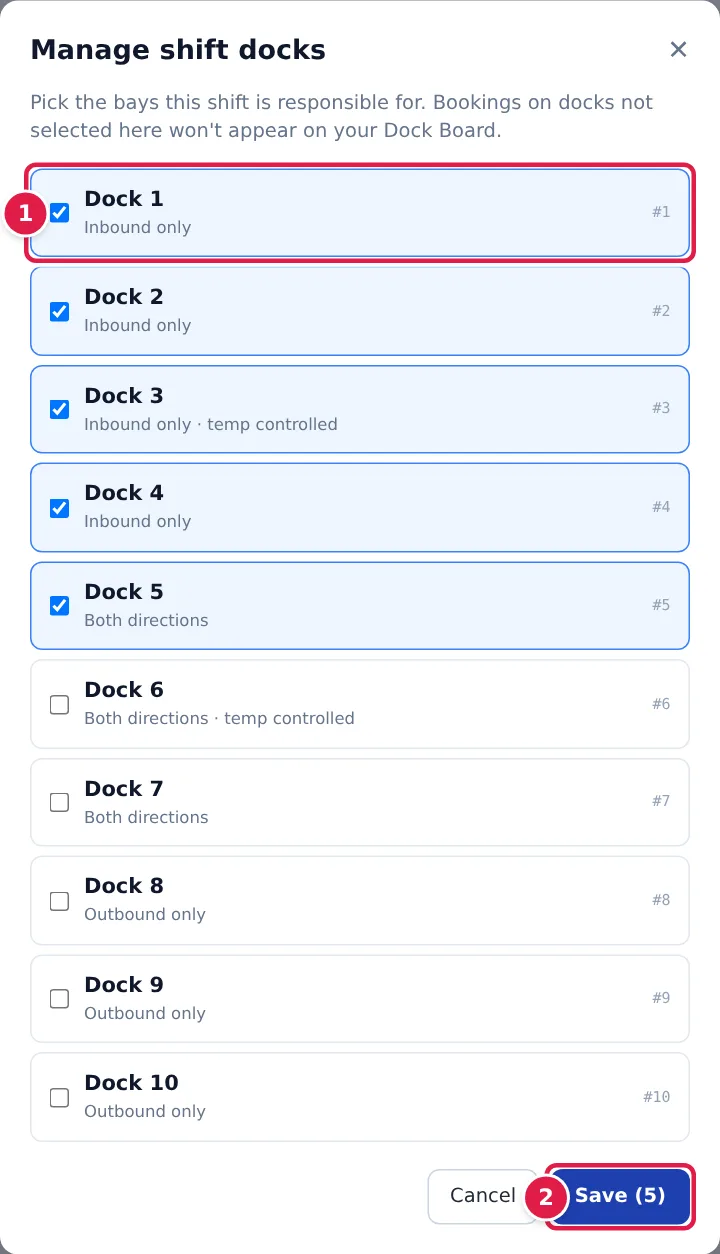
- Tick the docks this shift is responsible for, and untick the ones you're handing over. Each dock shows whether it is Inbound only, Outbound only or Both directions, and temp controlled where it applies.
- Tap Save. The button shows how many docks you've ticked.
The board changes straight away. Your shift, its timers and its numbers carry on; the change is recorded in the audit log.
Stage outbound loads before the truck arrives
When outbound loads are due at your site in the next 72 hours (by the site's clock, and up to 2 hours past their slot), a green bar appears above the dock columns: 📦 Outbound pre-load queue, with how many loads are still to stage and how many are ready. Tap it to open the list.
- Pick and stage the load on the floor.
- Tap Mark staged & ready on its card.
- Optionally enter the Pallets count and the Stage location, for example Lane 3, Bay 12, so the floor team can find it.
- Tap Mark prepared. The card turns green and shows ✓ Staged.
If the load is moved or re-picked, tap Un-mark to put it back in the queue.
If something goes wrong
- A truck isn't on the board. Check that its dock is on your shift (⚙ Manage docks), and that it is booked for yesterday, today or tomorrow. Trucks that have left the site drop off the board.
- "Call failed": the call didn't go through. Tap Refresh and try again.
- Call next is greyed out and says Called. The trailer has already been called and the yard team's move task for it is still open. The card shows when it was called. When the yard team finishes or cancels that task and the truck is still waiting, Call next is offered again.
- "… has already been called — the yard team has the move": someone else called this trailer first, for example on another tablet, and its move task is still open. Nothing more is sent to the yard team; the board refreshes to show the call. A trailer is called once, so a double tap never creates a second move task.
- A card has no Call next button. The truck hasn't arrived yet, or it's already at the dock or finished. Call it once it's through the gate.
- "… only a truck waiting on site for its dock can be called": the truck's status changed since the board last updated. Tap Refresh.
- "Shift not found": your shift was ended, for example by starting a shift on another device. Start a new one.
- "Select at least one dock": a shift needs at least one dock. Tick one in Manage shift docks.
Stages running long
When your site has stage targets on, a booking whose stage is taking too long carries a chip on its card: amber Not docked 42 / 30 min while it is running long, red once it is overdue. Hover for where the target comes from (a site rule, the site default, the booking's estimate, or learned from this site's history). The same chips appear on the arrivals board and the yard map.