WIP Floor Tracking records which batch sits in which floor slot, every time it moves. Each move is written to the GMP audit log, so you can trace a batch from putaway to the moment it's used or shipped.
It's included in the Professional and Enterprise plans, and an administrator switches it on for each site under Site Admin → Features → WIP Floor Tracking. Once it's on, Floor Storage appears in the menu. Until then the page says WIP Floor Tracking is not enabled for this site.
The page has seven tabs: Rooms, Floor map, Dashboard, Record a move, Find a batch, Split batch and Cycle count. Every field you can type in also has a 📷 Scan button, which reads a QR code, a Barcode, printed Text (OCR), or lets you type it (Manual).
Record a move
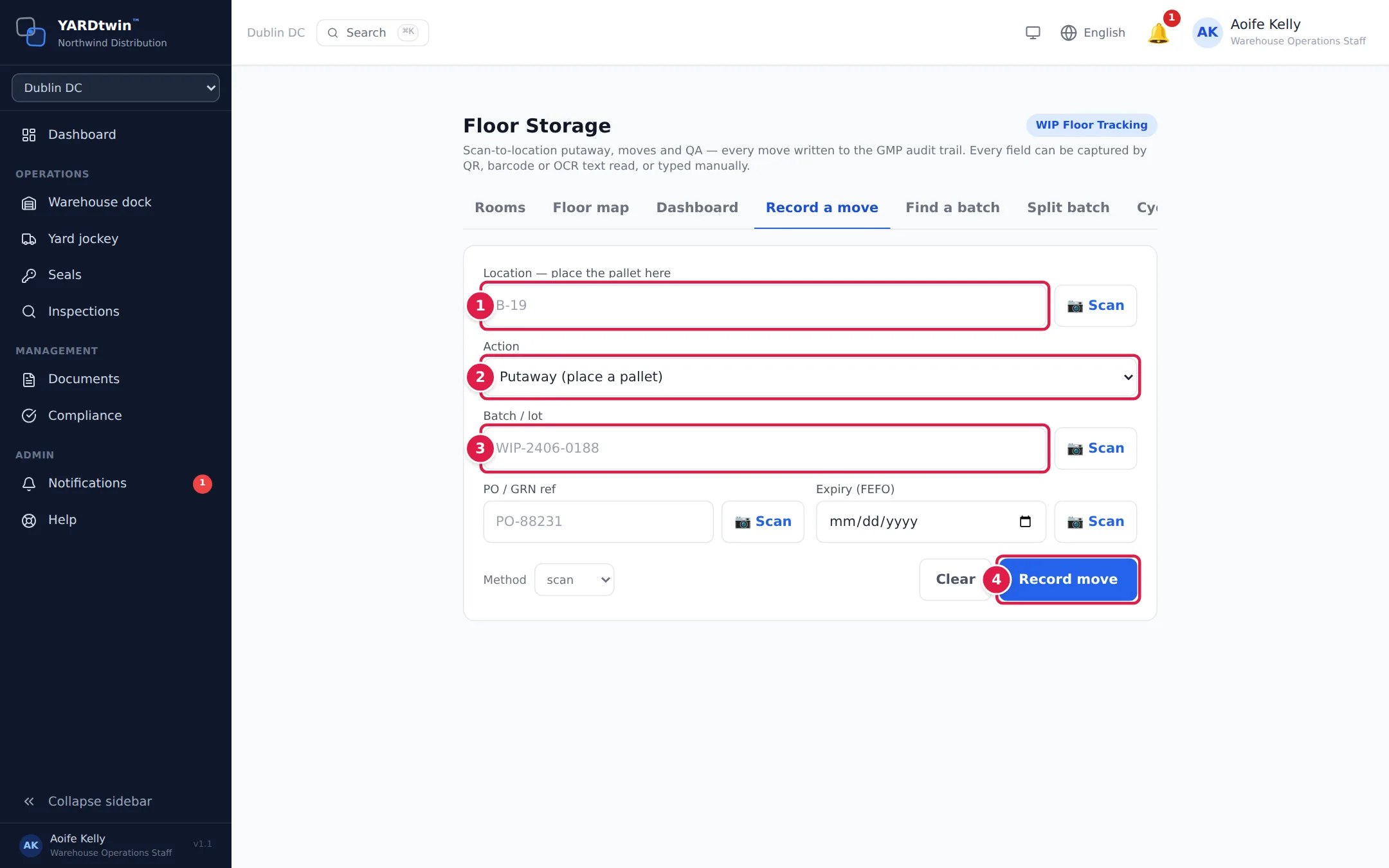
- Location: scan or type the slot code, for example B-19. What the location means depends on the action: for a putaway it's where the pallet goes; for a move, consume or ship it's where the pallet is now.
- Action:
- Putaway (place a pallet): also enter the PO / GRN ref and the Expiry (FEFO) date if you have them.
- Move to another slot: also scan the Move to slot.
- QA hold (whole batch), Quarantine (whole batch) or Release (return to stock): also give a Reason.
- Consume or Ship: the batch leaves the floor and its slot is freed.
- Batch / lot: scan the batch label. For a move, consume or ship it's optional: YARDtwin uses whatever sits in the location you scanned.
- Tap Record move. A green message confirms it, for example Recorded: WIP-2406-0188 is now in_stock.
YARDtwin may ask before it goes ahead: Yes — create new batch when the batch ID is new, Yes — add a pallet here when the slot already holds that batch, or a choice of slots or batches when what you scanned matches more than one. Clear empties the form.
QA hold, quarantine and release always apply to the whole batch. To act on part of a batch, split it first. Only QA, an administrator or an ops manager can release a held or quarantined batch. If your site requires e-signatures for QA actions, the form also asks for Your password (e-signature); see Sign electronically.
The floor map
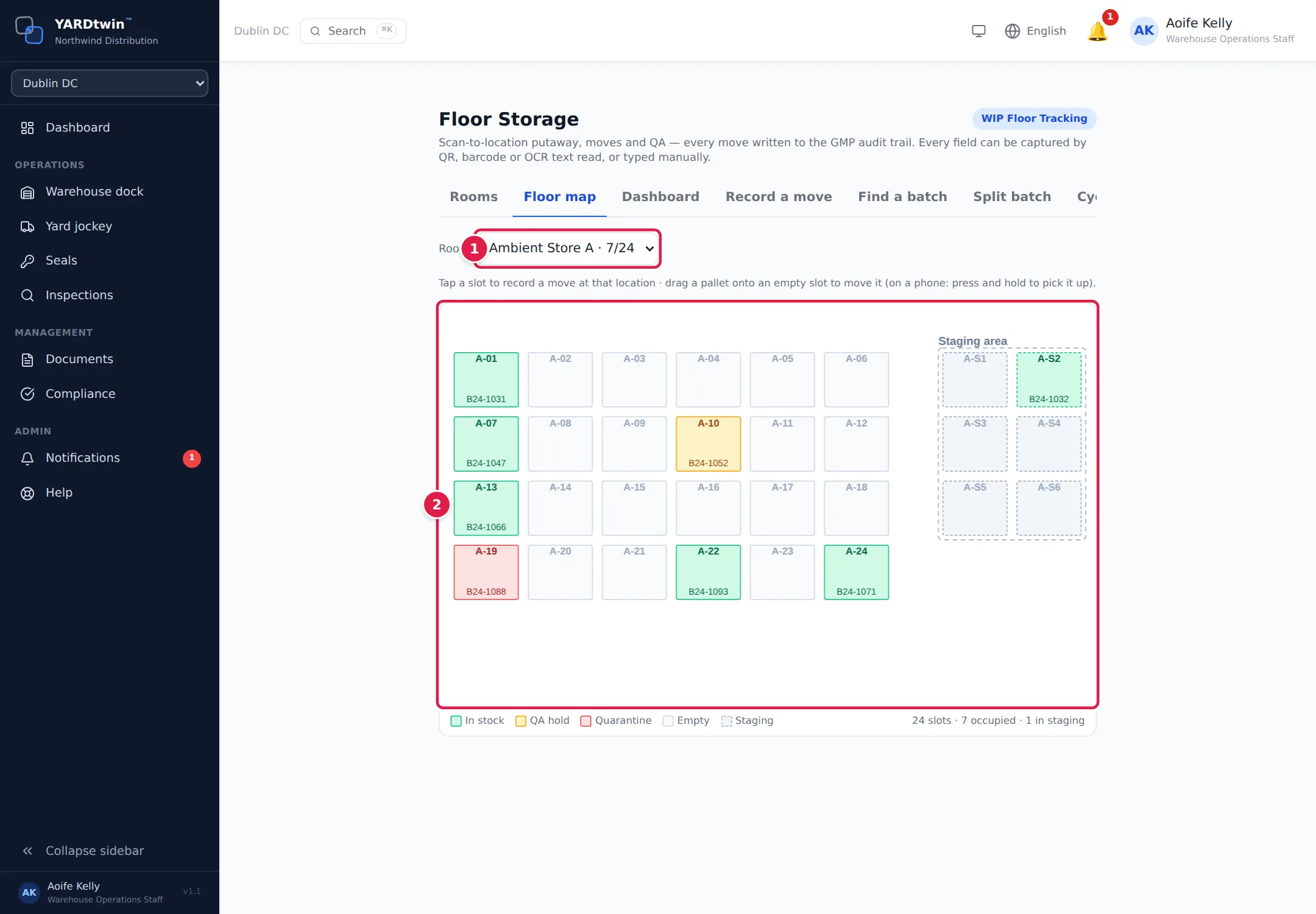
- Pick the Room. Each room shows how many of its slots are used, for example 7/24.
- Each slot shows its code and the batch in it, coloured as the legend underneath explains: In stock (green), QA hold (amber), Quarantine (red) or Empty. The Staging area is drawn with dashed lines beside the room. Tap a slot to open Record a move with that location filled in.
Under the map, YARDtwin counts the room's slots, how many are occupied and how many pallets are in staging.
To move a pallet, drag it onto an empty slot (on a phone, press and hold to pick it up). Nothing changes until you tap Confirm move in the banner above the map; Cancel puts it back. The trail records the move as dragged, so it can always be told apart from a scanned one. Your site can switch dragging off.
Find a batch
Type or scan a batch ID and tap Search. You see its status, where it is (or how many locations it's in), the pallet count and its Movement trail: every action, from and to which slot, when, who did it, how it was captured, and e-signed where it was signed. Export CSV downloads the trail. If the batch was split, its sub-batches are listed; tap one to open it.
Split a batch
When only part of a batch needs a QA hold, quarantine or release, split it. Each pallet is renamed to the batch ID plus its slot code, so WIP-001 at A-01 becomes WIP-001-A01, and each location becomes its own batch.
- Scan or type the batch and tap Preview. YARDtwin lists each slot and the new sub-batch ID.
- Enter the Reason, and your password if your site requires an e-signature.
- Tap Split into … sub-batches.
A batch that occupies a single slot can't be split. Labels printed with the old batch ID still work for a move, consume or ship when you scan the slot as well: YARDtwin works out the sub-batch from where the pallet stands.
Dashboard and cycle count
- Dashboard shows, for the room you pick, the slots in use, what's in stock and in quarantine, Oldest batches — FEFO watch and Recent activity.
- Cycle count: choose the Room and, optionally, the Zone, then tap Start session. Scan each spot and the pallet on it; YARDtwin compares what you find with what it expects there, and flags a batch in the wrong spot, an unexpected batch or a missing one. Tap Resolve & close to finish.
Set up rooms (administrators)
On the Rooms tab, an administrator creates each storage room with a Room name, a Code prefix (slot codes start with it, such as B-19), the number of Rows (Y) and Cols (X), and the Pallets / position. Rooms can be renamed, extended with Add rows or archived with Archive room; the history of an archived room is kept.
If something goes wrong
- "Scan required for this move (manual entry is disabled for this site)": scan the batch and location instead of typing them.
- "Destination slot is full": pick another slot, or move the pallet that's there first.
- "Destination floor slot "…" not found at this site — check the code or pick a slot on the floor map"
- "Batch ID "…" not found at this site — check the ID (it may be mistyped), or record its first putaway"
- "Batch "…" is not at … — it is at …": the batch is somewhere else. Check the slot.
- "Zone rule: … is not permitted in …": the slot doesn't accept that material category.
- "Releasing a held or quarantined batch is a QA decision (QA, admin or ops manager)"
- "E-signature failed — password incorrect": re-enter your YARDtwin password.
- "Drag-and-drop moves are disabled for this site — record the move by scanning"