YARDtwin tells you when something needs your attention, for example a new booking, a carrier asking to change a booking, a truck that didn't turn up, or a seal that didn't match. Each alert appears under the bell at the top of the screen and on the Notifications page.
Check the bell
The bell at the top right shows how many alerts you haven't read yet. It updates by itself, so you don't need to refresh the page.
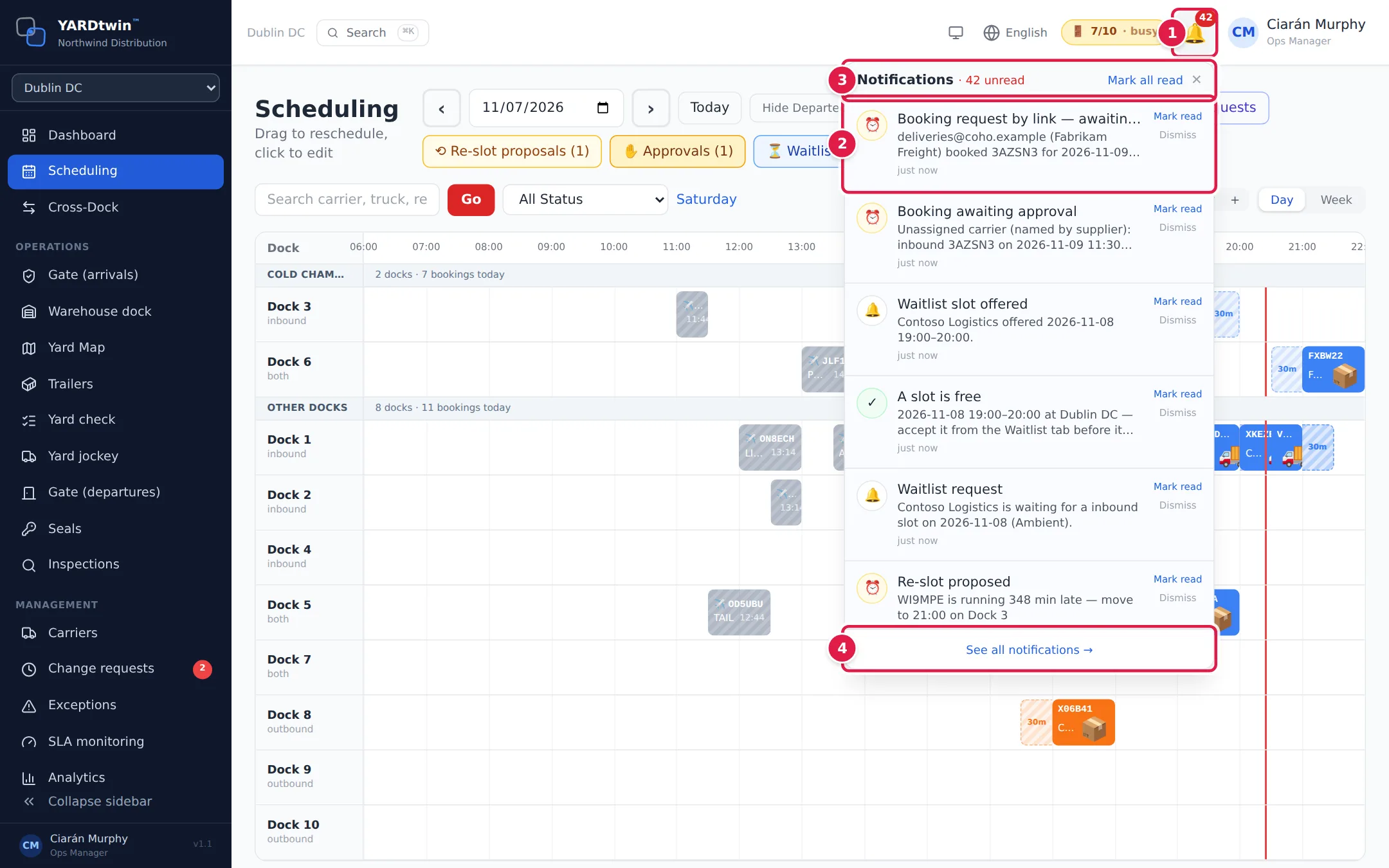
- Click the bell to open your 30 most recent notifications.
- Each notification shows a title, a short message and how long ago it arrived. Click Mark read once you've seen it, or Dismiss to remove it.
- The top line shows how many are unread. Mark all read clears the count in one go, and ✕ closes the panel.
- Click See all notifications → to open the full list.
Clicking anywhere outside the panel also closes it.
The Notifications page
The page lists your 30 most recent notifications, newest first, with the unread ones highlighted. Under the title it shows how many of all your notifications are unread, the same number as the bell, even when more than 30 are waiting. To open it, use See all notifications → under the bell, or Notifications in the menu.
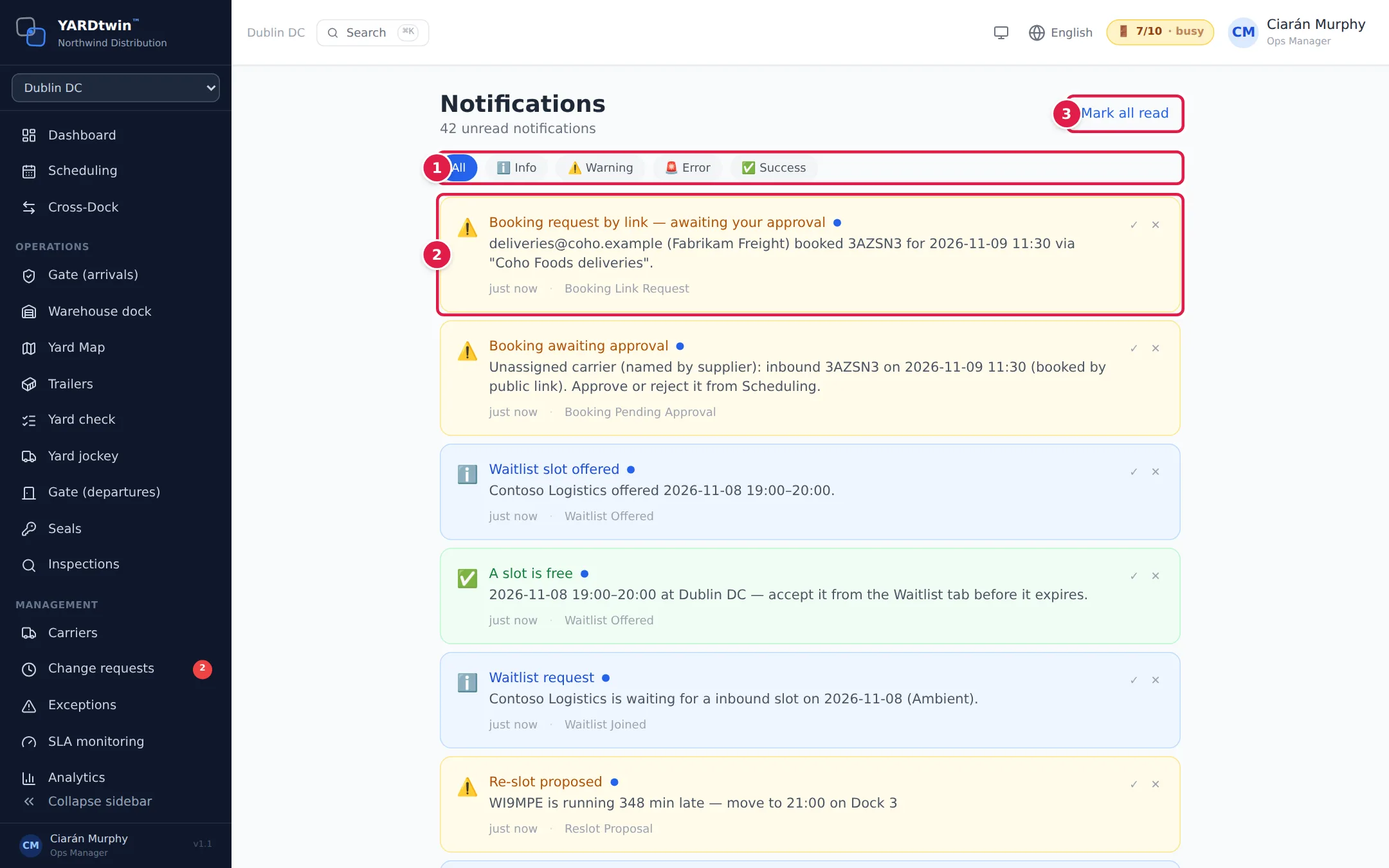
- Filter the list by type: All, Info, Warning, Error or Success.
- An unread notification is coloured and has a blue dot. Under the message you see when it arrived and what kind of event it was. At the right, click ✓ to mark it read or ✕ to dismiss it.
- Mark all read marks every notification as read. It only appears while you have unread ones.
A notification about a carrier asking to change a booking has a Review change → button. It takes you to the change request so you can approve or reject it. Once the request is dealt with, the button changes to ✓ Complete. See Change requests.
Dismiss removes the notification from your list for good, and it no longer counts as unread. If you only want to clear the count and keep the notification, use Mark read instead.
Why you get a notification
Notifications go to people by role and by site. For example, a seal mismatch at one of your sites goes to that site's ops managers. Which alerts each role receives, and whether they also go by e-mail or text message, is set by your administrator with Notification rules in Site Admin → Features. See Turn modules on and off.
If something goes wrong
- The page lists fewer notifications than the unread count. The page lists your 30 most recent; the count covers all of them. Mark all read clears every one.
- "No notifications" with a filter selected: there are none of that type. Click All.
- You expected an alert and didn't get one. Ask your administrator whether your role, and your site, are included in the notification rule for that event.
- An older notification has disappeared from the list. Only the 30 most recent are shown. Older ones are still counted in the bell until you mark them read.