YARDtwin writes an entry to the audit log every time something significant happens: a truck checked in or signed out, a seal recorded, a load started, completed or put on hold, a hold cleared, a document verified, a checklist completed, a template or user changed, a floor move. Each entry says who did it, with their role, when, to what, and why when a reason was given. Entries that matter for GMP are flagged GMP Relevant.
The audit trail is designed for EU GMP Annex 11 and FDA 21 CFR Part 11 requirements for electronic records. Nobody can edit or delete an entry from YARDtwin, not even an administrator: a correction, such as an aborted start or a removed scan, is recorded as a new entry.
Administrators and QA can open the audit log.
Filter and export
The page loads the 200 newest entries that match your filters. The line above the table shows how many that is out of the total, for example 200 of 900 records loaded.
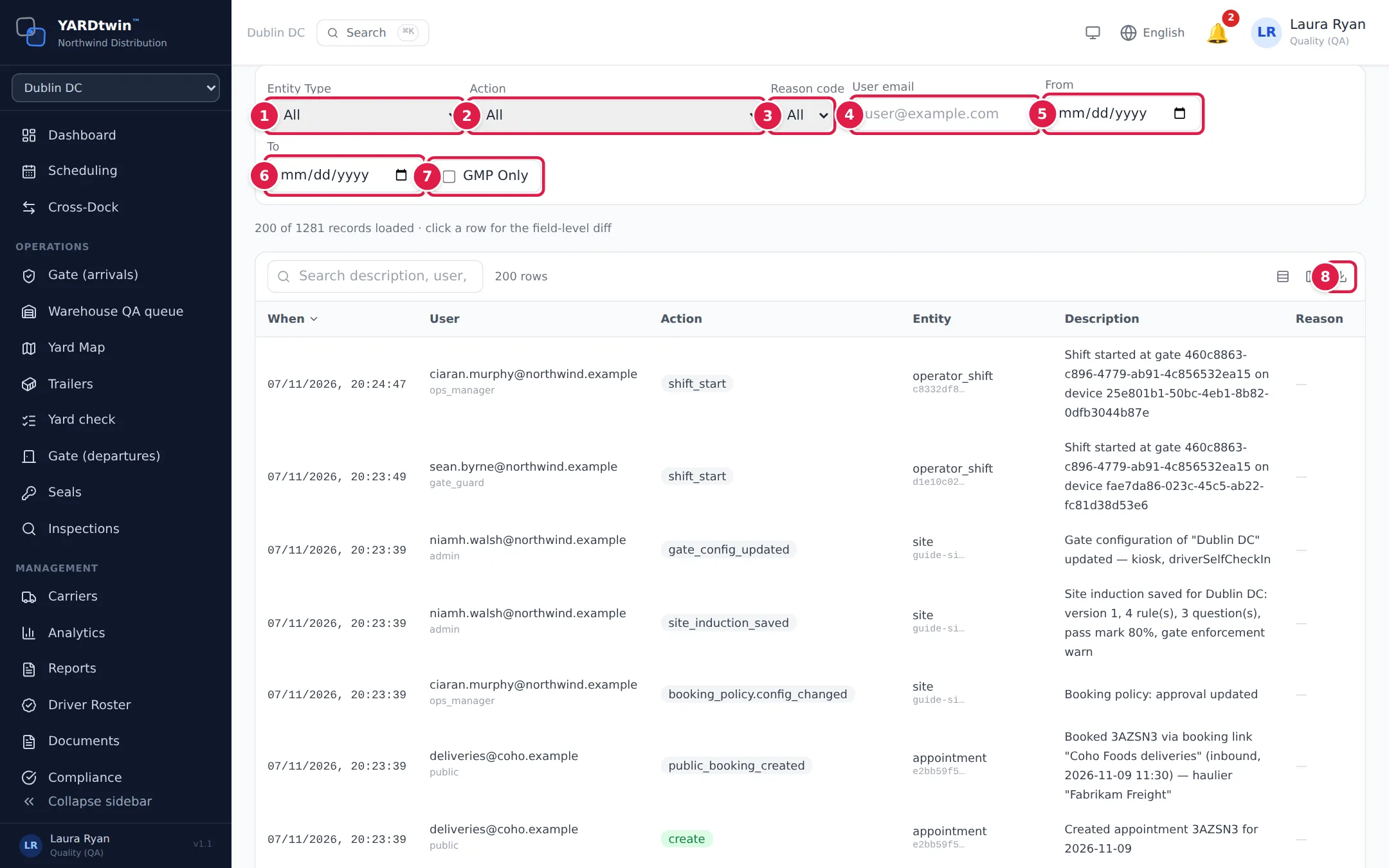
- Entity Type: what the entry is about, such as appointment, document or departure_clearance.
- Action: what happened, such as departure_signed or warehouse_hold_cleared.
- Reason code: the reason given, where one was required.
- User email: everything one person did. Type their full e-mail address.
- From: entries from this date onwards.
- To: entries up to this date.
- GMP Only: only GMP-relevant entries.
- Export (the download button at the top right of the table): Export CSV, Export Excel or Export PDF. The file contains the rows shown in the table: the loaded entries, after your filters and search.
The options in Entity Type, Action and Reason code come from the entries already loaded. Clear filters resets them all. The search box above the table narrows the loaded rows further, by description, user or action. Use the column and density buttons beside it to show fewer columns or more rows.
The filters are saved in the page address. Copy the address to share exactly the same view with a colleague or an inspector.
To counts from the start of the day you pick. To include everything on a day, set To to the day after.
Download the full audit archive (end of contract)
Download full audit archive (end of contract), at the top right of the page, downloads every audit entry of your organisation as one CSV file: every entry, not only the loaded ones, with the columns needed to check the hash chain (row_hash, prev_hash, chain_seq and the fields they cover). YARDtwin checks every chain while it makes the file, which can take a few minutes for a large trail. When the download finishes, the app computes the file's SHA-256 and confirms it to YARDtwin: the page then says Received and verified. That confirmation is the proof that your organisation received its audit trail; without it the archive does not count as handed over. The page also shows the file's SHA-256 and Download the receipt (PDF): the receipt states the number of entries, the GMP-relevant entries, the chains checked and their result, and the file's SHA-256.
Keep the file and its receipt for your own record-retention period. When your contract ends and your organisation's data is deleted, YARDtwin deletes the audit trail too. YARDtwin keeps its own record of the handover: the receipt; the archive's entry, GMP-relevant and chain counts and its SHA-256; who made the archive and when; and when its receipt was confirmed or its delivery recorded. Backups that contain the audit trail expire on their own schedule. The download is itself recorded in the audit log, and the archive contains that entry.
If the page cannot check the file, or says it does not match, compute the SHA-256 of the file you saved yourself (for example with certutil -hashfile on Windows, or shasum -a 256 on macOS and Linux), type it in the box under the SHA-256 and click Confirm receipt. It must equal the SHA-256 shown above the box, which is also on the receipt.
In the file, an empty cell is an empty value unless its column is named in that row's null_columns (a value that was never set). A cell that starts with an apostrophe had one added so a spreadsheet shows it as text: remove one leading apostrophe to get the stored value back.
Administrators and QA can download the archive. A user restricted to some sites cannot: the archive covers the whole organisation. Only one archive of your organisation is made at a time; if you see "An archive of this organisation is being made", wait for it to finish.
Look at one entry
Click a row to open it.
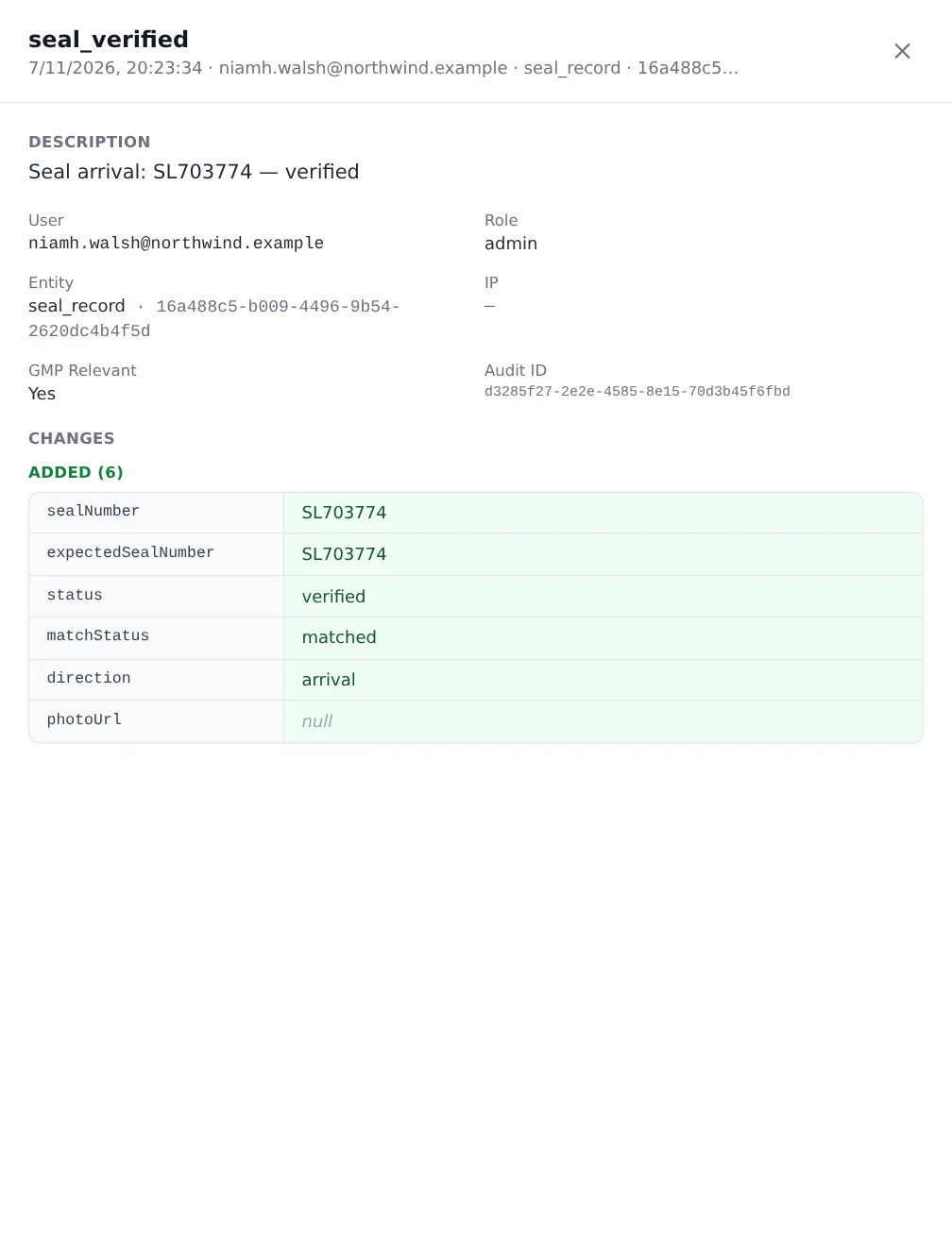
The panel shows the full Description, the GMP reason and its detail where one was given, the User and Role, the Entity and its full ID, the IP address, whether it's GMP Relevant, and the Audit ID. Under Changes, the fields that changed are listed with their values before and after; fields recorded for the first time are listed under Added.
If something goes wrong
- Audit Log isn't in your menu, or "Insufficient permissions": only administrators and QA can read the audit trail.
- "Not available to a site-restricted user" on the archive: the archive covers every site. Ask an administrator whose access is not limited to sites.
- "The file you received does not match the archive" when you confirm the receipt: the SHA-256 you entered is not the archive's. Check that you hashed the file exactly as downloaded (not a copy opened and saved in a spreadsheet), or download the archive again.
- An entry you expect isn't there. Only the 200 newest matching entries are loaded. Narrow the dates, action or user until the entry is among them.
- User email finds nothing. Type the whole address exactly as it appears in the User column.