When a carrier needs to change a booking in a way that affects your planning, such as a new time, dock or date, or a different pallet count, they ask in the carrier portal instead of changing it themselves. The request waits here until a planner decides. See Change a booking as a carrier for the carrier's side.
When a request comes in, Operations managers get a notification. For changes to the slot, dock, date, pallet count or ETA, Yard managers, Operations users and Administrators are told too.
Steps
Open Change requests in the Management section of the menu. It's there for Administrators, Operations managers and Yard managers, the roles that can decide a request. Other roles, Quality (QA) and Operator users included, don't see it. Each request shows:
- the kind of change: SLOT, DOCK, DATE, PALLET COUNT, COMMODITY, PURCHASE ORDER, ETA or OTHER;
- the booking code, the carrier and when the booking is scheduled;
- who raised it and when;
- Current and Requested side by side, one line per field. The fields use their system names, for example scheduled_start for the start time, or eta_at and delta_min for a new arrival time and how many minutes late that is;
- the carrier's reason, in quotes.
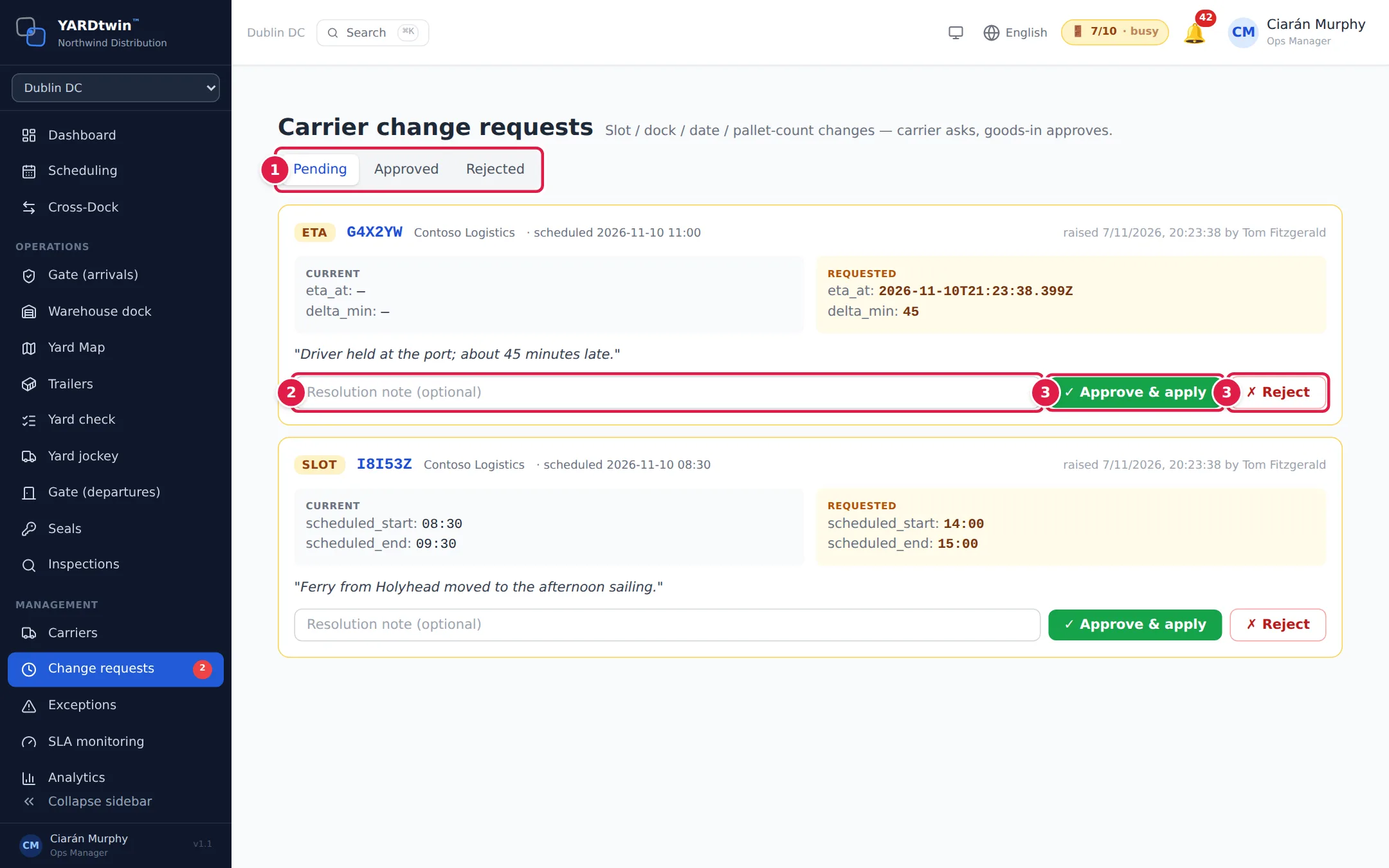
- Pick a list. Pending shows the requests waiting for a decision, newest first. Approved shows the requests that were applied, and Rejected the ones that were declined.
- If you like, type a Resolution note (optional). The carrier sees it with your decision. When you reject, use it to suggest an alternative, for example Try 14:30 on the same dock instead.
- Click ✓ Approve & apply or ✗ Reject.
What happens next
- Approve & apply writes the requested values onto the booking and moves the request to Approved. A new slot, date or dock is first checked like any other booking: opening hours, dock suitability and maintenance, conflicts and buffers, dangerous goods, rules and labour capacity. If the check fails, nothing changes and the reason is shown at the top of the page.
- An ETA request records the carrier's new arrival time for the gate and the docks to see. It does not move the booked slot.
- A request of kind OTHER is marked approved but changes nothing on the booking; make the change yourself if it's needed. See Change, move or cancel a booking.
- Reject leaves the booking as it was and moves the request to Rejected.
Either way, the carrier gets a notification with your decision and note, and the decision is recorded in the booking's audit trail.
The list refreshes itself every 30 seconds, so you can keep it open in a browser tab.
If something goes wrong
- "Already approved" or "Already rejected" Someone else decided the request first. The list refreshes to show it under the other tab.
- "The requested date/time is not valid" The carrier's requested date or time can't be read. Reject the request with a note, or change the booking yourself.
- "Dock '…' is booked at that time (…)", "Dock '…' is in maintenance then" or "Outside operating hours (… – …)" The requested slot can't be used. Reject the request with a note suggesting another time.
- No Change requests in the menu, or the notification has no Review button. Only Administrators, Operations managers and Yard managers can review change requests.