A standing booking is a regular slot, such as every Tuesday and Thursday at 08:00, for a carrier that delivers on a fixed pattern. YARDtwin creates one ordinary booking for each date. Each one can be moved, edited or cancelled on its own, and ending the series cancels only the bookings still to come.
Create a standing booking
Start a booking as usual with + New Appointment, choosing the first date, the carrier, the time and the load. See Book an appointment. Then, near the end of the form:
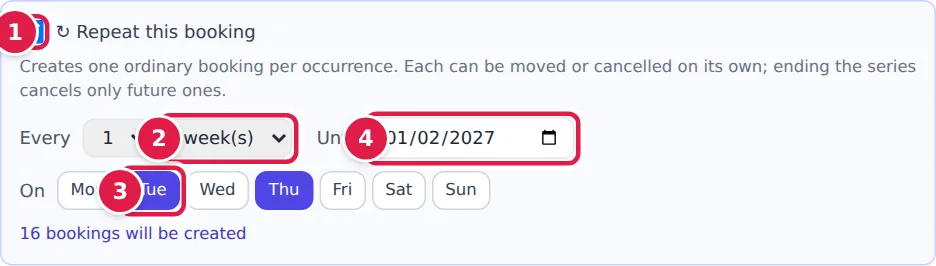
- Tick ↻ Repeat this booking.
- Choose how often: Every 1 to 4 week(s) or day(s).
- For a weekly pattern, click the days under On, for example Tue and Thu.
- Choose the end date under Until. It's required, and the series can run up to 52 weeks ahead.
The line underneath tells you how many bookings will be created, for example 16 bookings will be created. A series is limited to 52 weeks and 100 bookings; if your pattern goes past that, the line says it is capped.
Click Create Appointment. YARDtwin books each date in turn with the same checks as a single booking.
What you'll see
The Standing booking created window shows how many dates were booked and how many could not be. For each date that couldn't be booked, it gives the reason, such as the dock already being taken, and a suggested time where there is one (Book at …). Book those dates by hand if you need them.
On the board, every booking in the series shows ↻ after its label. When you open one, the Edit Appointment window shows Standing booking # and its number in the series.
Approve a carrier's request
Carriers can ask for a standing slot in the carrier portal. Nothing is booked until a planner approves the request. You get a notification, and the request waits under ↻ Standing requests at the top of the scheduling board.
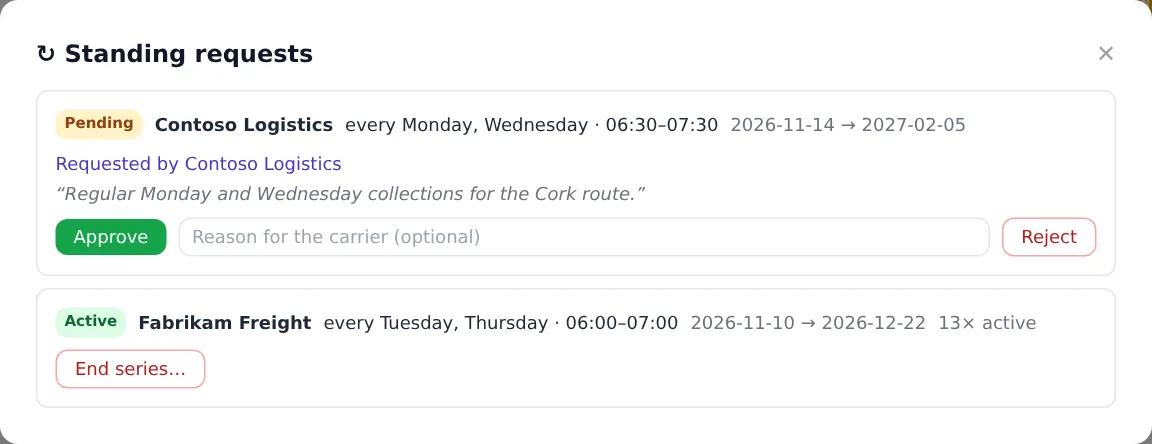
Each request shows the carrier, the pattern and time, the date range, Requested by the carrier and any note they left.
- Approve books every date in the pattern, with you as the person who booked them. The carrier is told how many bookings were created, and is asked to add a driver and vehicle to each.
- To decline, type a Reason for the carrier (optional) and click Reject. The carrier is told.
The same list shows the series that are already running (Active, with the number of live bookings), and those that are Ended or Rejected.
End a series
- Open ↻ Standing requests and click End series… on the series. You can also click End series… in the Edit Appointment window of any booking in the series.
- Type the Reason. It is required.
- Click End series….
Only future bookings that are still Scheduled or Confirmed are cancelled, each with its own audit entry. Visits that have already happened are left as they are. The carrier is told how many bookings were cancelled, and why.
Ending a series can't be undone. To change the pattern, end the series and create a new one.
If something goes wrong
- "An end date is required (up to 52 weeks ahead)." Pick a date under Until.
- "The rule produces no occurrences between the start and end dates" None of the chosen weekdays falls between the first date and the end date. Check the days under On.
- "None of the … occurrences could be booked." Every date failed the site's checks. The message gives the first reason; fix it (for example, pick another time) and try again.
- "Material type is required" Choose a Material Type before you create the series.
- "A reason is required" Type a reason before ending the series.