A yard check (a lot audit) compares what's really on your yard with what YARDtwin thinks is there. When you start one, YARDtwin takes a snapshot of every trailer it believes is on site, with its spot. You walk the yard and record each trailer where you find it. YARDtwin then lists what's missing, what's unexpected and what's in the wrong spot, and a manager decides how to correct each one.
The screen is designed for a phone.
Start a check
Open Yard check and tap Start a yard check. A message confirms how many trailers are expected, and the check opens on the Walk tab.
Only one check can be open at a site. If one is already open, Yard check opens it straight away so you can carry on walking. When no check is open, Previous checks lists the earlier ones with what each found; tap one to see its record.
Walk the yard
- Under Spot you are at, search for your spot (for example P12, D6 or Staging) and tap it. If your spot isn't in the list, the name you typed is recorded as it is.
- Scan or type the trailer number in Trailer number (scan or type).
- Tap Record, or press Enter. The result shows straight away: Found, Wrong spot or Unexpected.
- When you've walked the whole yard, tap Close the yard check and confirm. Trailers you didn't see are recorded as missing.
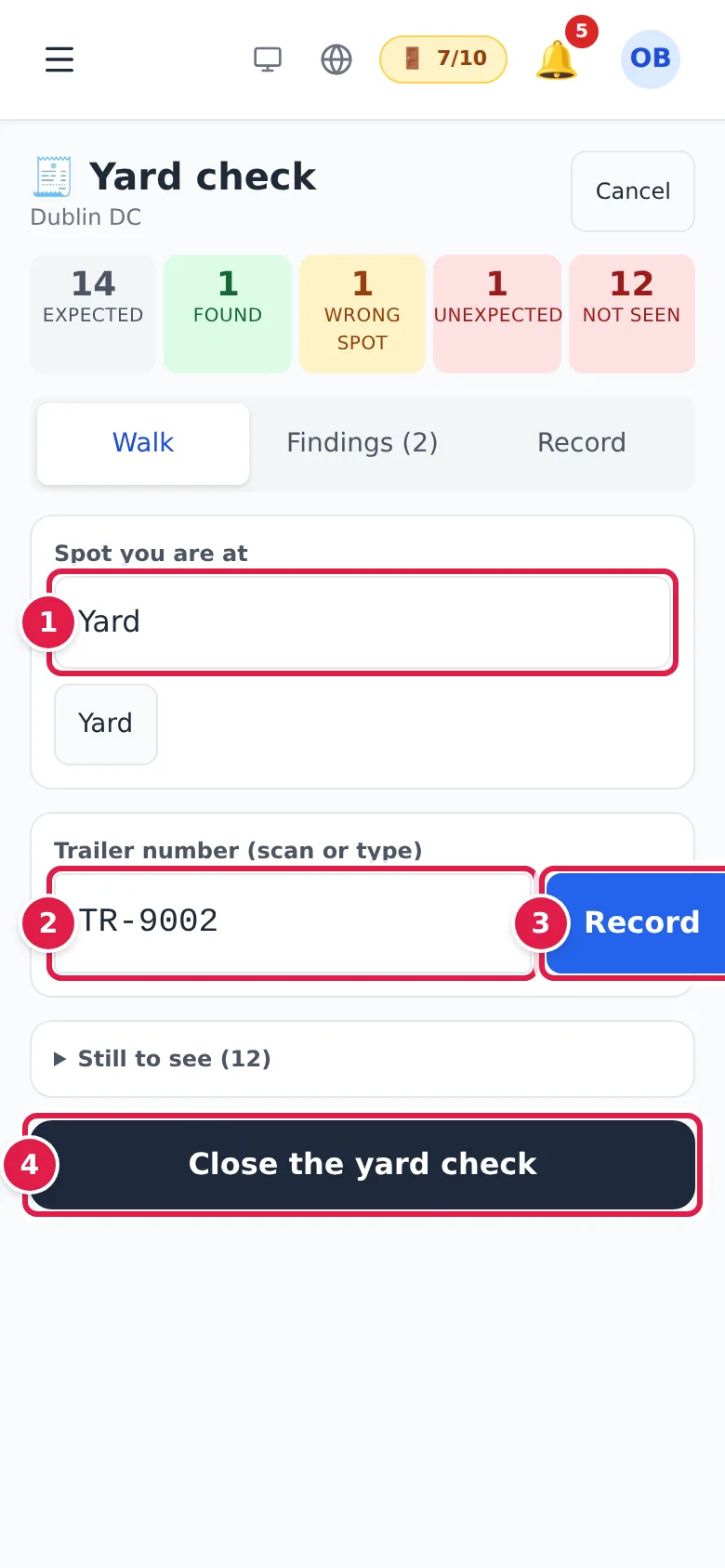
The tally across the top keeps count: expected, found, wrong spot, unexpected, and trailers not seen yet (shown as missing once the check is closed). Open Still to see for the trailers you haven't recorded yet.
To abandon a check, tap Cancel at the top. Nothing recorded so far is applied.
Reconcile the findings
Open Findings to see each discrepancy, with where the trailer was expected and where it was found. Administrators, ops managers, yard managers and QA can correct each one:
- Type a Reason (recorded in the audit trail) on the finding.
- For an Unexpected trailer, tap Register here: YARDtwin adds it at the spot you found it.
- For a trailer in the Wrong spot, tap Move to found spot: YARDtwin moves it to where you found it.
- Or tap Ignore to leave the record as it is.
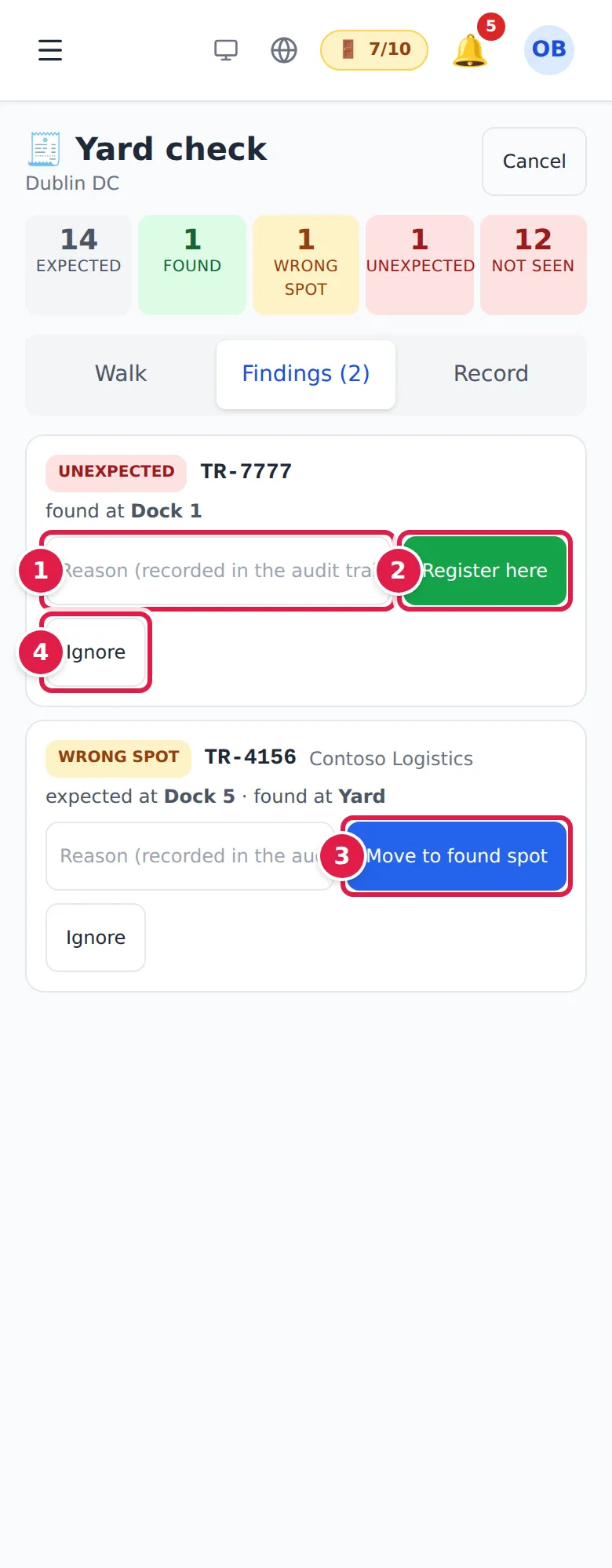
For a Missing trailer, the button is Mark departed: YARDtwin records that it has left.
A corrected line is tagged corrected. Every correction is written to the audit log.
Record shows the check's summary: who started it, when it started and closed, and every trailer with where it was expected, where it was found and the result.
Scheduled yard checks
Your site can expect yard checks at set times, for example daily at 06:00. When a check falls due, the responsible role gets a notification. If no check is started in time, they and the ops managers are alerted. Schedules are set by an administrator, ops manager or yard manager in Site Admin → Yard & gate → Yard Operations. See Yard operations.
Who can do what
- Yard jockeys, operations staff, operators, QA, yard managers, ops managers and administrators can start a check and record trailers.
- Only administrators, ops managers, yard managers and QA can correct findings, close a check or cancel it.
If something goes wrong
- "Pick the spot you are at first": choose or type a spot before recording a trailer.
- The check won't close. Your role can record trailers but not close the check. Ask a yard manager.
- "Insufficient permissions": your role can't start a yard check.