The yard map follows the gate, the docks and the yard jockeys by itself. When it's wrong, for example a driver parked somewhere other than where they were sent, you can correct it on the map.
These corrections change only the map: where the truck is drawn and the status shown on it. They don't check a truck in or out, and they don't change the booking. Use the gate and dock screens for that.
Move a truck
Drag the truck on the map and drop it on the dock, staging area or parking spot where it really is. It snaps into place next to any trucks already there.
- Dropped on a dock door or a bulk dock, the truck shows as at dock.
- Dropped in staging, a parking spot or an inspection bay, it shows as waiting.
Its Source in Vehicle Details changes to Operator placed, so everyone can see the position was set by hand. If the truck was moving on the map when you dropped it, the move stops where you put it.
On a site with a positioning system, a truck or trailer carrying a location tag holds where you dropped it for ten minutes. After that, its tag places it again.
Correct a truck's status, or remove it
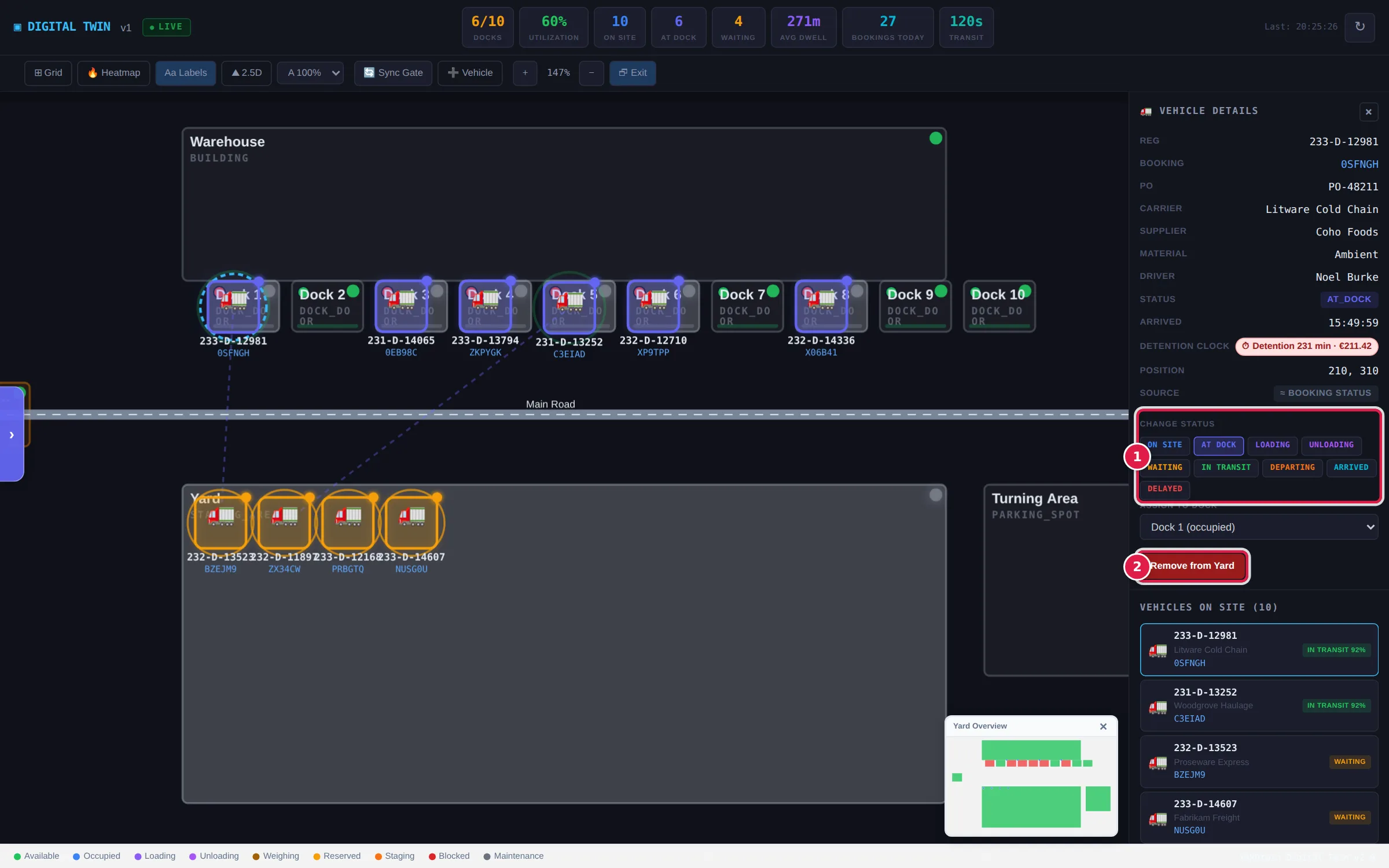
Click the truck on the map or in Vehicles on Site to open Vehicle Details.
- Under Change Status, tap the status the truck should show: on site, at dock, loading, unloading, waiting, in transit, departing, arrived or delayed.
- Under Assign to Dock, pick the dock the truck is really at. The list shows every dock door and bulk dock on the map, with its status. The truck's status doesn't change; set it under Change Status if it needs to. A truck that isn't at a dock shows Not at a dock. To take a truck off its dock, drag it to where it is.
- Tap Remove from Yard to take the marker off the map, for example a vehicle added by hand that has gone. A truck whose booking is still on site comes back the next time the map refreshes.
Add a vehicle, or rebuild the map from the gate
- 🔄 Sync Gate adds any truck that's checked in at the gate but missing from the map, and moves trucks to where their booking says they are. It then tells you how many trucks it synced and how many bookings are on site, for example Synced 2 vehicles from 14 on-site bookings. It's for administrators, ops managers and yard managers.
- ➕ Vehicle opens Add Vehicle in the side panel.
- Fill in the Registration, the Type (truck, tanker, van, reefer, container or flatbed), the Carrier and the Driver, then tap Add. The vehicle appears at the top left of the map, on site; drag it to where it is. Cancel closes the form.
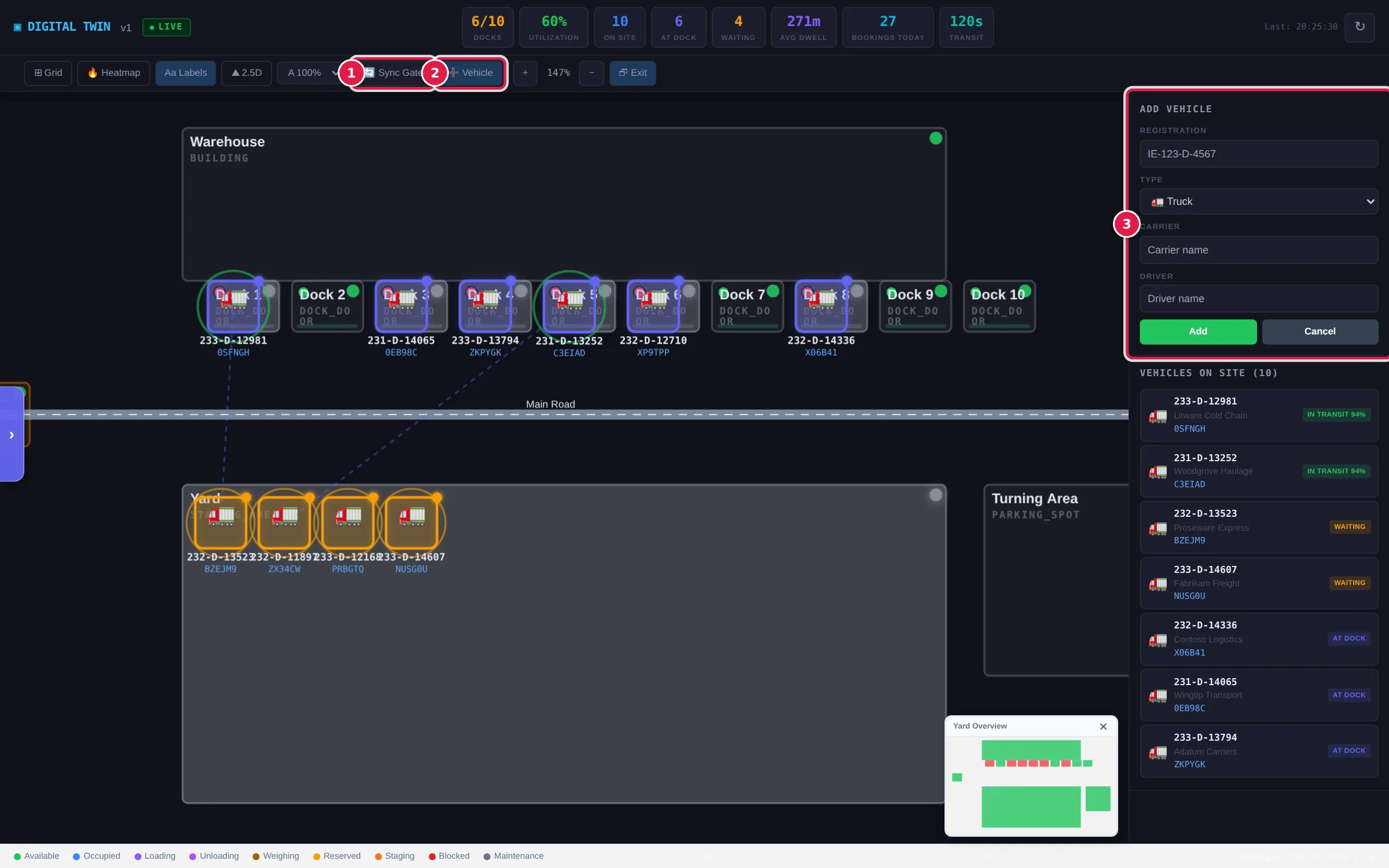
A vehicle added this way is a marker on the map only. It has no booking, so it won't appear at the gate or on the dock board.
Drop-trailers: if your site has drop-trailers switched on, the toolbar also has 🚃 Drop-trailer, for a trailer left parked on the yard without a tractor. Tap it and type the trailer number to add the trailer to the map. Administrators and ops managers can use it.
Who can do this
Administrators, ops managers, yard managers, operations staff, operators and yard jockeys can move trucks, change their status, add vehicles and remove them. Other roles can view the map; if they try to change it, nothing is saved.
If something goes wrong
- "Failed to move vehicle": the move wasn't saved, usually because your role can't change the map. Reload the map to see where the truck is recorded.
- A removed truck comes back. Its booking is still on site, so the map adds it again when it refreshes. Check the truck out at the gate instead. See Clear a truck to leave.
- Assign to Dock lists no docks. The published layout has no dock doors or bulk docks. An administrator adds them in the Layout Builder.