This page is for suppliers: the companies whose goods are delivered to a site that uses YARDtwin.
The supplier portal lets you book delivery slots for your goods yourself, name the haulier bringing them, and upload the paperwork the site needs. You and the haulier receive the same confirmation code.
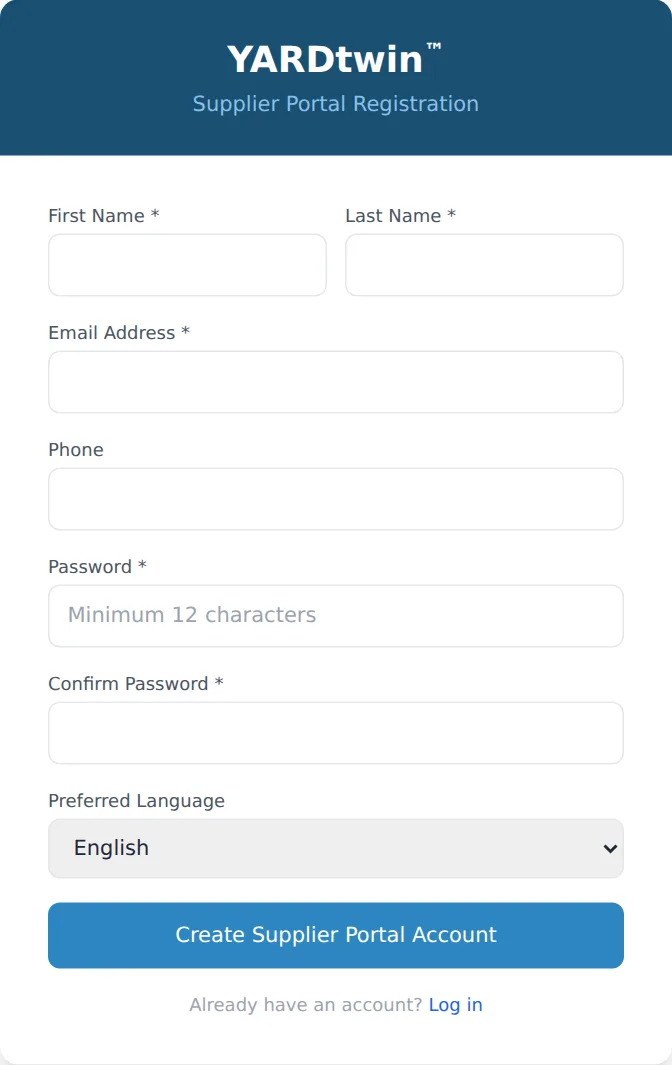
Register
The site invites you by e-mail. An administrator does this under Site Admin → Yard Operations → Suppliers with Invite to portal; see Yard operations settings.
- Click Create your account in the invitation. The link is valid for 7 days. The page is headed Supplier Portal Registration.
- Enter your First Name, Last Name, Email Address (the one the invitation was sent to), Phone, and a Password of at least 12 characters, twice. Choose your Preferred Language.
- Click Create Supplier Portal Account. You see Registration Complete; click Go to Login and sign in.
When you sign in, the Supplier portal opens.
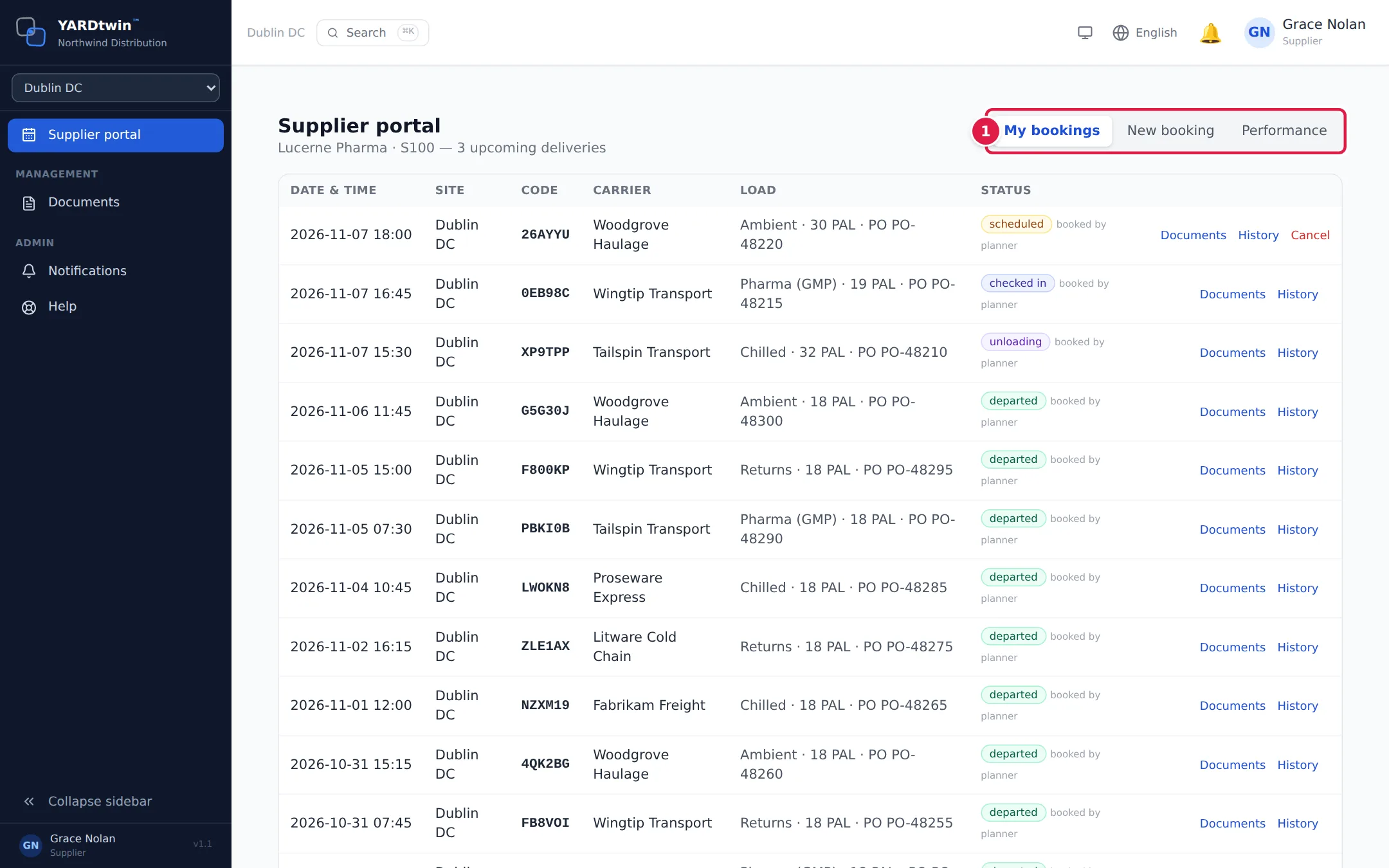
- The three tabs: My bookings lists your bookings, newest first; New booking books a delivery slot; Performance shows how your deliveries have gone. The line under the heading shows your company and how many deliveries are coming up.
Book a delivery
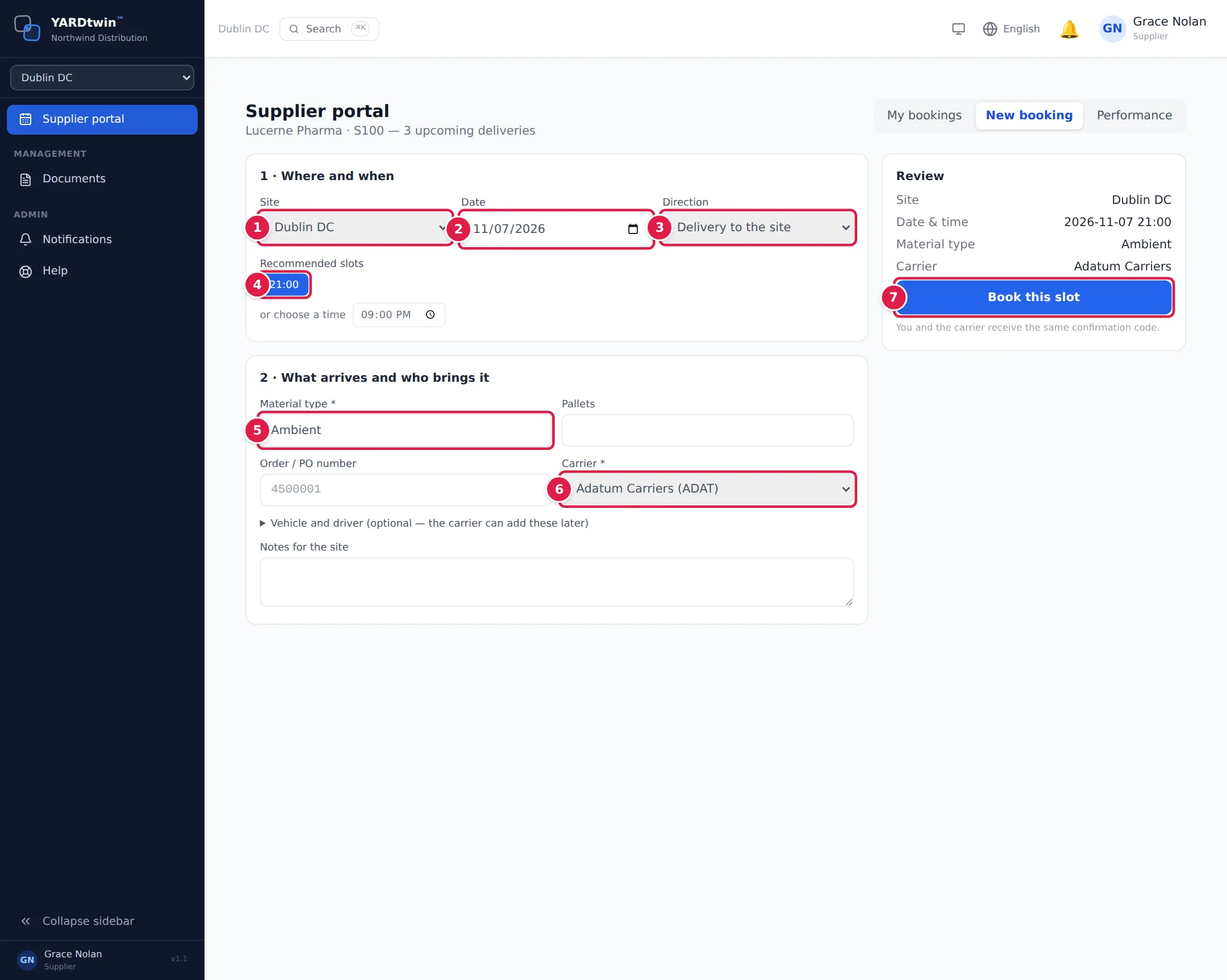
- Choose the Site.
- Choose the Date.
- Choose the Direction: Delivery to the site or Collection from the site.
- Click one of the free times under Recommended slots. Each time is listed once, in time order, however many docks are free then: the site assigns the dock. If none suits, type a time under or choose a time.
- Enter the Material type, as the site names it.
- Choose the Carrier bringing the goods. If the haulier isn't listed, choose Other — type the haulier's name and enter the Haulier name; the booking then shows carrier to be confirmed until the site confirms it.
- Check the Review panel and click Book this slot.
You can also enter the Pallets, the Order / PO number, any Notes for the site, and, under Vehicle and driver (optional — the carrier can add these later), the truck registration, trailer number and driver.
When the booking is made, Booked shows its confirmation code, date, time and status. If the site checks bookings before confirming them, or the order number wasn't recognised by the site's system, the box says so and a planner will confirm it.
Your bookings
My bookings shows the Date & time, Site, Code, Carrier, Load and Status of each booking you made here, and of bookings a site planner made for your company, which are marked booked by planner. A planner booking shows here when the planner chose your company as the supplier. You are then told if it is cancelled (and by any notification the site sends to suppliers); the booking confirmation e-mail comes only when the planner booked it on your behalf. For each booking:
- Documents shows what the site needs under Required by the site, with Upload for each. Add anything else under Other documents with + Upload another document. PDF, JPG, PNG, WebP and HEIC files are accepted, up to 25 MB each.
- History lists every change to the booking.
- Cancel cancels a booking that hasn't arrived yet. You're asked for a reason, which is optional.
Your performance
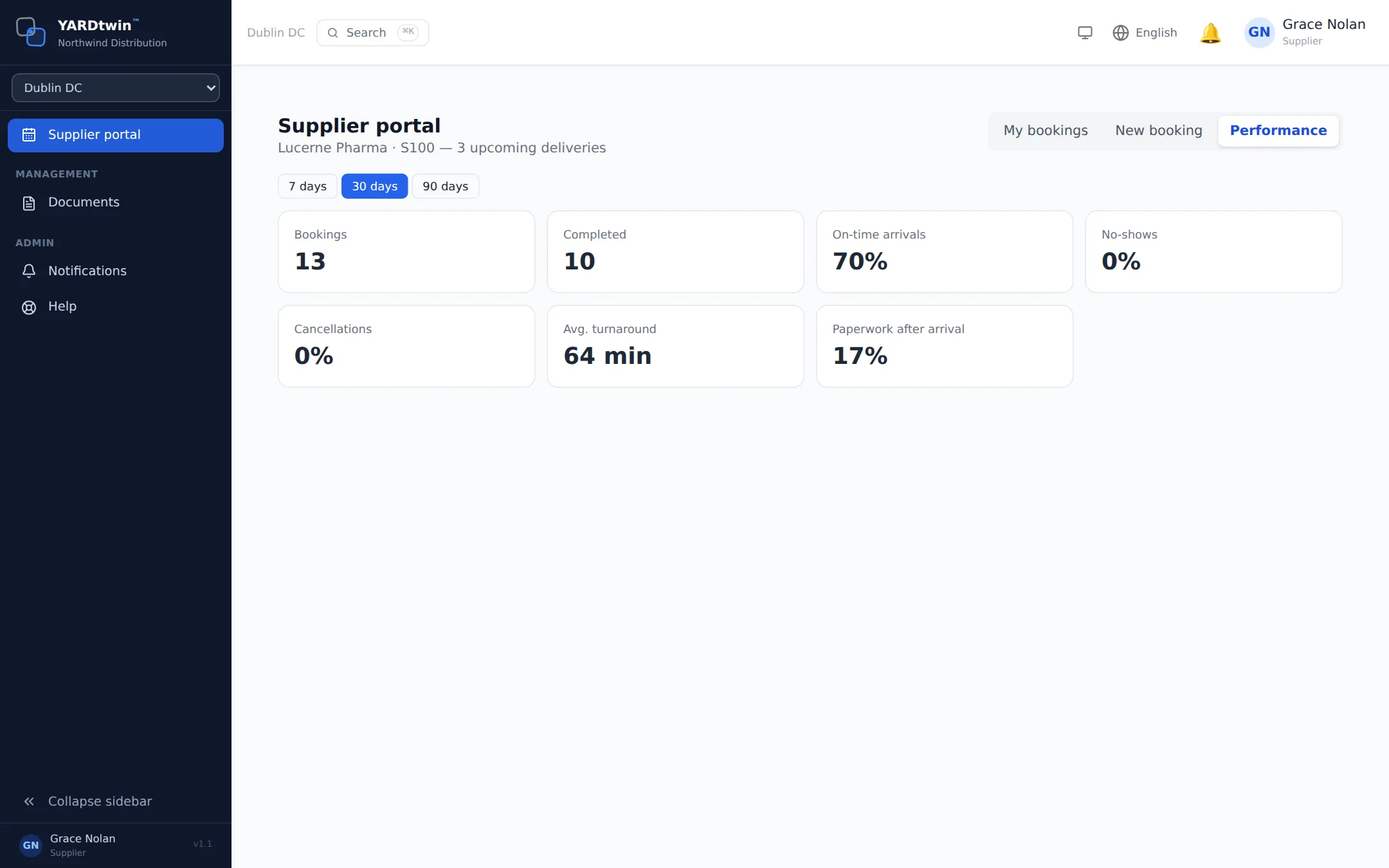
Performance sums up the last 7, 30 or 90 days: Bookings, Completed, On-time arrivals, No-shows, Cancellations, Avg. turnaround, and Paperwork after arrival (the share of arrived deliveries whose documents were uploaded only after the truck arrived).
On-time arrivals is the share of completed deliveries whose truck arrived no more than 15 minutes after the slot started, in the site's time. Deliveries with no arrival recorded are left out. It's the measure the site's own dashboard uses.
If something goes wrong
- "No supplier linked to this account" Your login isn't connected to a supplier, or the site has switched your portal off. Contact the site.
- "Invalid or expired invite token" or "Registration failed. The invite may have expired." Ask the site to send a new invitation.
- "Email already registered" You already have an account. Sign in instead.
- "Password must be at least 12 characters" or "Passwords do not match" Check the password and type it again.
- "Choose a slot or type a time first." Pick a slot, or type a time.
- "Choose a carrier or type the haulier's name." Pick the carrier, or choose Other and type the name.
- "No free slots on this day — try another date or type a time." The site is full that day.
- "Appointment cannot be scheduled in the past", "Site is closed on …" or "Appointment must be within operating hours (… - …)" Pick another time. If a later time is free, the result box offers Book at … instead.
- "Unknown material type …" The material type you typed isn't one the site uses. The message lists the ones it does.