Every warehouse screen works from your dock shift. The docks you pick decide which trucks appear on your dock board, and your shift's numbers are counted from them. Start a shift when you take over the docks, and end it when you hand over.
Steps
If your role is Warehouse Operations Staff, the warehouse screens open as soon as you sign in. Otherwise, click Warehouse dock in the menu. If you don't have a shift open, the Start dock shift screen opens. There is one card for each active dock at your site. A card shows the dock's name, whether it takes inbound loads, outbound loads or both, a ❄ cold tag on a temperature-controlled dock, and the number of bookings it has today.
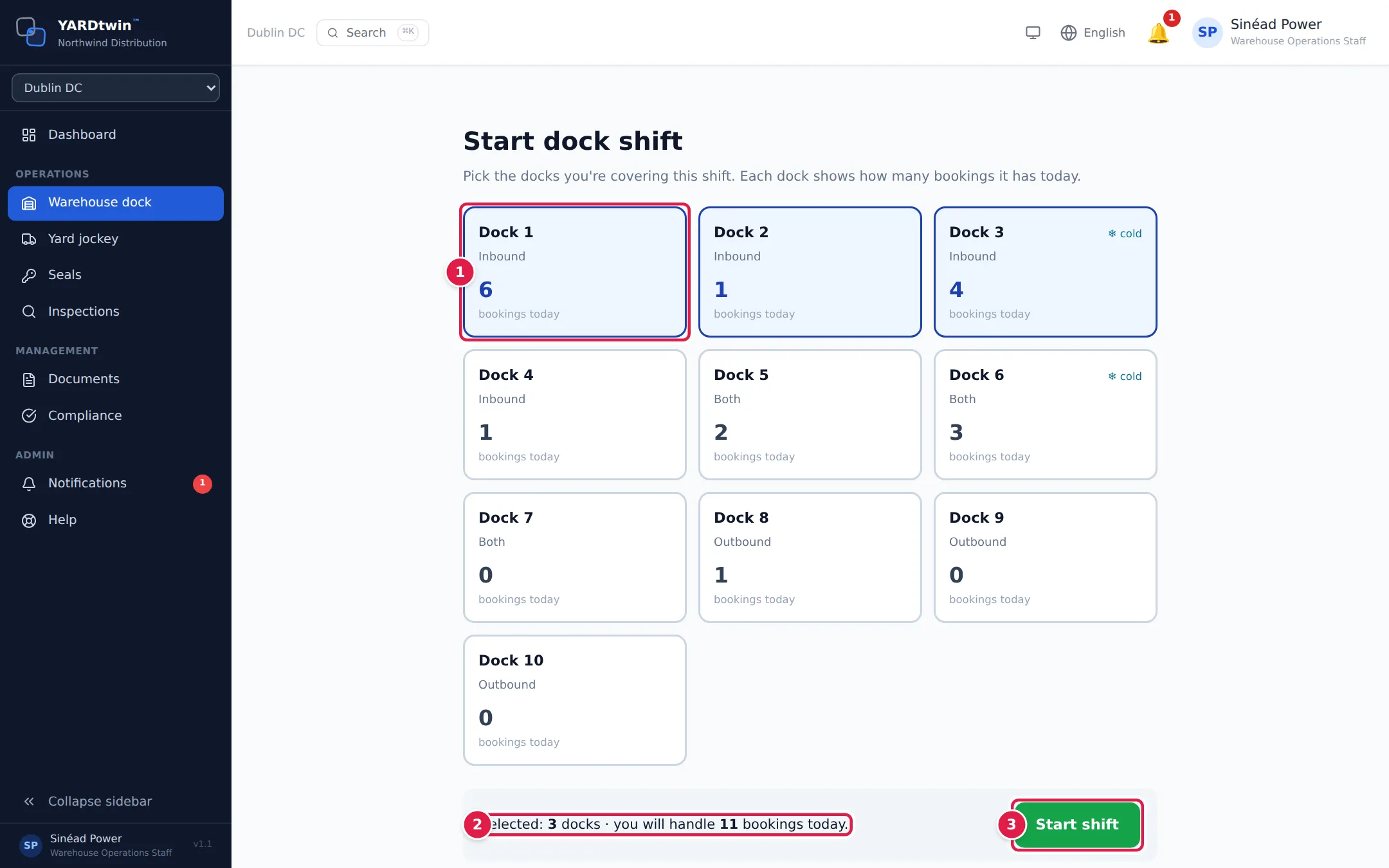
- Tap each dock you're covering. A selected card turns blue; tap it again to drop it. There's no limit on how many docks one shift covers.
- Check the summary line. It shows how many docks you've picked and how many bookings they have between them today.
- Tap Start shift. Your dock board opens.
What you'll see
Once your shift is open, a bar runs across the top of every warehouse screen:
- Shift since and the time you started.
- Docks: the docks on your shift.
- Dock board and QA queue, to move between screens.
- End shift. This button is hidden on the dock board itself, so it can't be pressed by accident while you work the board. Open any other warehouse screen to end your shift.
Each person has their own shift, so two supervisors can cover different docks at the same time. Starting, changing and ending a shift are recorded in the audit log.
The note from the previous shift
When the dock supervisor before you left a handover note, a yellow box above the warehouse screens shows it once your shift is open: who wrote it, when they ended their shift, and the note. Handed over to you means they picked you to take over. Tap Got it to hide it. It's shown once. The note comes from the last dock shift someone else ended at your site in the past 24 hours; if that shift left no note, none is shown. See End your dock shift.
Picked the wrong docks, or a colleague has handed you another bay? You don't need to restart the shift. Use ⚙ Manage docks on the dock board. See Work the dock board.
If you still had a shift open, for example on another tablet, starting a new one closes the old one.
If something goes wrong
- Start shift stays grey. Pick at least one dock first.
- "Select at least one dock": you tapped Start shift with no dock selected.
- "No valid docks for this site": the docks don't belong to the site chosen in the site switcher at the top of the menu. Switch to the right site and try again.
- "Backend starting up — retrying (1/4)…": YARDtwin was restarting. The screen tries again by itself; wait a few seconds.
- A card says OUT OF SERVICE. The dock is closed for maintenance. Check with your manager before you take it on.
- Every warehouse screen sends you back to Start dock shift. The warehouse screens need an open shift; only the QA queue doesn't. Your shift was ended, either by you or by starting a shift somewhere else. Start a new one.
- "Insufficient permissions": your role can't run a dock shift. Dock shifts are for warehouse operators, operations staff, ops managers, yard managers and administrators. QA users have Warehouse QA queue in their menu instead. See Who can see what.