The driver roster is your list of known drivers, by carrier. A driver on the roster can be picked on bookings, and the gate sees their licence, certificates and any block when they arrive. Carriers can also add their own drivers in the carrier portal; those appear here too.
Register a driver
Open Driver Roster in the Management section of the menu and click + Register Driver.
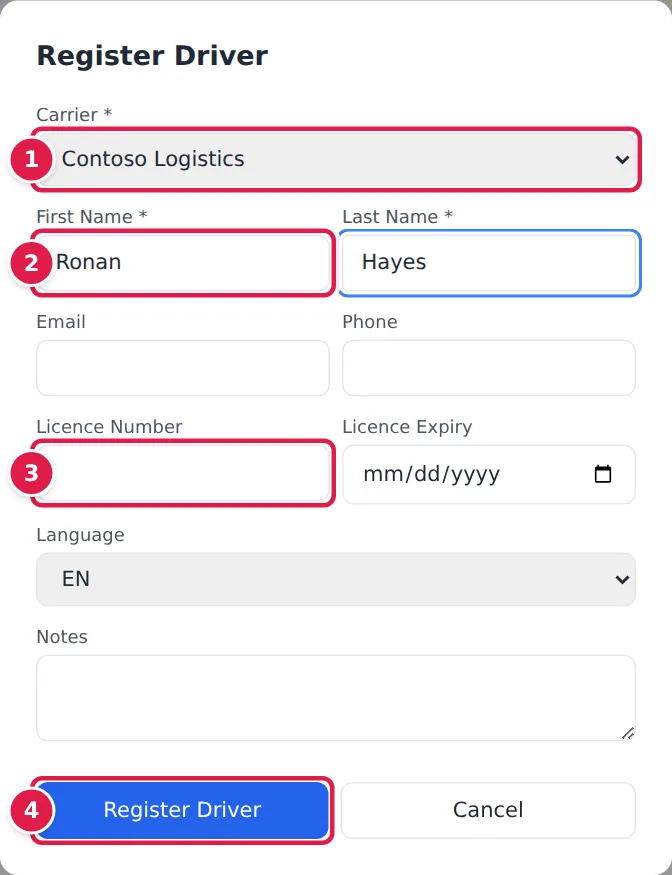
- Choose the Carrier the driver works for.
- Enter the First Name and Last Name.
- Enter the Licence Number and Licence Expiry, so the roster can warn you before it lapses. Add the Email and Phone if you have them.
- Click Register Driver.
You can also set the driver's Language (used for messages to the driver) and add Notes.
The roster
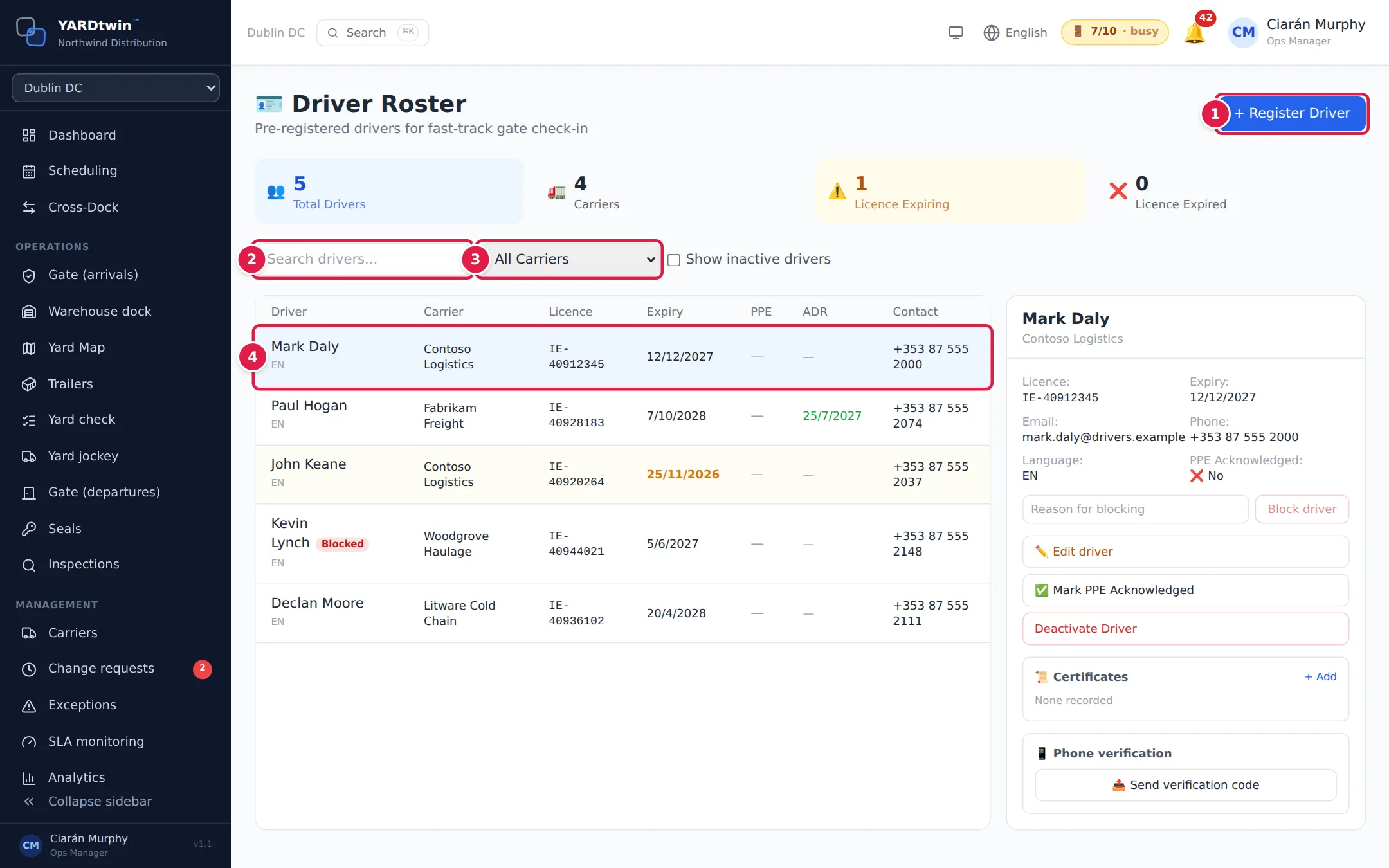
- + Register Driver adds a driver.
- Search drivers... finds a driver by name, licence number, e-mail or phone. Capitals don't matter. Every character you type is matched as itself, so a search for
_or%finds only drivers whose details contain it. - All Carriers narrows the list to one carrier's drivers.
- Click a driver to open their details.
The list shows active drivers. Tick Show inactive drivers to list deactivated drivers too; they carry a grey Inactive badge.
The tiles at the top count the Total Drivers, the Carriers they work for, licences that expire within 30 days (Licence Expiring, which also counts expired ones) and Licence Expired. In the list, an expiry date turns amber within 30 days and red once passed, and the whole row is tinted to match. The PPE column shows whether the driver has acknowledged the site's PPE rules, and ADR shows their dangerous-goods certificate's expiry. A blocked driver has a red Blocked badge next to their name.
A driver's details
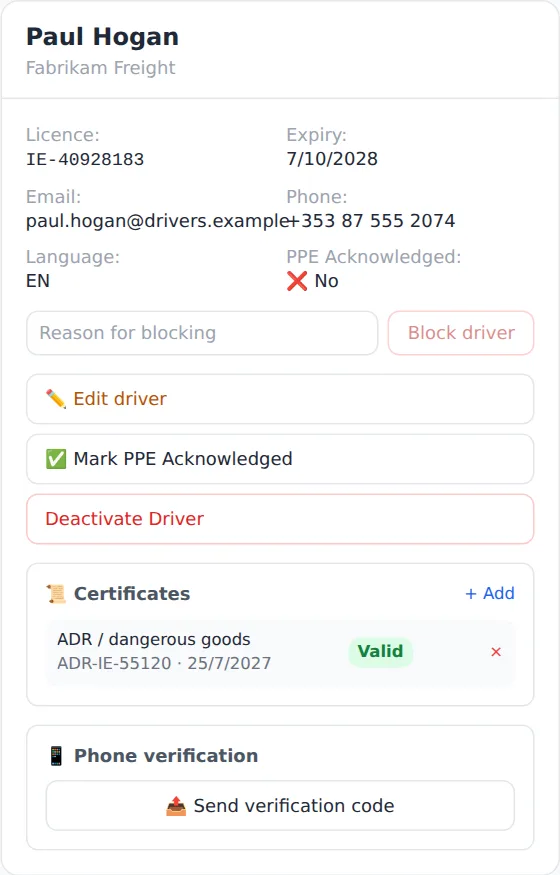
When you select a driver, the panel on the right shows their licence, expiry, e-mail, phone, language and PPE Acknowledged, and lets you:
- Block driver. Type a Reason for blocking, click Block driver and confirm. Badge scans and the gate show the driver as blocked until someone clicks Unblock driver. Both are audited. Only Administrators and Operations managers can block a driver.
- ✏️ Edit driver. Change the First Name, Last Name, Email, Phone, Licence Number, Licence Expiry, Language or Notes, and click Save Changes. Only the fields you change are saved. A new phone number has to be verified again. While a driver is blocked, only Administrators and Operations managers can change their name, licence or phone.
- ✅ Mark PPE Acknowledged or ❌ Revoke PPE Acknowledgement.
- Deactivate Driver. The driver can no longer be picked for new bookings and leaves the list.
- ♻️ Reactivate driver. Shown for an inactive driver: tick Show inactive drivers, select the driver, and click it. The driver is back in the list and can be booked again.
- 📜 Certificates. Click + Add, choose the Certificate type (for example GDP training, ADR / dangerous goods, cold-chain handling, or forklift / MHE), enter the Reference / number, the Issued and Expires dates, and click Save. Each certificate shows Valid, Expiring (within 30 days), Expired or No expiry recorded. An ADR certificate feeds the ADR column and the gate's ADR check. × removes a certificate straight away. Only Administrators and Operations managers see + Add and ×; other roles, QA included, see the certificates without them.
- 📱 Phone verification. Click 📤 Send verification code to text a six-digit code to the driver's phone. Type the code the driver reads back and click Confirm. The code is valid for ten minutes. A verified number shows ✓ Verified with the date; changing the number clears it.
- Recent Visits. The driver's latest bookings, with the site and status.
Administrators, Operations managers, Yard managers, Operators and QA can edit, deactivate and reactivate drivers and change their PPE acknowledgement.
Every edit, deactivation and reactivation is recorded in the audit log: who made it, and each changed field before and after. Phone numbers are recorded with all but the last four digits hidden.
If something goes wrong
- "Carrier, first name, and last name required" Fill in all three before registering.
- "SMS is not configured for this deployment, so a phone number cannot be verified" Text messages aren't set up for your account. Contact admin@yardtwin.com.
- "A valid phone number is required" The driver's number can't be used for a text message. Check it has the right country code.
- "Too many codes requested — try again later" No more than three codes can be sent in an hour.
- "The code is not right", "That code has expired — request a new one" or "Too many wrong attempts — request a new code" Send a new code and try again.
- "This driver is blocked: only an admin or operations manager can change their name, licence or phone" Ask an Administrator or Operations manager.
- "A licence expiry can’t be removed, only changed to another date." Enter the new expiry date instead of clearing the field.
- A driver is missing from the list. They may have been deactivated. Tick Show inactive drivers.
- "Insufficient permissions" Your role can see the roster but not make this change. Ask an Operations manager or Administrator.