The Yard Map is YARDtwin's digital twin of your site. It shows every truck that's checked in, where it is, and how long it has been there. It updates live as the gate, the docks and the yard jockeys record what happens, so you never need to reload it. Trucks drive along the yard's roads on the map as they move between the gate, the yard and the docks.
The map opens full screen. Your choice of full screen or windowed is remembered on this device.
What's on the screen
- The yard's numbers across the top: Docks in use out of the total, dock Utilization, trucks On Site, At Dock and Waiting (on site but not at a dock), Avg Dwell (average time on site), Bookings Today, and Transit (the gate-to-dock travel time your site has set). Hover over any number for its definition. On the right, Last: shows when the map last refreshed, and ↻ refreshes it now.
- View options: Grid draws a grid, 🔥 Heatmap shades crowded areas (overlapping trucks build up to red), Aa Labels shows or hides names, and the size box next to it (A 75% to A 200%) makes the labels bigger or smaller. ⛰ 2.5D adds depth and shadows; it doesn't move anything.
- Zoom and full screen: + and − zoom the map. 🗗 Exit leaves full screen; 🗖 Max goes back to it. You can also press Esc to leave full screen.
- Vehicles on Site lists every truck on the map with its registration, carrier, booking code and status. While a truck is moving, its status reads IN TRANSIT with how far along it is. Drag the panel's left edge to make it wider.
- The legend along the bottom names the colours: Available, Occupied, Loading, Unloading, Weighing, Reserved, Staging, Blocked and Maintenance.
- Yard Overview, at the bottom right just above the legend, is a small map of the whole site: docks and areas in use show red, free ones green, and trucks are blue dots. Close it with ✕; 📍 Show overview brings it back.
- › on the left edge opens the app's menu while the map is full screen. ✕ Hide menu (or Esc) slides it away again.
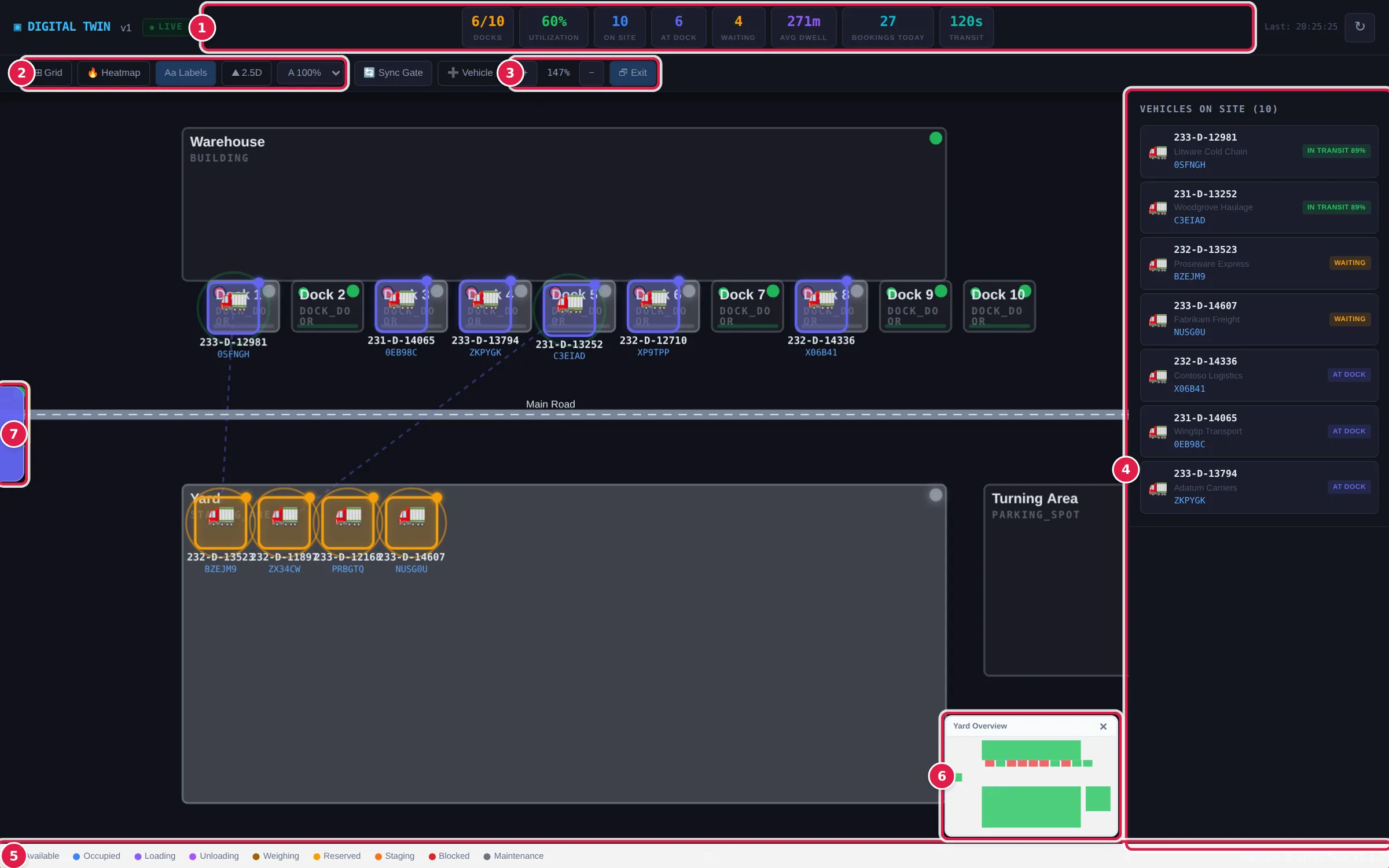
The Yard Overview sits above the legend, so the whole legend stays readable. Close the overview if it covers part of the yard you want to see.
See a truck's details
- Click a truck on the map, or its entry in Vehicles on Site. The truck is circled on the map.
- Vehicle Details opens above the list: the registration (Reg), Booking, purchase order (PO), carrier, supplier, material, driver, Status, when it Arrived, its detention clock where your site tracks detention, and its Source: how YARDtwin knows where it is, for example Booking status, Operator placed or Driver GPS.
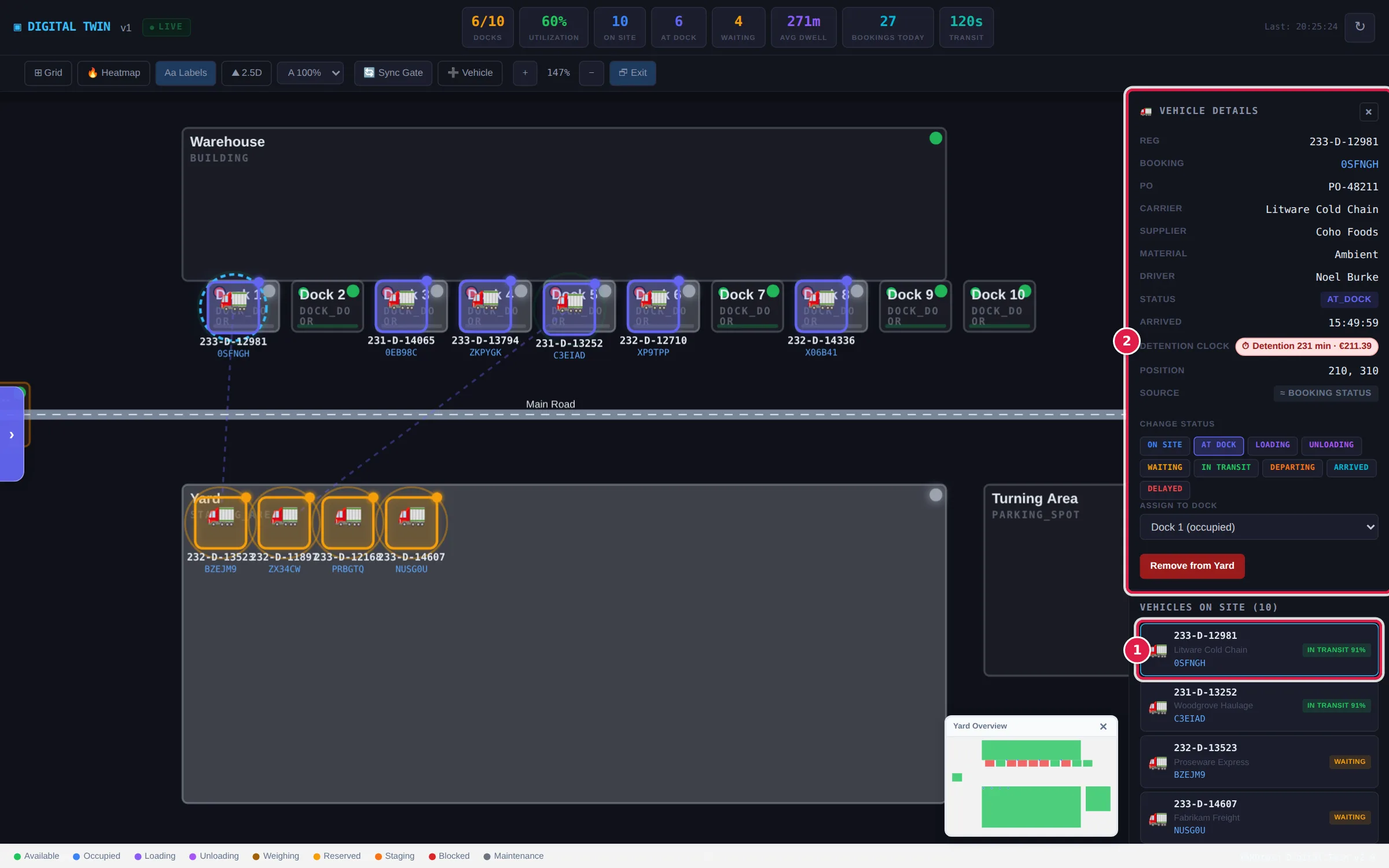
Click × on the panel, or an empty part of the map, to close it. Click a dock or an area instead of a truck to see its Location Details: name, type, status, how long it has been occupied and, for a dock, its Dock light: Free, Truck expected (with the booking and how soon), or Occupied.
Map view
If your site has a positioning system connected (trailers carrying location tags), the Yard Map opens on a real map instead of the schematic yard: satellite or street tiles, your yard layout drawn over them in its surveyed place, and every tracked trailer at its measured position. Zoom and pan as on any map. A 🗺 Yard / 🗺 Map button in the toolbar switches between the two views.
- Satellite / Streets switch the background. Fit yard zooms back to the whole site.
- Click a trailer to open its details, exactly as on the schematic. The details panel also shows its Coordinates (latitude, longitude).
- Trail draws the selected trailer's track from the last hour.
- Each marker carries the same source icon as the schematic: a trailer placed by hand is drawn where it was placed, not where a tag says it is.
- A tagged truck or trailer is drawn where its tag puts it and glides between positions, on the map and on the schematic. Its status and dock still follow the booking, so it can show at dock while it is still driving there. If its tag goes quiet for ten minutes, the yard map goes back to placing it from its booking.
- 🗺 Yard returns to the schematic view and 🗺 Map brings the map back. Your choice is remembered on this device.
The map view is only offered when the yard layout has been georeferenced (surveyed control points in the Layout Builder), the site's geolocator ingest is on, the positioning integration is active, and your administrator has configured map tiles. Other sites open on the schematic yard as before.
Messages you might see above the map
- Sync mismatch: trucks are checked in at the gate but missing from the map. Administrators, ops managers and yard managers can tap 🛠 Repair yard map to rebuild the map from the bookings.
- N dock conflict(s): a truck was sent to a dock that's busy (it's queued there) or that isn't on the map. Click the truck's button to select it.
- Stuck bookings: bookings checked in more than 48 hours ago with no departure. They're hidden from the map; open the list to mark each one departed.
- Inbound: if your site tracks trucks on their way in, a strip above the map shows each one as En route, Approaching, Queued at the gate or On site, with its ETA. Click one to select it on the map.
To move trucks on the map, see Move a truck on the map.
If something goes wrong
- "No Published Yard Layout": your site's map hasn't been drawn and published yet. An administrator does this in the Layout Builder.
- "⚠ Live data stale since … — retrying": the map lost contact with YARDtwin and is showing the last data it had. It retries by itself; check your connection, or tap ↻.
- "Failed to load yard data": the map couldn't load. Reload the page.
- A truck you checked in isn't on the map. Wait a few seconds: it appears at the gate and then drives to its dock. If it still doesn't appear, ask a manager to tap 🔄 Sync Gate. See Move a truck on the map.