Site Admin is where you decide how YARDtwin works at a site: the yard and gate, booking rules, integrations, security and billing. Only administrators see it. Most tabs apply to the site selected at the top of the menu; switch site first to change another one.
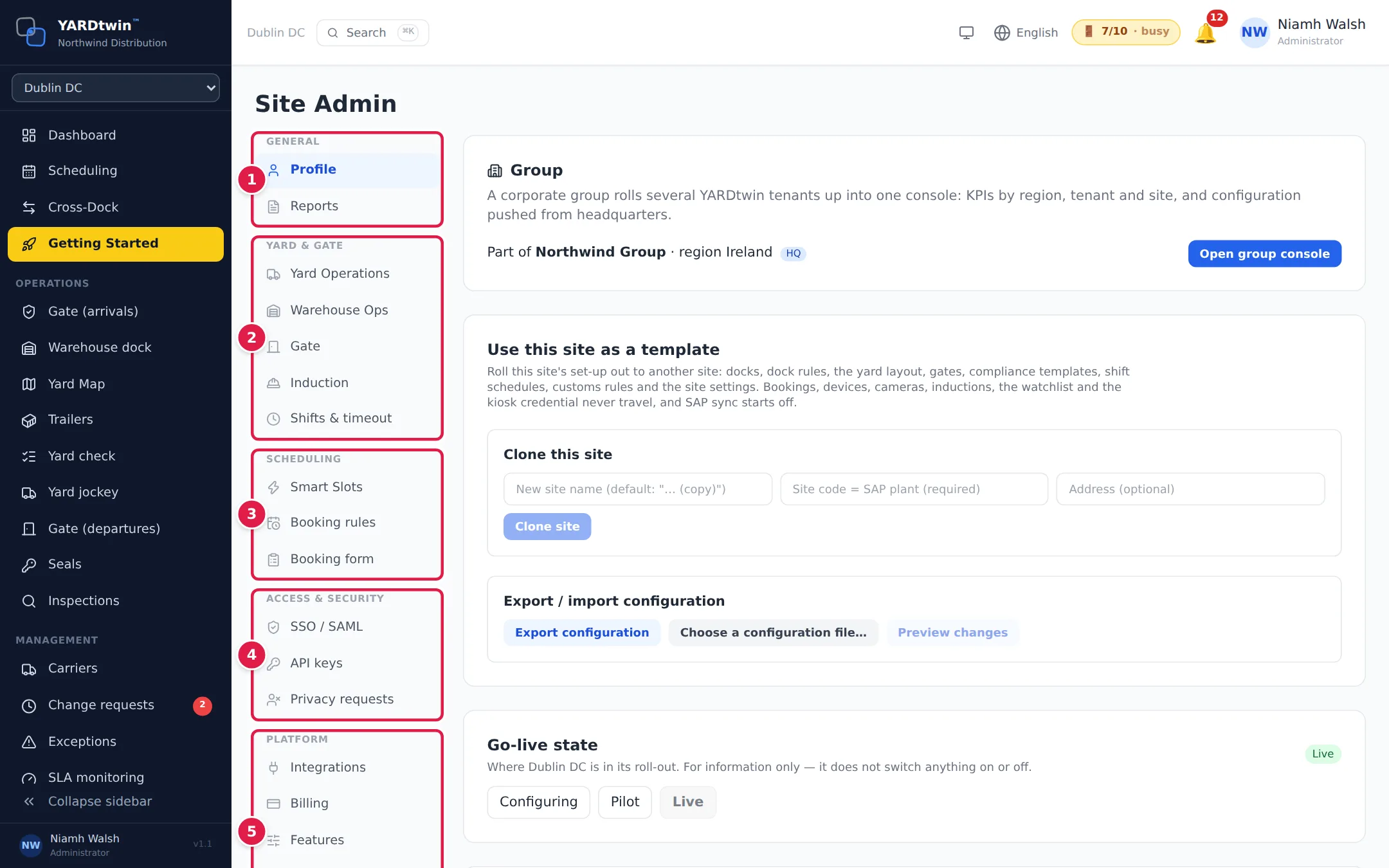
The tabs are grouped in five sections down the left:
- General: your site profile and scheduled reports.
- Yard & gate: docks, materials, the warehouse, the gate, the site induction and shifts.
- Scheduling: Smart Slots and the rules for booking.
- Access & security: single sign-on, API keys and privacy requests.
- Platform: integrations, billing, optional features and the sandbox.
On a phone or narrow window, the tabs are in a Section drop-down at the top instead. Each tab has its own address, so you can bookmark one.
Every tab at a glance
| Section | Tab | What it's for |
|---|---|---|
| General | Profile | Group membership, site templates, go-live state, adding sites, and security (below). |
| General | Reports | E-mail reports on a schedule. See Schedule e-mailed reports. |
| Yard & gate | Yard Operations | Docks, dock groups, material types, suppliers, yard checks and dock rules. See Set up yard operations. |
| Yard & gate | Warehouse Ops | Pallet scanning, dock evidence, quality holds and the departure checklist. See Set up the warehouse docks. |
| Yard & gate | Gate | What the gate asks for at check-in and departure. See Set up the gate, induction and shifts. |
| Yard & gate | Induction | The site induction drivers and visitors take. Same topic. |
| Yard & gate | Shifts & timeout | Automatic sign-out and shift schedules. Same topic. |
| Scheduling | Smart Slots | How slots are recommended, break windows and labour planning. See Set booking rules. |
| Scheduling | Booking rules | Booking window, slot lengths, approval, waitlist and booking links. Same topic. |
| Scheduling | Booking form | Which fields carriers fill in, your own questions and attestations. Same topic. |
| Access & security | SSO / SAML | Sign in through your company's identity provider. See Set up single sign-on. |
| Access & security | API keys | Keys for your own systems to use the YARDtwin API. See Create API keys. |
| Access & security | Privacy requests | Confirmed data-protection requests about your records: export or erase. See Handle privacy requests about your records. |
| Platform | Integrations | Connect your WMS, ERP, SAP, cameras and devices. See Connect your systems. |
| Platform | Billing | Your plan, usage and payment. See Choose a plan and pay. |
| Platform | Features | Capability packs and optional modules. See Switch features on and off. |
| Platform | Site blueprint | Answer seven questions about the site and see which settings and packs fit it. See Plan the site's set-up. |
| Platform | Sandbox | A test copy of your account. See Test safely in a sandbox. |
Your users, your site's hours and its equipment are under Settings, not here. See Invite and manage users and Set your site's details and hours.
The Profile tab
The top of the Profile tab is about your company's sites: Group, Use this site as a template, Go-live state and Add several sites. These are explained in Run several sites.
Below them are the security settings.
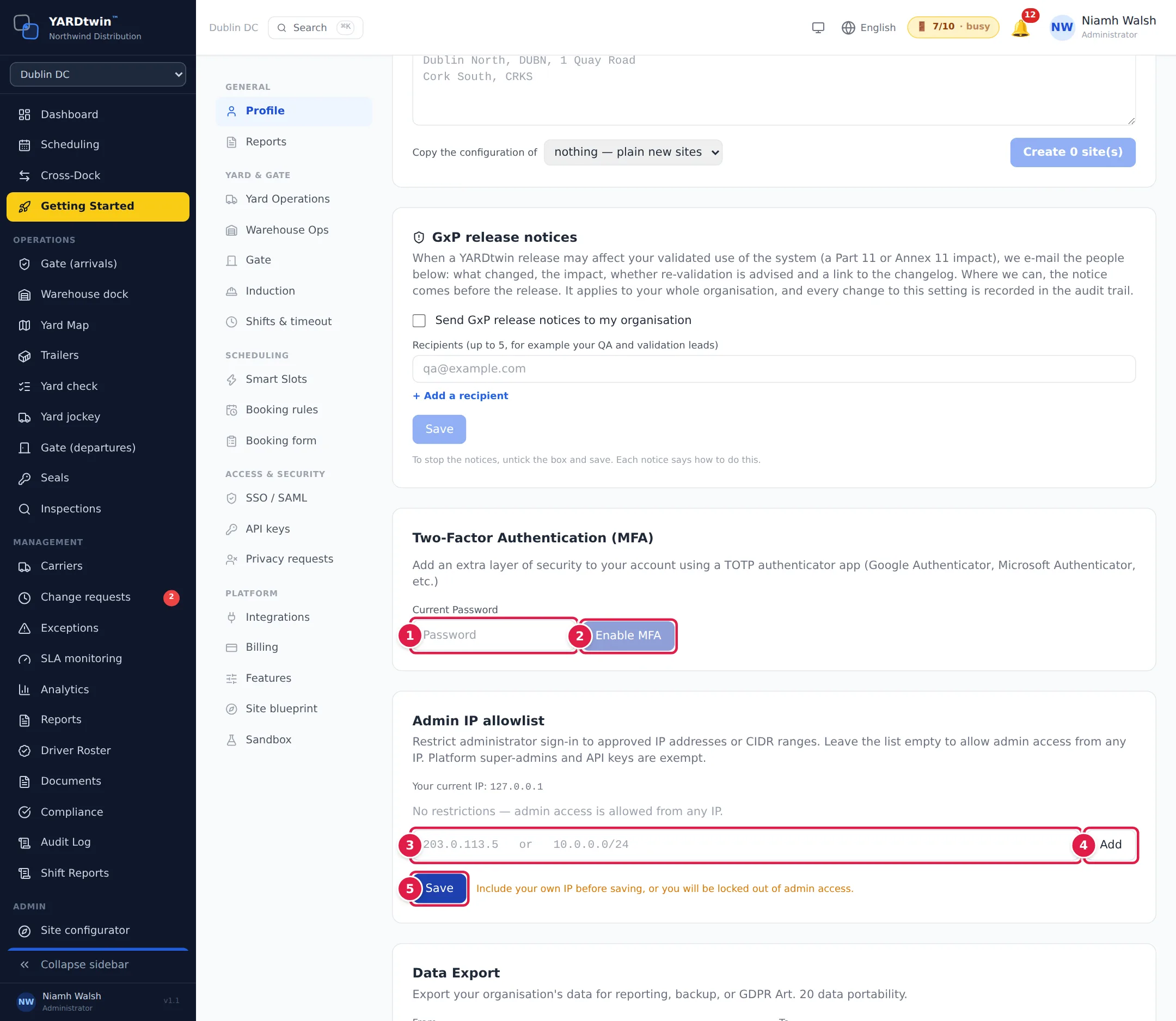
Turn on two-step sign-in for your account
Two-Factor Authentication (MFA) asks for a code from an authenticator app, such as Google Authenticator or Microsoft Authenticator, each time you sign in. It applies to your own account.
- Enter your Current Password.
- Click Enable MFA. Scan the QR code with your authenticator app, or type in the key shown under it. Enter the 6-digit code from the app and click Verify.
YARDtwin then shows a set of backup codes. Save them somewhere safe: each one lets you sign in if you lose your phone. Turning MFA on signs you out everywhere else.
To turn it off later, click Disable MFA and enter your password and a current code (or a backup code). You can't turn it off while your organisation requires it (below); you can still replace the authenticator by setting it up again.
If someone has lost both their authenticator app and their backup codes, an administrator can reset their two-factor authentication: in Settings → Users, click 🛡️ on their row, enter your own password (or your electronic-signature password if you sign in with single sign-on) and a reason, and confirm. Their authenticator and backup codes stop working, they are signed out everywhere, and they set two-factor authentication up again at their next sign-in. They get an e-mail about it (at their current address and at any address the account had in the last 30 days), and the reset is recorded in the audit trail. You can't reset your own this way, or a platform administrator's. An administrator's reset needs a second administrator's approval, and no reset is possible for a week after someone else changed the account's sign-in e-mail — see Invite and manage users.
Set the sign-in policy for the whole organisation
Under Sign-in policy (whole organisation), administrators decide how everyone signs in. Each change is recorded in the audit trail with who made it.
- Require two-factor authentication for every user. Every staff account must then sign in with a code from an authenticator app. Anyone who hasn't set one up is shown the set-up step at their next sign-in and can't do anything else until it's done; their current sessions end as soon as you tick the box. That includes people who sign in with single sign-on (SSO): they are signed out once, sign in again, and are asked for nothing more if your identity provider confirms it used multi-factor authentication. A single sign-on (SSO) or Microsoft sign-in counts when your identity provider confirms that it used multi-factor authentication itself; otherwise YARDtwin asks for its own code as well. Carrier, driver and supplier portal accounts aren't affected. Set up two-factor authentication on your own account first: the box can't be ticked until you have.
- Sign out after inactivity, on the server (minutes). YARDtwin's server ends a session that has had no activity for a while, even if a browser was left open, and the user signs in again. Typing, clicking and scrolling count as activity. By default this is never shorter than the screen timeout for the person's role under Shifts & timeout, plus 5 minutes: 2 hours 5 minutes for administrators and ops managers and 20 minutes for operators and gate staff with the standard timeouts. If you have lengthened a role's screen timeout at any site, the server follows the longest. Leave the box blank to keep this default. Enter a number from 5 to 720 only to make it shorter for everyone; it can never make it longer.
- Longest API key lifetime (days). Every new API key expires within this many days: 365 at most, and you can choose fewer. Keys that already exist aren't changed. See Create API keys.
- Refuse passwords found in known data breaches. On by default. When someone sets a new password, YARDtwin checks it against the public Have I Been Pwned list of breached passwords and refuses one that appears there. Only the first five characters of a one-way fingerprint of the password are sent, never the password itself. If the list can't be reached, the password is allowed, so nobody is stopped from changing a password by an outage elsewhere.
Give YARDtwin support access to your data
YARDtwin's support team can't see or change your organisation's data unless you let them. Under YARDtwin support access:
- Enter how many hours the access should last (For (hours), 1 to 72).
- Enter a Reason, for example the support ticket number.
- Click Grant access.
While access is open, the card shows until when and who granted it. Click Revoke now to end it early. A new grant replaces the one that is open.
Everything the support team views or changes under the grant appears in your audit trail as YARDtwin support (…) viewed … or changed …, with who did it and when. Grants and revocations are recorded there too.
In an emergency, YARDtwin can open break-glass access for one hour without your grant. They must give a reason; every administrator of your organisation (including deactivated ones) is e-mailed at once, with a copy to YARDtwin's data protection officer, sees a notification, and it is recorded in your audit trail as a GMP event. You can end it with Revoke now, which also ends a grant of yours that is open beside it.
Under support access, YARDtwin can never deactivate one of your administrators or reset an administrator's two-factor authentication.
Billing, your plan and usage figures are YARDtwin's own records about your account and stay visible to YARDtwin without a grant; your organisation's settings (sign-in policy, SCIM mapping, IP allowlist, retention) are not. A data protection request a person makes to YARDtwin about their own data is handled without a grant, and appears in your audit trail with its request number (never the person's address). History lists past grants.
Limit admin sign-in to your network
The Admin IP allowlist lets administrators sign in only from the addresses you list. Other roles aren't affected. With an empty list, admins can sign in from anywhere.
- Type an IP address, such as 203.0.113.5, or a range, such as 10.0.0.0/24. Your current IP is shown above.
- Click Add. Add as many as you need; Remove takes one off.
- Click Save.
Include the address you are using now before you save. Otherwise you lock yourself, and every other administrator, out of admin access.
Export your data
Under Data Export, pick a date range (From and To) and click Export JSON or Export CSV (Excel). Export All Data (GDPR) downloads everything, for every date. Use it for backups, reporting or a GDPR data-portability request.
Switch off external AI for the whole organisation
Under External AI processing (whole organisation), tick No external AI processing (manual entry only, assistant off) to stop YARDtwin sending any image, text or data of your organisation to an AI service, at every site. Licence, seal, plate, label and document reading then fall back to manual entry, the driver identity check is done by eye, and the assistant and its voice read-out disappear for every user. Untick it to switch AI back on. Both changes are recorded in the audit trail with who made them. Only administrators see this setting.
Keep document reading manual at one site
At the gate, YARDtwin can read driving licences, seals, plates, labels and documents with an AI text-reading service to fill in the form. Under AI document OCR, tick Disable AI OCR for this site (manual entry only) to stop any image being sent to an AI service from this site. Operators then type the details in themselves, the agent doesn't run on this site, and the assistant gets no live data from it. The setting saves as soon as you tick it. When AI is switched off for the whole organisation, this site setting has no effect.