On the Enterprise plan, one YARDtwin account can hold several sites, each with its own docks, gate, layout, hours and bookings. Your team switches between them with the site switcher at the top of the menu. See Find your way around.
Other plans hold one site. See Choose a plan and pay.
The site tools are at the top of Site Admin → Profile.
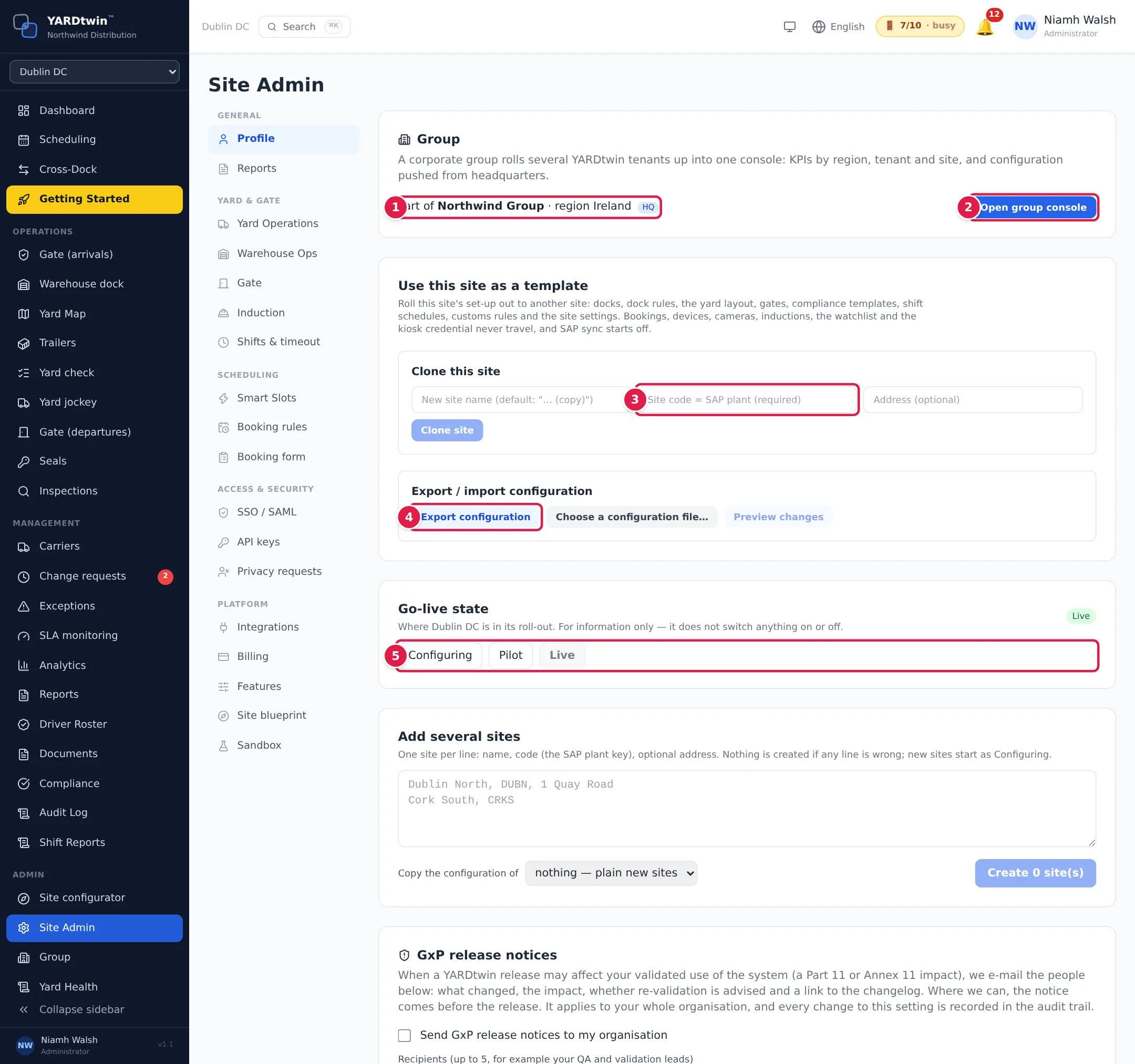
- Group: whether your account belongs to a group, its name, your region, and HQ if you are its headquarters. An account that isn't in a group sees Create a group and Join with a code here instead. See Groups below.
- Open group console: at headquarters, opens the group's roll-up of every member site. A member account sees Leave group instead.
- Clone this site: create a new site as a copy of the one you are in. Enter the new Site code (required: it must match the SAP plant if you use SAP), and optionally a name and address. Click Clone site.
- Export configuration: download this site's set-up as a file, to import into another site.
- Go-live state: mark where this site is in its roll-out: Configuring, Pilot or Live.
Add new sites
Scroll down to Add several sites.
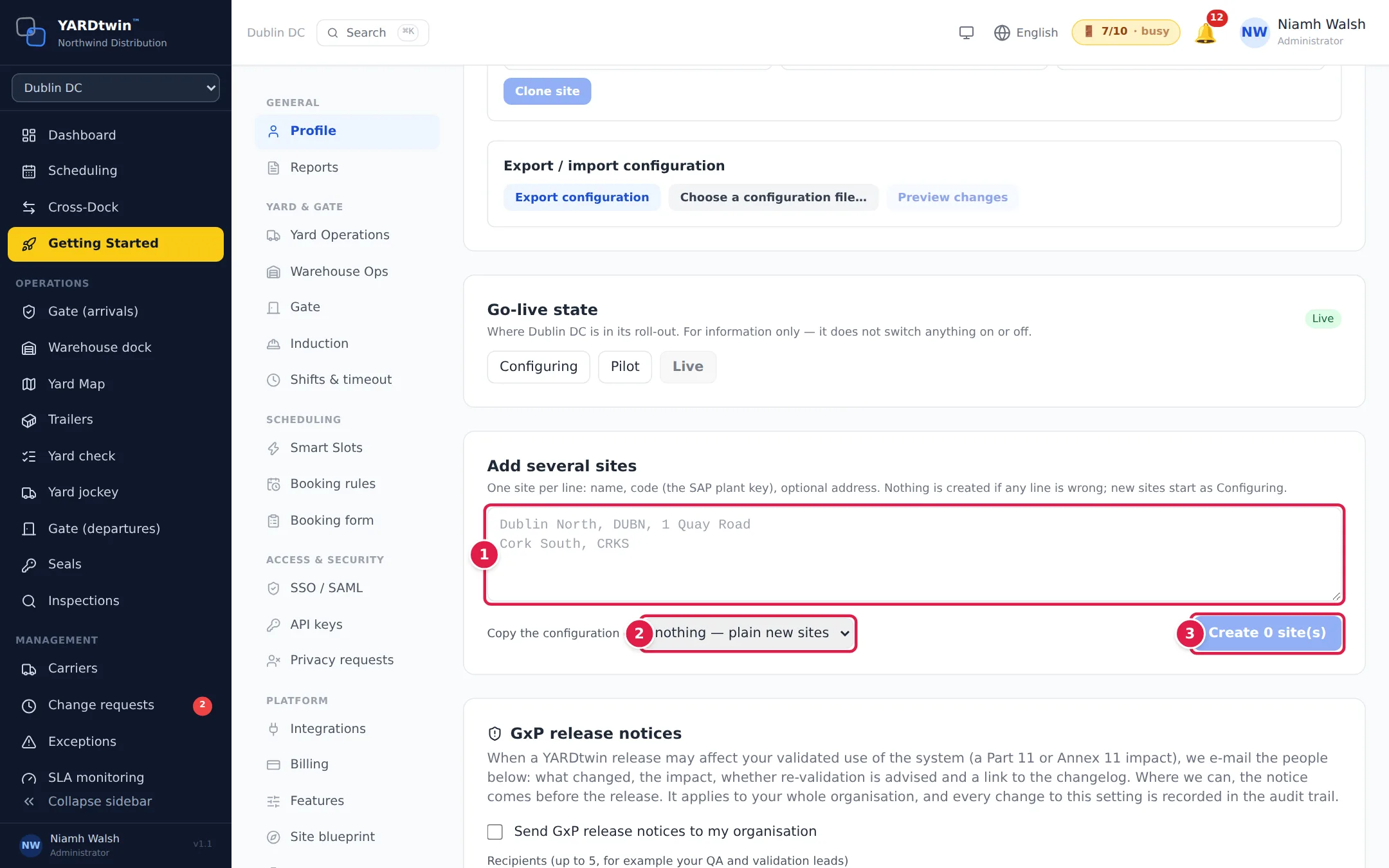
- Type one site per line: its name, its code (the SAP plant key), and optionally its address, separated by commas. For example: Dublin North, DUBN, 1 Quay Road.
- Under Copy the configuration of, choose an existing site to copy, or nothing — plain new sites.
- Click Create. The button shows how many sites will be made.
YARDtwin checks every line first. If any line is wrong, nothing is created, and the message says which line to fix. New sites start as Configuring.
Copy a set-up between sites
Clone this site copies the site's docks, dock rules, yard layout, gates, compliance templates, shift schedules, customs rules and site settings. It never copies bookings, devices, cameras, inductions, the watchlist or the kiosk credential, and SAP sync starts switched off on the new site.
To bring an existing site in line with another:
- In the source site, click Export configuration to download the file.
- Switch to the target site. Click Choose a configuration file… and pick the file.
- Click Preview changes. YARDtwin lists what would be added, changed or kept.
- Click Apply to this site and confirm. The change is recorded in the audit trail.
The layout arrives as a draft: check it in the Layout Builder and publish it. Anything the file doesn't mention is left as it was.
If the file changes a compliance checklist template so that it no longer holds trucks that are waiting for it at this site (for example it unticks Mandatory), the import still goes ahead. The message after Apply to this site says how many trucks may now leave, and each one gets its own entry in its audit trail naming the import and who ran it. See Compliance checklists.
Go-live state
Configuring, Pilot and Live are for your own tracking of a roll-out. They don't switch anything on or off.
Groups
A group joins several YARDtwin accounts, for example the companies of a corporate group, under one headquarters. Headquarters sees all their sites together and can push settings to them.
- Create a group: enter a Group name and click Create. Your account becomes the headquarters (HQ).
- Join with a code: enter the Join code from headquarters and, optionally, your Region, then click Join.
Members see which group they belong to and can Leave group. Settings already pushed to them stay.
The group console
At headquarters, administrators get Group in the Admin section of the menu, or click Open group console on the Profile tab.
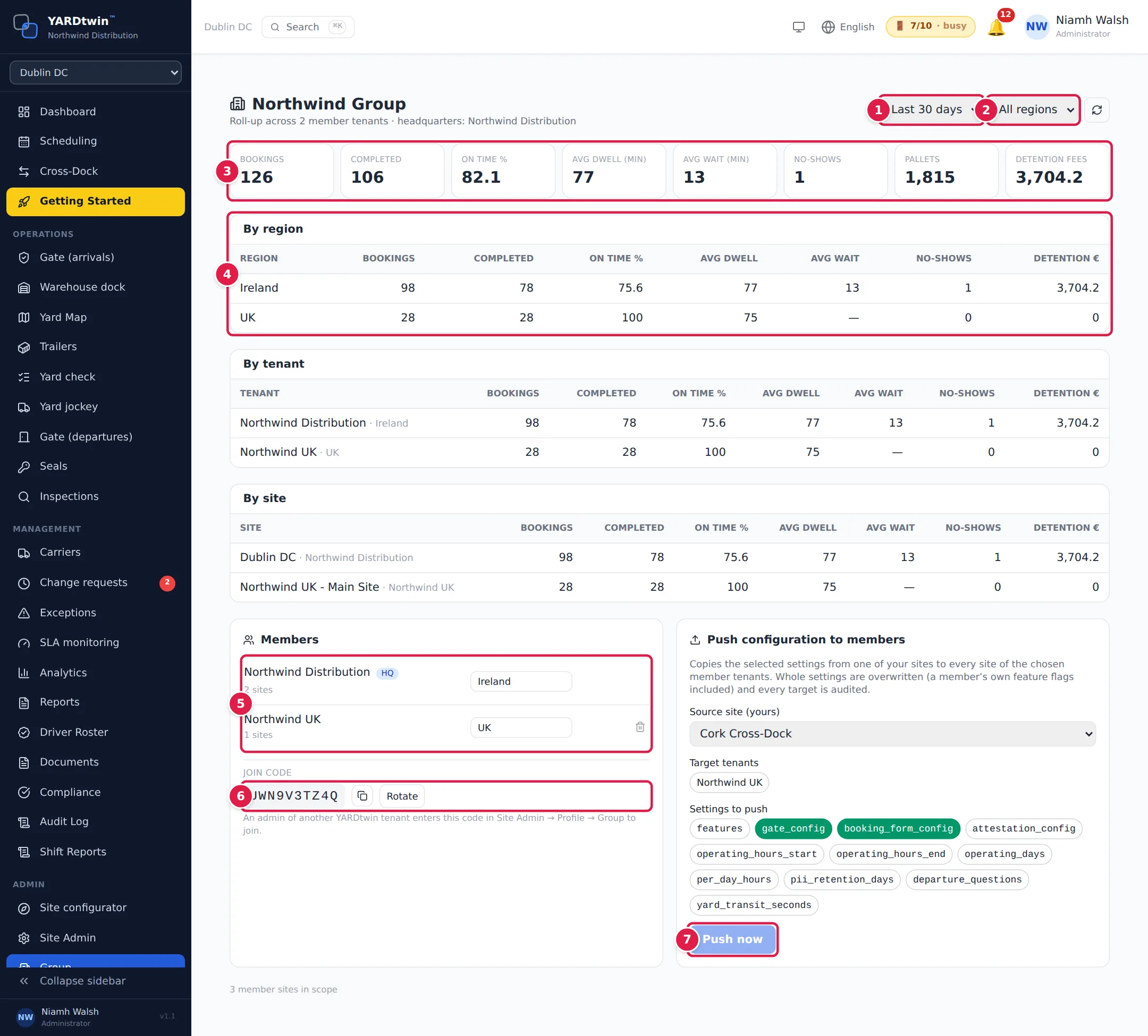
- Period: Today, or the last 7, 30 or 90 days.
- Region: all regions, or one.
- Totals across the group: bookings, completed, on-time %, average dwell and wait (minutes), no-shows, pallets and detention fees.
- By region: the same figures for each region. Below it are the same figures By tenant (each member account) and By site.
- Members: each member account with its number of sites. Type a member's region in its box, or remove a member with the bin. Headquarters can't be removed.
- Join code: give it to the administrator of an account that should join. Copy it with the button next to it. Rotate issues a new code; the old one stops working.
- Push configuration to members: choose one of your sites as the Source site, the Target tenants and the Settings to push, then click Push now and confirm.
Member accounts don't get Group in their menu: the roll-up is for headquarters only.
Pushing configuration overwrites those settings at every site of the chosen members, including their own feature switches. It can't be undone from the console.