A shift report records who worked a gate or warehouse shift and every transaction they made, such as each truck checked in or out at the gate. YARDtwin writes one automatically shortly after each scheduled shift ends, so there's nothing to fill in. Reports are kept for 30 days.
Shift reports are for administrators and ops managers. Other roles, yard managers included, don't see Shift Reports in the menu.
Before you start
Reports only appear for shifts that are set up as shift schedules. An administrator adds them in Site Admin → Shifts & timeout, with a name, the area (gate or warehouse), the days, and the start and end times. See Site Admin.
Start and end times are in the site's time zone. A shift whose end time is earlier than its start, such as 22:00 to 06:00, is a night shift: it ends the next morning, and its report is dated the day it started.
Find and open a report
Open Shift Reports in the menu. It lists the reports for the site picked in the site switcher, newest first. To see only one area, choose Gate or Warehouse under Area:.
- Find the shift you want, then click Open at the end of its row.
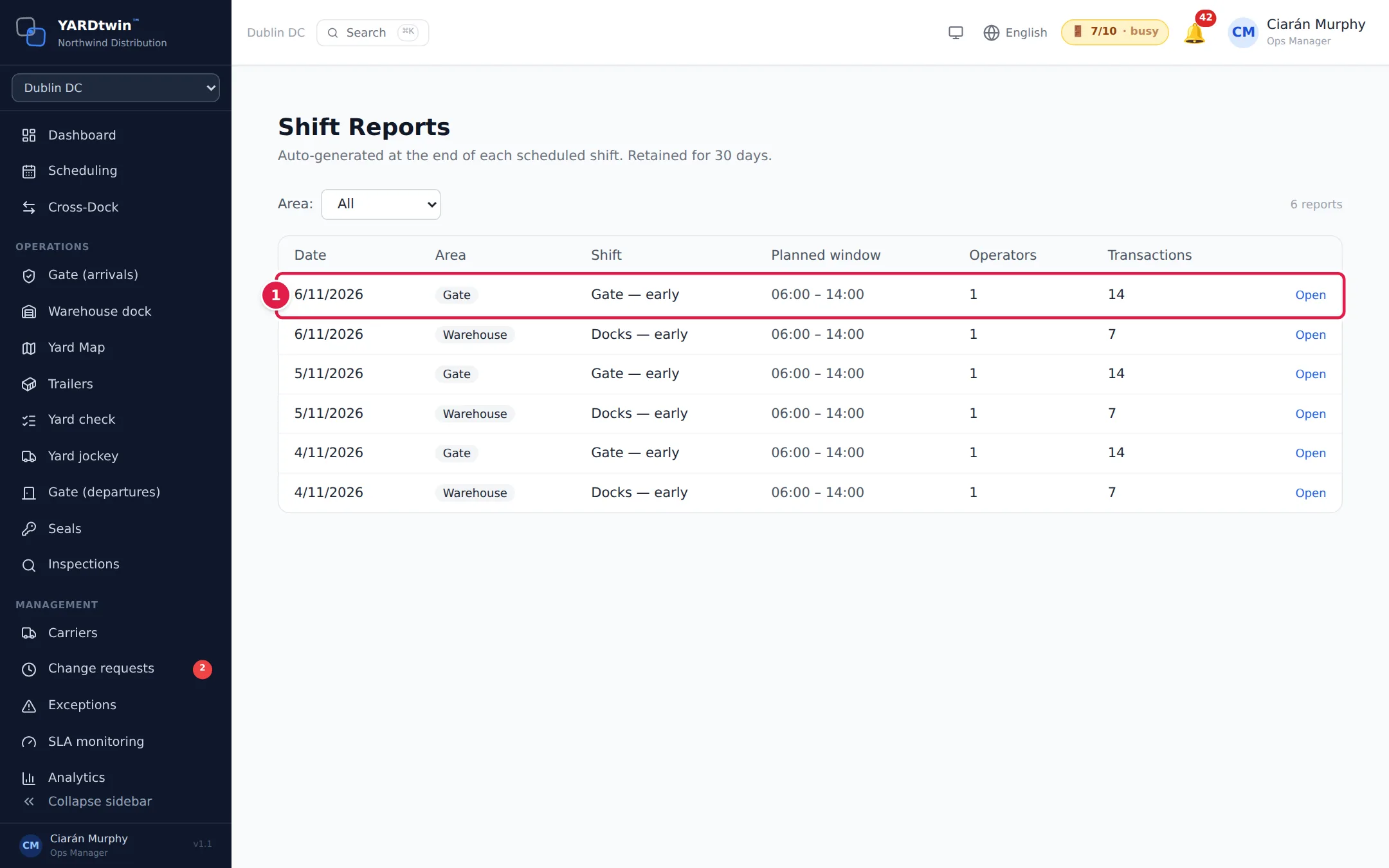
Each row shows the Date (the day the shift started), the Area, the Shift name, the Planned window (start and end), and how many Operators and Transactions there were.
What's in a report
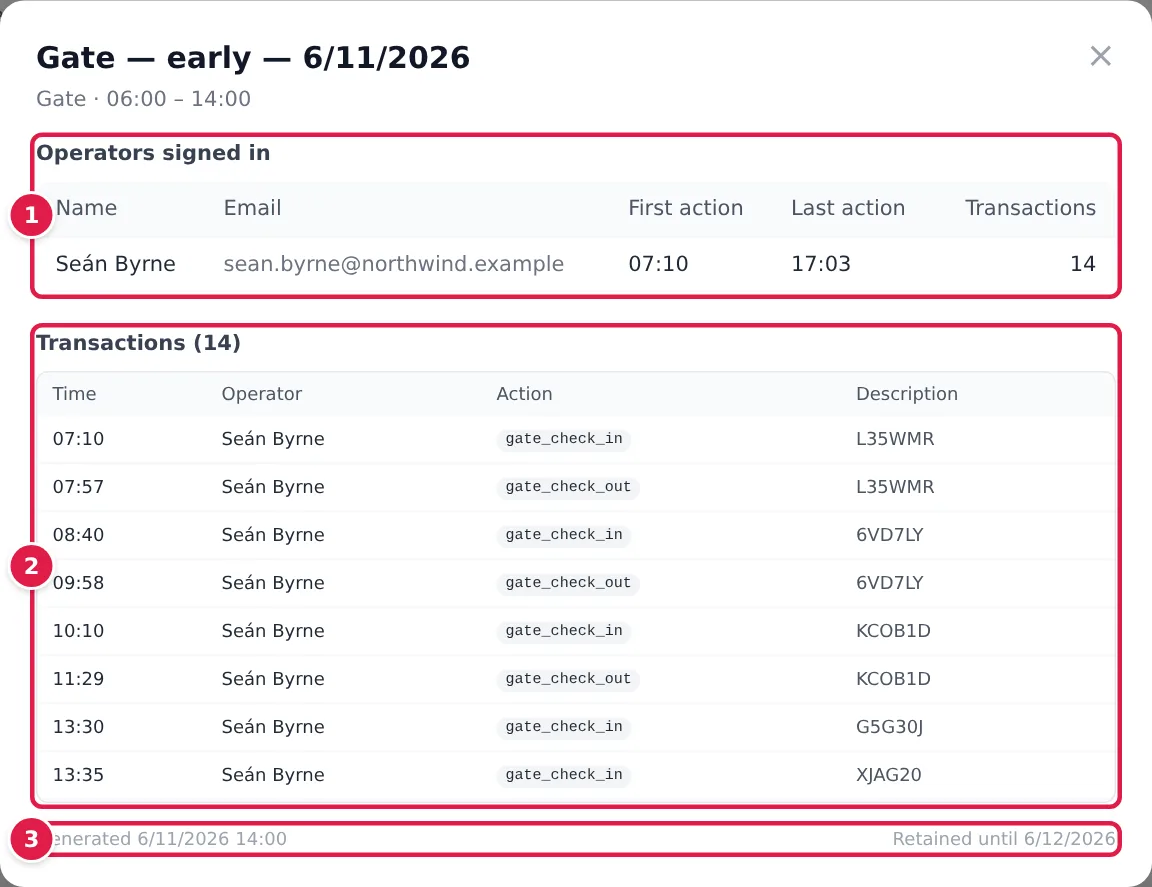
- Operators signed in: everyone who recorded an action in that area during the shift, with their e-mail, the time of their First action and Last action, and how many transactions they made.
- Transactions: every recorded action in the shift window, with the Time, the Operator, the Action and a Description. For a gate shift, these are the gate check-ins and check-outs. For a warehouse shift, they're the dock actions from the audit trail at this site, such as starting or completing a trailer, and the operators starting and ending their warehouse shifts here.
- The bottom line shows when the report was Generated and the date it's Retained until.
Click ×, or anywhere outside the report, to close it.
Shift reports are a quick look back. For the permanent record of who did what, use the Audit log. Shift reports are deleted after 30 days.
If something goes wrong
- "No shift reports yet." No shift schedules are set up for this site, or no scheduled shift has ended yet. Ask your administrator to add schedules in Site Admin → Shifts & timeout.
- A shift that just ended has no report. Reports are written a few minutes after the shift's end time. Come back shortly. A night shift's report appears the next morning, under the date it started.
- "No operator activity during this shift window." Nobody recorded anything in that area during the shift.
- No Shift Reports in the menu. Your role can't open shift reports. Ask an administrator or ops manager.