Quick Start Guide
Your first day with YARDtwin, in about 15 minutes of reading. Prefer paper? Download the PDF (20 pages or fewer).
What YARDtwin does
One system for every truck visit, from the booking to the gate, the yard, the dock and back out.
YARDtwin runs the outside of your warehouse. Every truck that visits your site follows the same five steps, and each one is done on a different screen by a different person:
- BookAn office user or the carrier reserves a dock and a time.
- ArriveThe gate checks the driver and paperwork and lets the truck in.
- YardThe truck waits in the yard or drives straight to its dock.
- DockDock staff load or unload it and record the result.
- DepartThe gate checks the seal, takes a signature and clears it to leave.
Everything that happens is recorded as it happens. The yard map always shows where every truck is, the dashboard shows how the day is going, and the audit trail keeps a permanent record of who did what and when.
Who does what
| Role | Works mostly in | Their part |
|---|---|---|
| Ops / yard manager | Dashboard, Scheduling, Yard Map | Plans the day, books slots, watches the yard |
| Gate guard | Gate (arrivals), Gate (departures) | Lets trucks in and out |
| Warehouse / dock staff | Warehouse dock | Loads and unloads at the docks |
| Yard jockey | Yard jockey | Moves trailers around the yard |
| Carrier | Carrier portal | Books and tracks their own visits |
| Driver | A link on their phone (no app) | Sees where to go and what's next |
| Administrator | Site Admin, Settings | Sets up the site and invites the team |
What you see in the menu depends on your role. Gate guards see the gate screens; administrators see everything.
Sign in and find your way
Open YARDtwin, sign in, and get to know the frame around every screen.
Sign in
Go to yardtwin.com/login, or use the link in your invitation e-mail.
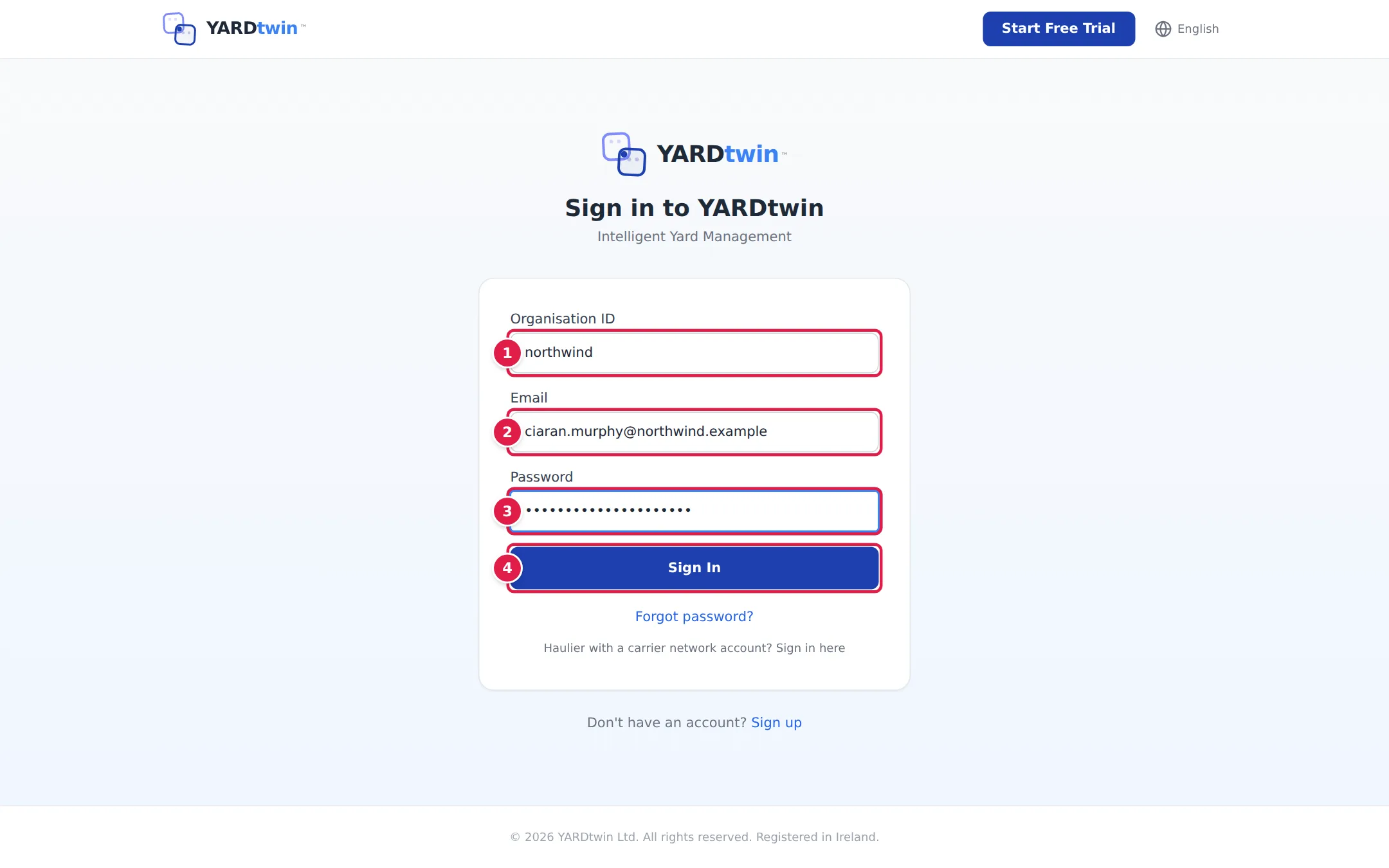
- Enter your company's Organisation ID. It's in your invitation e-mail, and Sign In stays greyed out until it's filled in.
- Enter the e-mail address your invitation was sent to.
- Enter your password.
- Click Sign In. If your company uses Microsoft or Google sign-in, use that button instead.
YARDtwin opens the page for your role: the gate for gate guards, the task list for yard jockeys, and the scheduling board for office roles. If two-step sign-in is switched on for your account, enter the code from your authenticator app when asked.
Forgotten your password? Click Forgot password? on the sign-in page and follow the e-mail.
The frame around every screen
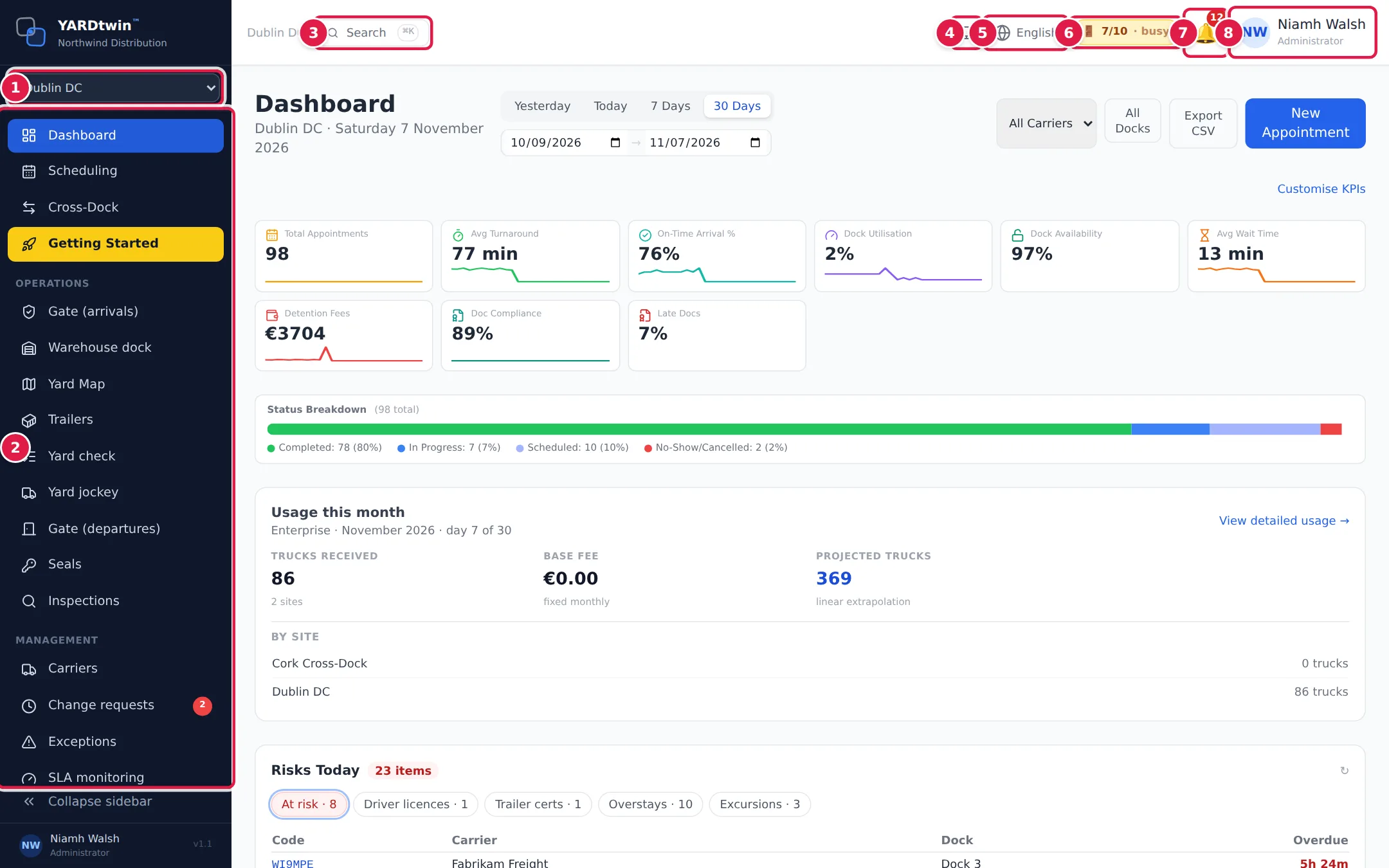
- Site switcher. Pick the site you're working at, if you have more than one.
- Menu. Only the pages your role uses.
- Search, or press Ctrl + K. Type part of a page name and press Enter.
- Light or dark display.
- Language. YARDtwin speaks 26 languages.
- Dock occupancy. How many docks are busy right now.
- Notifications, such as change requests and holds.
- Your name. Profile & Settings, the Help Centre, and Sign Out.
The round chat button at the bottom right of every screen opens the YARDtwin assistant. Ask it how to do something on the page you're on.
1 · Book a truck
Reserve a dock and a time on the scheduling board.
Bookings live on the Scheduling board: one row per dock, one block per truck. Carriers can also book themselves in the carrier portal; their bookings appear on the same board.
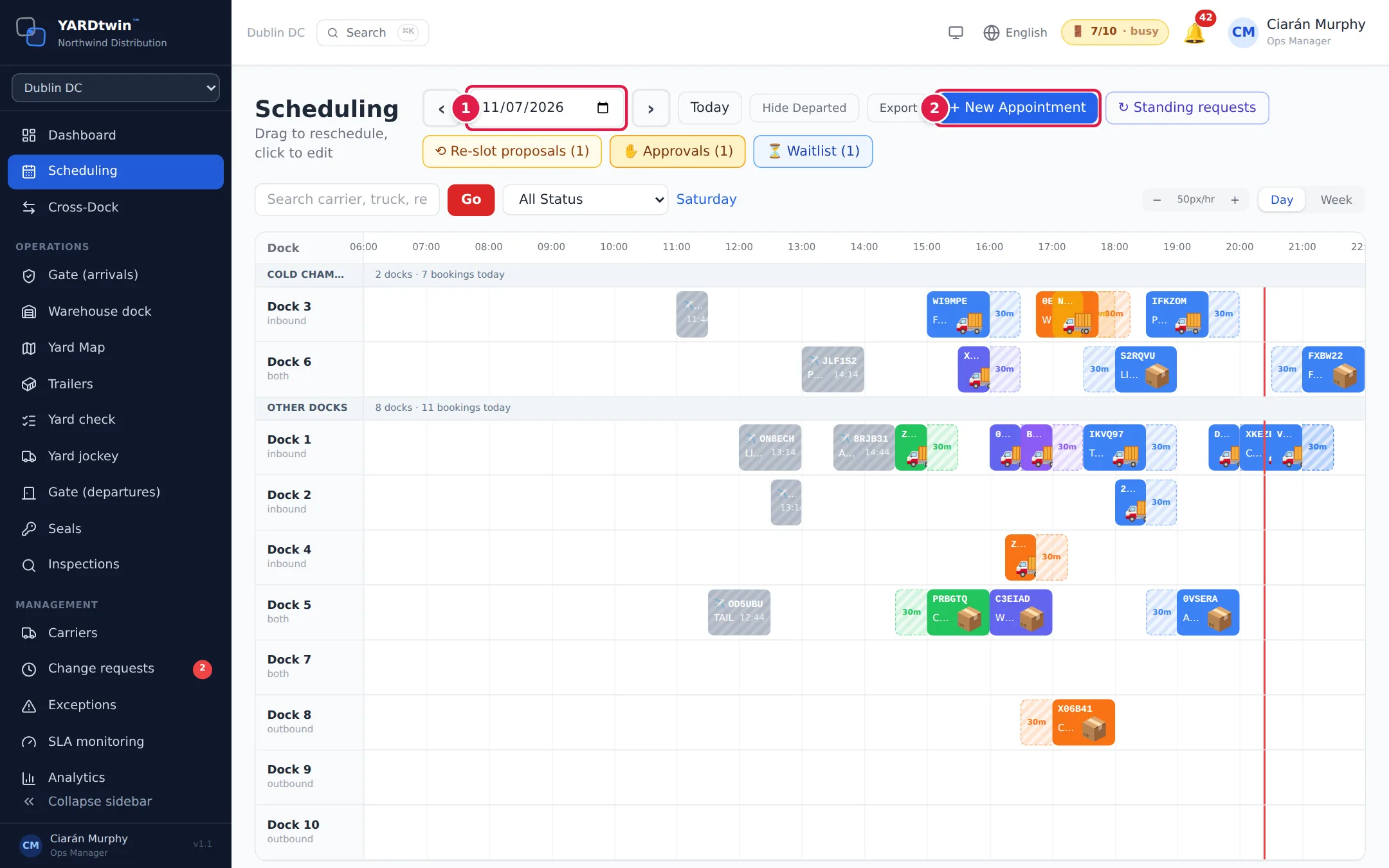
- Pick the day, or use the arrows and Today beside it.
- Click + New Appointment.
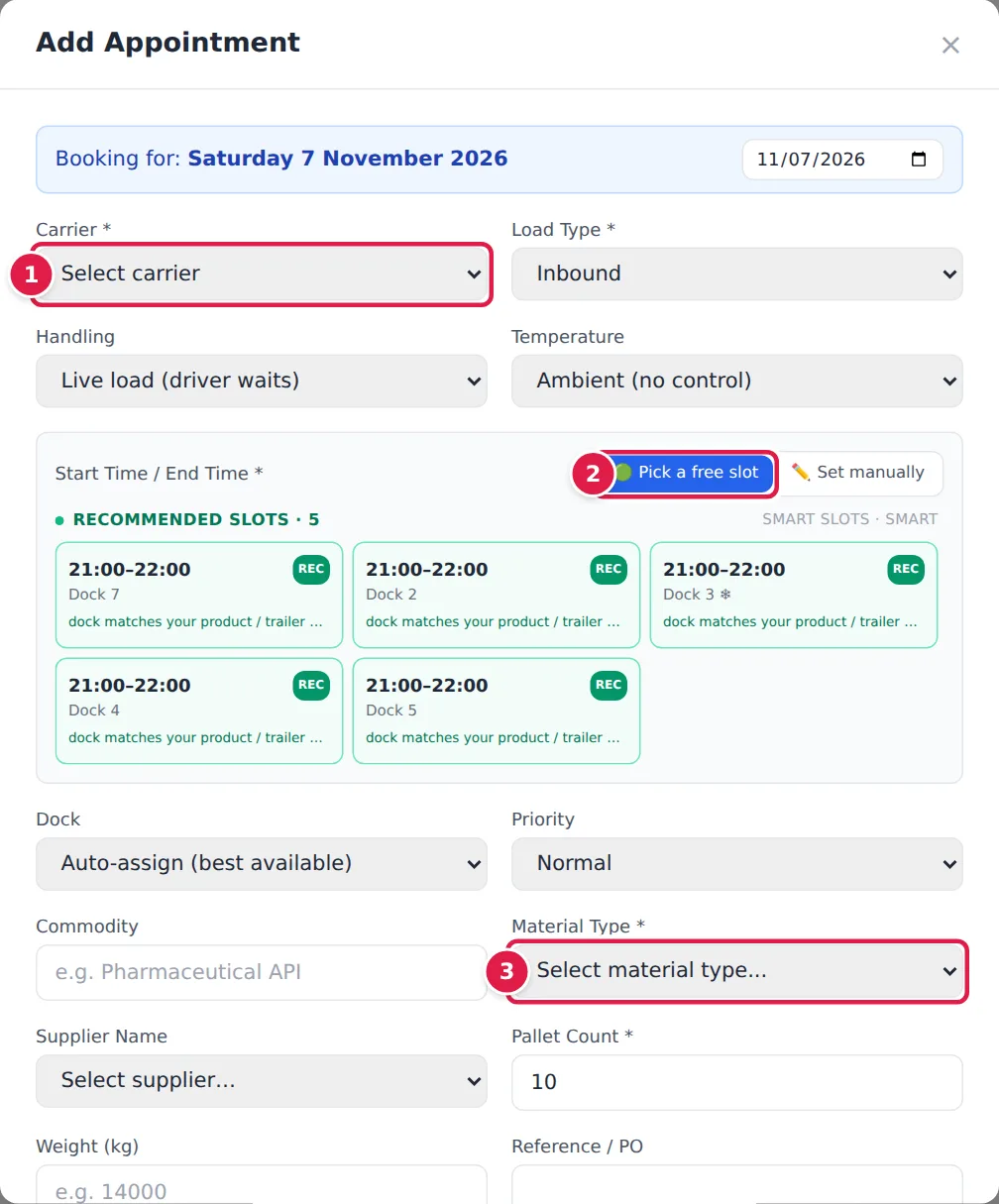
- Choose the Carrier and the Load Type (inbound or outbound).
- Under Start Time / End Time, keep Pick a free slot and click one of the green recommended slots. Smart Slots ranks them by dock fit, breaks and how busy the yard will be. Or click Set manually to type your own times.
- Choose the Material Type, then fill in the Pallet Count and Truck Reg further down. Fields marked * are required.
Finally, click Create Appointment at the bottom of the form. The booking appears on the board, and it gets a short confirmation code (such as TN4CJ4) that the gate uses to find it.
To move a booking, drag its block to another time or dock. To change or cancel it, click the block.
2 · Check a truck in
At the gate, find the truck, verify the paperwork and authorise entry.
Gate guards work from Gate (arrivals), designed for a tablet in the gatehouse. It lists the trucks due from yesterday to tomorrow, with any already at the gate in their own section.
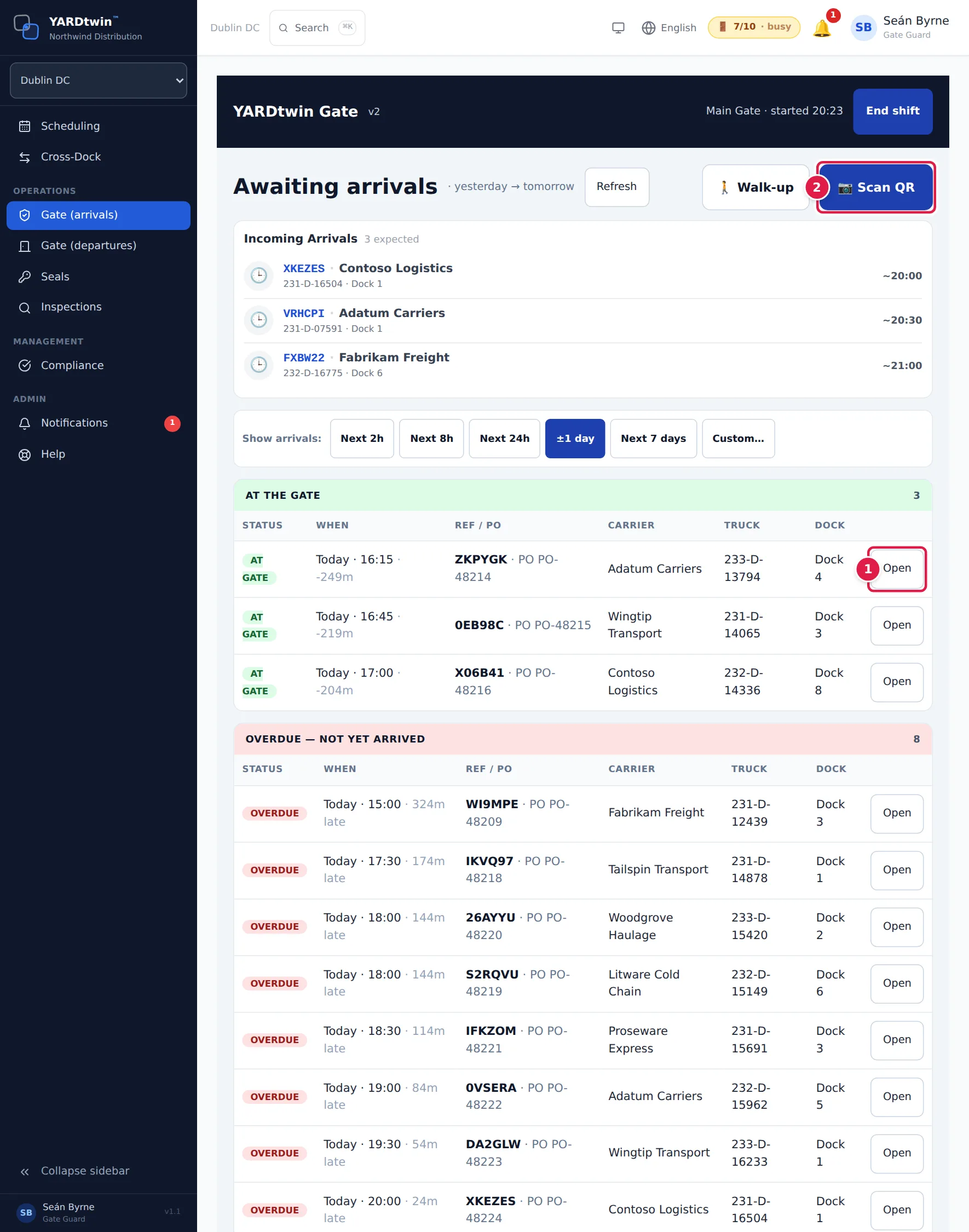
- When a truck pulls up, find it in the list and click Open.
- Or click Scan QR and scan the driver's booking pass. You can also type the confirmation code or the registration.
The booking opens with everything the gate needs to know: carrier, driver, truck, dock and expected seal. Below it is the checklist.
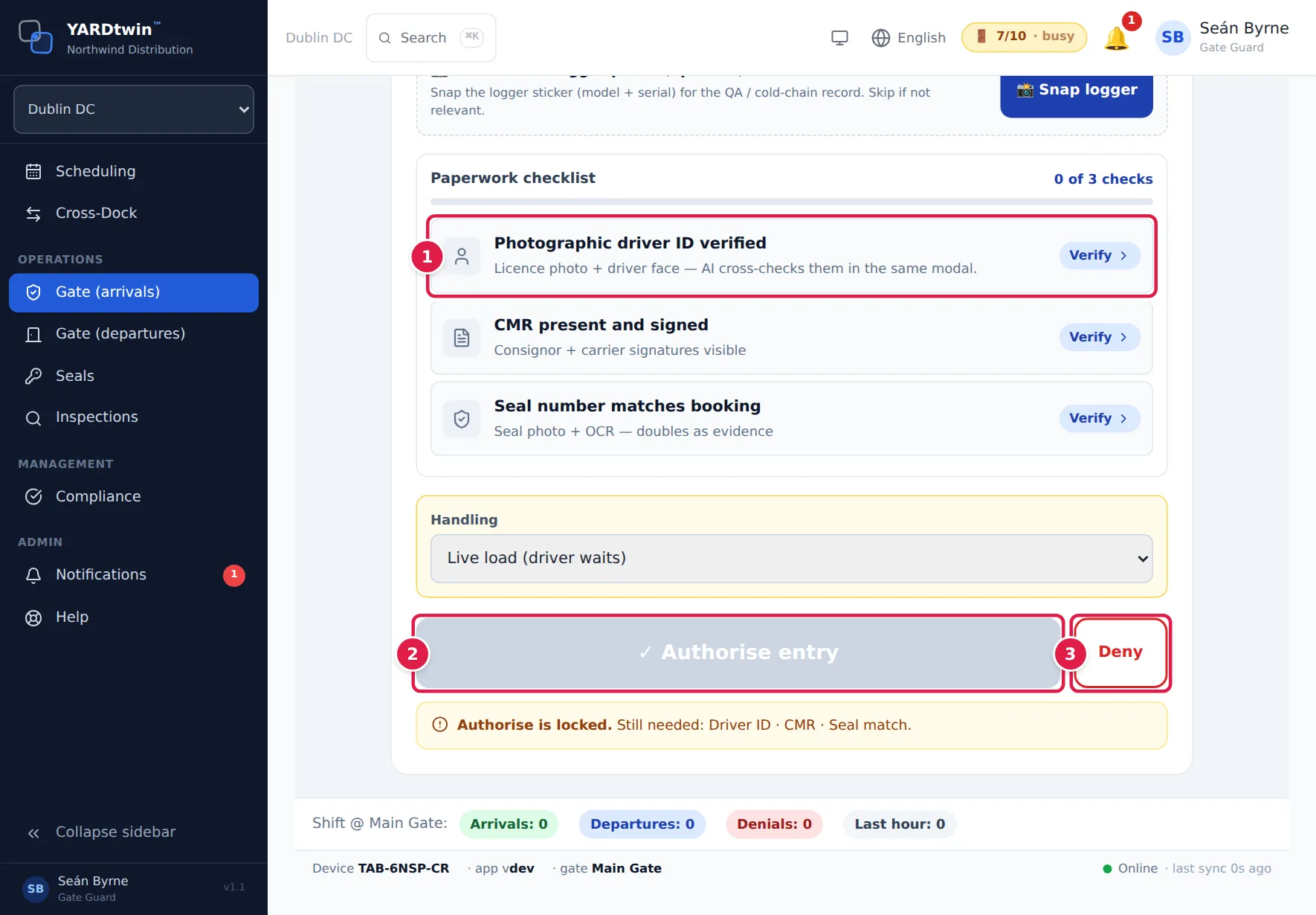
- Work down the Paperwork checklist: tap Verify on each check (driver ID, CMR and, where the goods need it, the seal) and confirm what you see. The list is set up for your site and the goods. Chilled loads, for example, add a temperature check.
- When every required check is done, Authorise entry unlocks. Tap it. YARDtwin tells the driver where to go (for example Proceed to Dock 1) on screen and by text message, and you can print a paper slip.
- If something is wrong, tap Deny and choose the reason. The refusal is recorded.
A seal that doesn't match the booking puts the delivery on hold for Quality to review. Don't let the truck unload until the hold is cleared.
3 · Watch the yard
The live yard map shows every truck on site, where it is, and for how long.
Open Yard Map. It is a live picture of your site: the docks, the gate and the waiting area, with every truck drawn where it is now. It updates by itself as the gate and the docks record what happens.
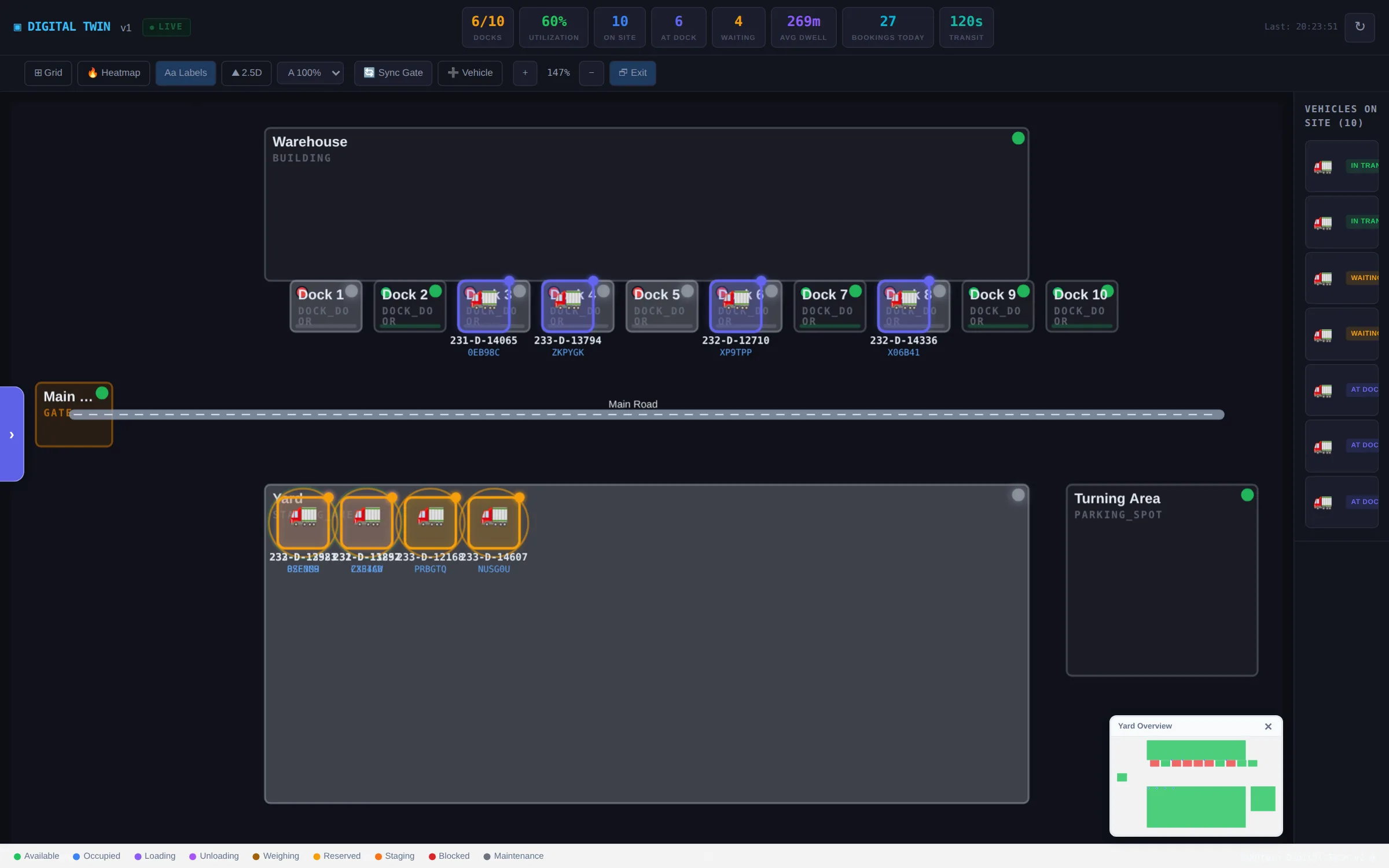
- Across the top: docks in use, utilisation, trucks on site, at a dock and waiting, average dwell time, today's bookings.
- On the map: each truck sits at its dock or in the yard, coloured by what's happening (unloading, loading, waiting…). Click a truck for its details.
- Down the right: every vehicle on site, with its status.
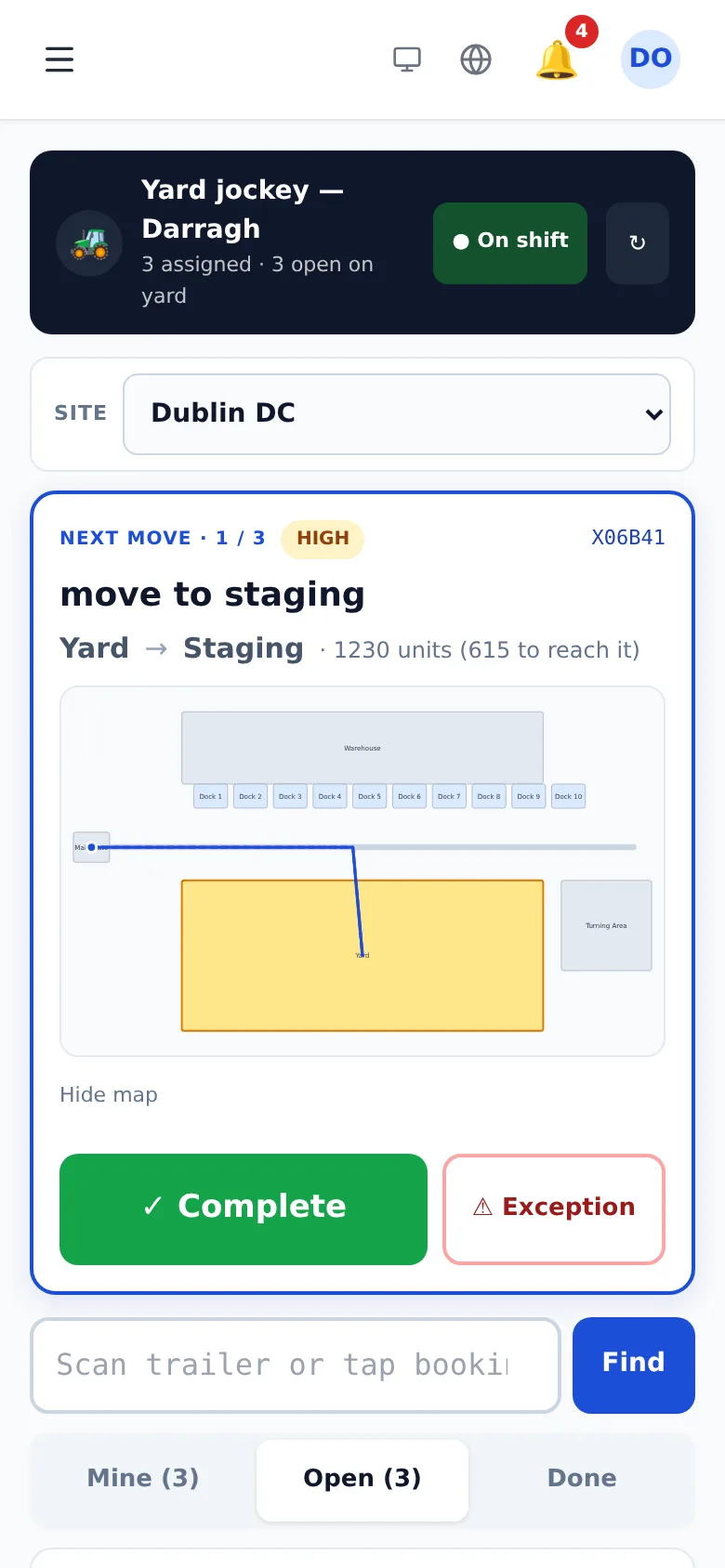
Yard jockeys move trailers between the yard and the docks from their own phone screen, Yard jockey. It lists the open move tasks and the ones assigned to them.
4 · Load and unload
Dock staff choose their docks, then work each trailer from start to finish.
Dock staff work from Warehouse dock. At the start of a shift, choose the docks you cover.
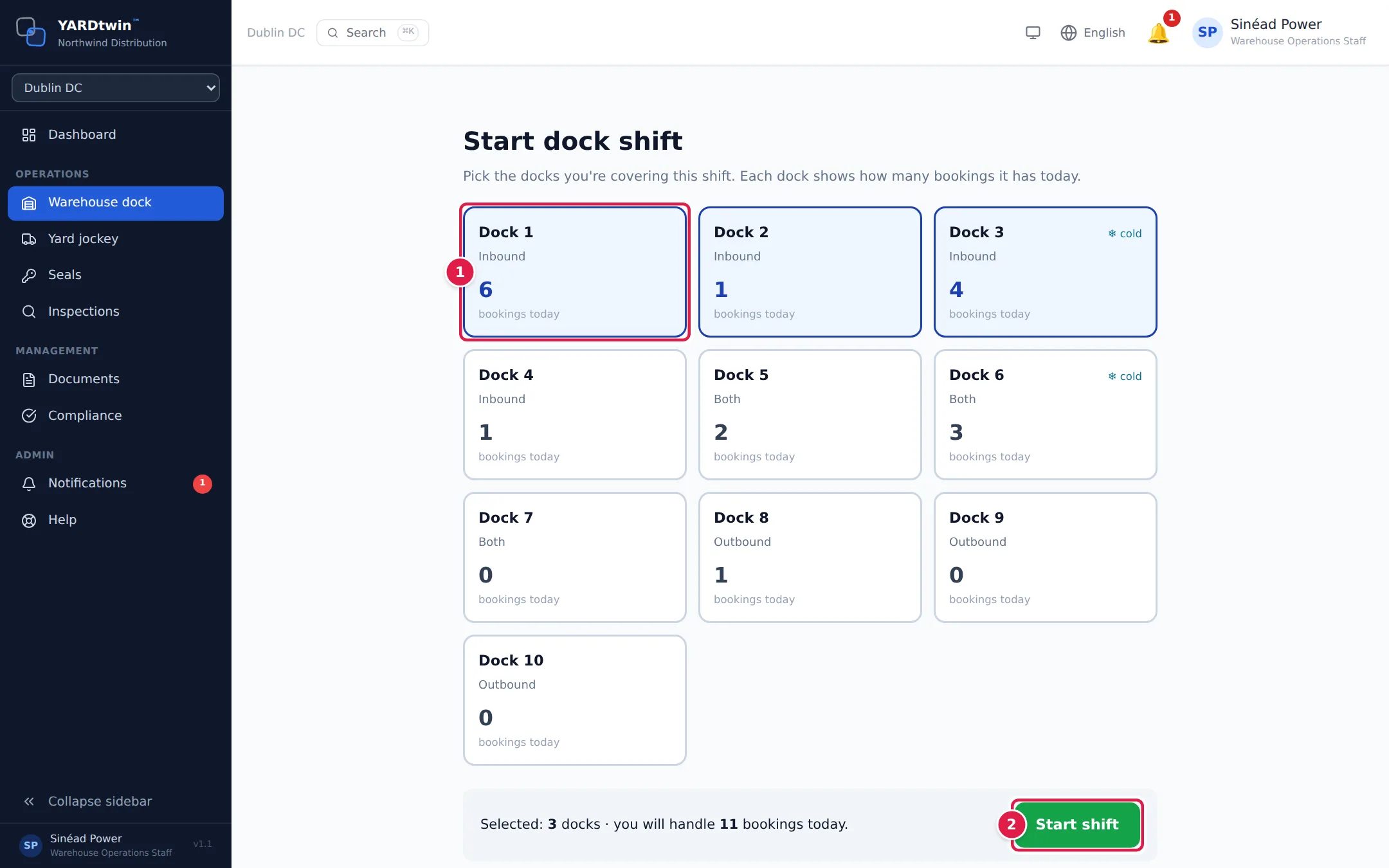
- Tap the docks you're covering (one to five). Each card shows how many bookings it has today, and chilled docks are marked cold.
- Tap Start shift.
The dock board then shows the trailers for your docks. For each trailer:
- Start. Check the seal against the booking and begin loading or unloading.
- Monitor. Follow the trailer's progress until the work is done.
- Complete. Enter the pallet count (and, for outbound loads, the new seal number), or raise a hold if something is wrong.
Completing a trailer tells the gate it is ready to leave, and the carrier is notified.
Your site may ask for more at the dock, such as batch and shelf-life details or scanning in your warehouse system. Your administrator sets this up in Site Admin.
5 · Clear a truck to leave
The departure check: seal, photos, the driver's signature and your sign-off.
When a truck is ready to go, it appears in Gate (departures). Open it to see the departure check.
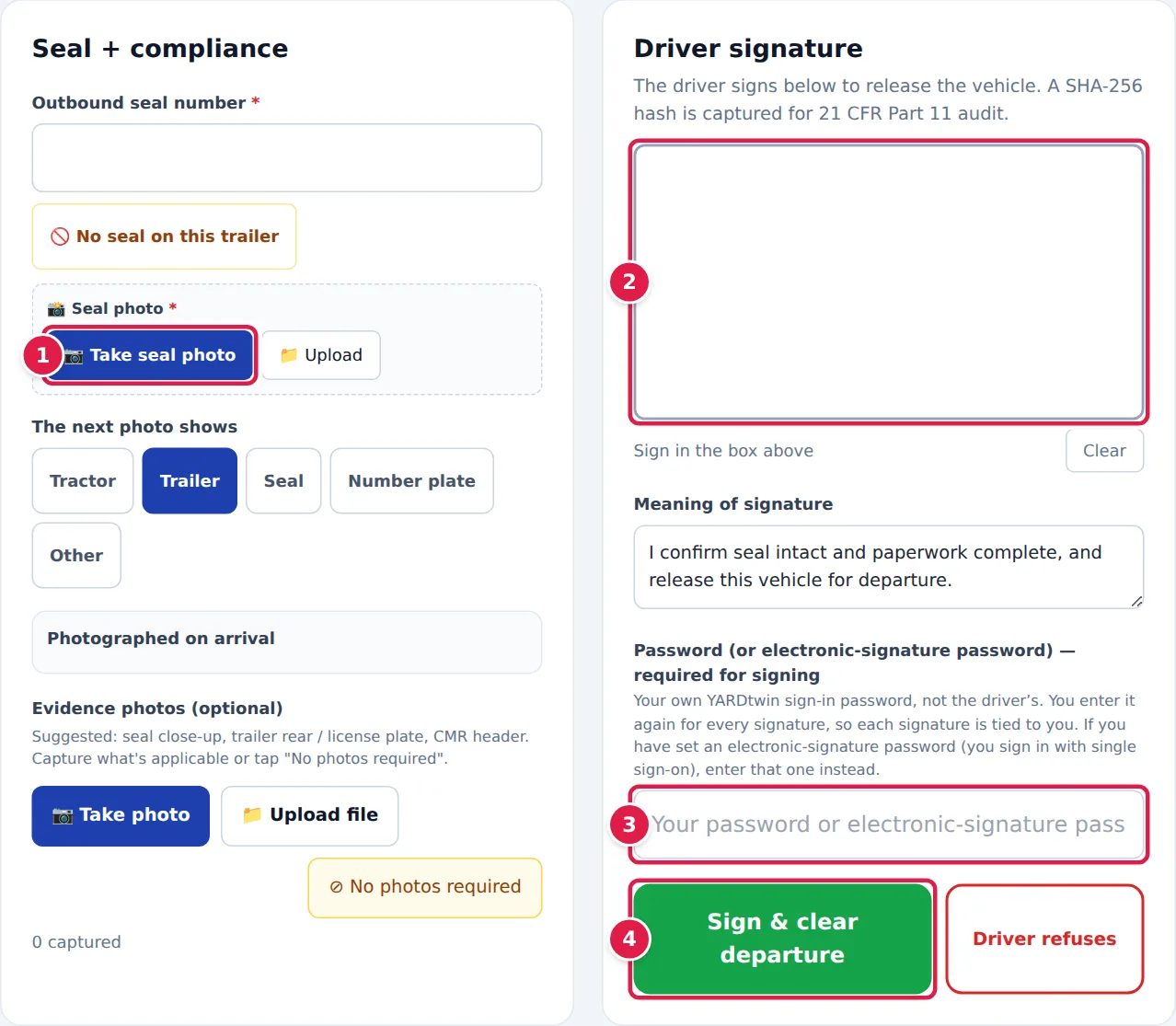
- Enter the Outbound seal number (or tap No seal on this trailer) and take the seal photo.
- The driver signs in the box.
- Enter your own YARDtwin password. This is your electronic signature: it confirms that you, and nobody else, cleared this truck.
- Tap Sign & clear departure. The truck is released, the signed record is stored, and the yard map shows it leaving.
If the driver won't sign, tap Driver refuses. The refusal is recorded.
Every departure signature is stored with its meaning, the time and a fingerprint (a SHA-256 hash) chained to the one before it. Afterwards, nobody can quietly change who released which truck. The signing process is designed for the record-keeping rules in EU GMP Annex 11 and FDA 21 CFR Part 11.
Your screen, by role
Where each person starts, and what carriers and drivers see.
| You are… | Start on | Read next in the manual |
|---|---|---|
| Gate guard | Gate (arrivals) | Check a truck in, Clear a truck to leave, Hand over at the end of a shift |
| Dock / warehouse staff | Warehouse dock | Work the dock board, Complete a trailer or put it on hold |
| Yard jockey | Yard jockey (on your phone) | Do your move tasks |
| Ops or yard manager | Dashboard, Scheduling | Read the dashboard, Book an appointment, Handle carrier change requests |
| Quality (QA) | Compliance, Audit Log | Review the audit trail, Release held loads |
| Administrator | Getting Started, Site Admin | Set up a new site, Invite and manage users |
Carriers
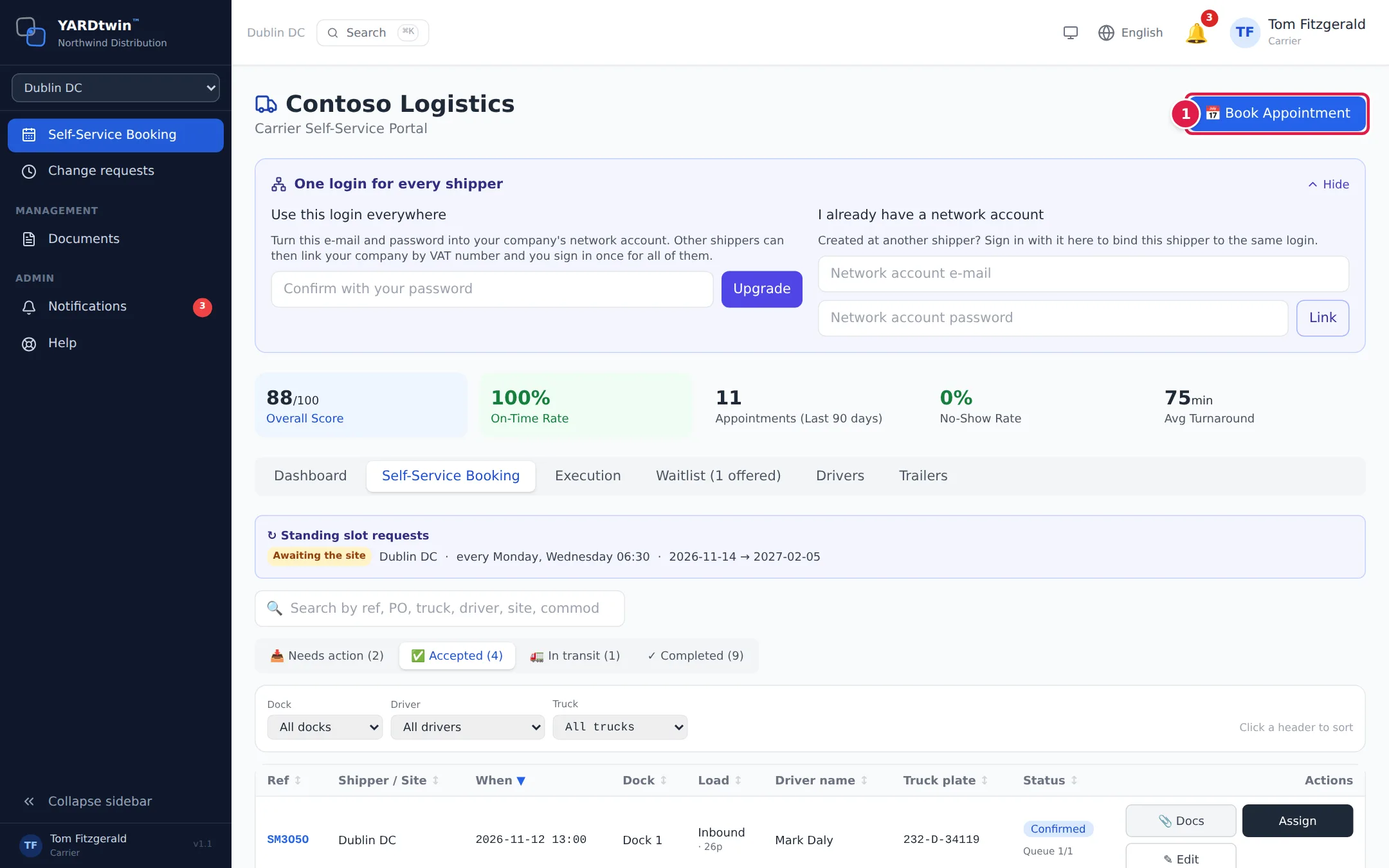
Hauliers get their own login to the carrier portal. There they book slots (Book Appointment), see what needs their action, track trucks on the day, manage their drivers and trailers, and ask you to move a booking. You approve or reject their requests under Change requests.
Drivers
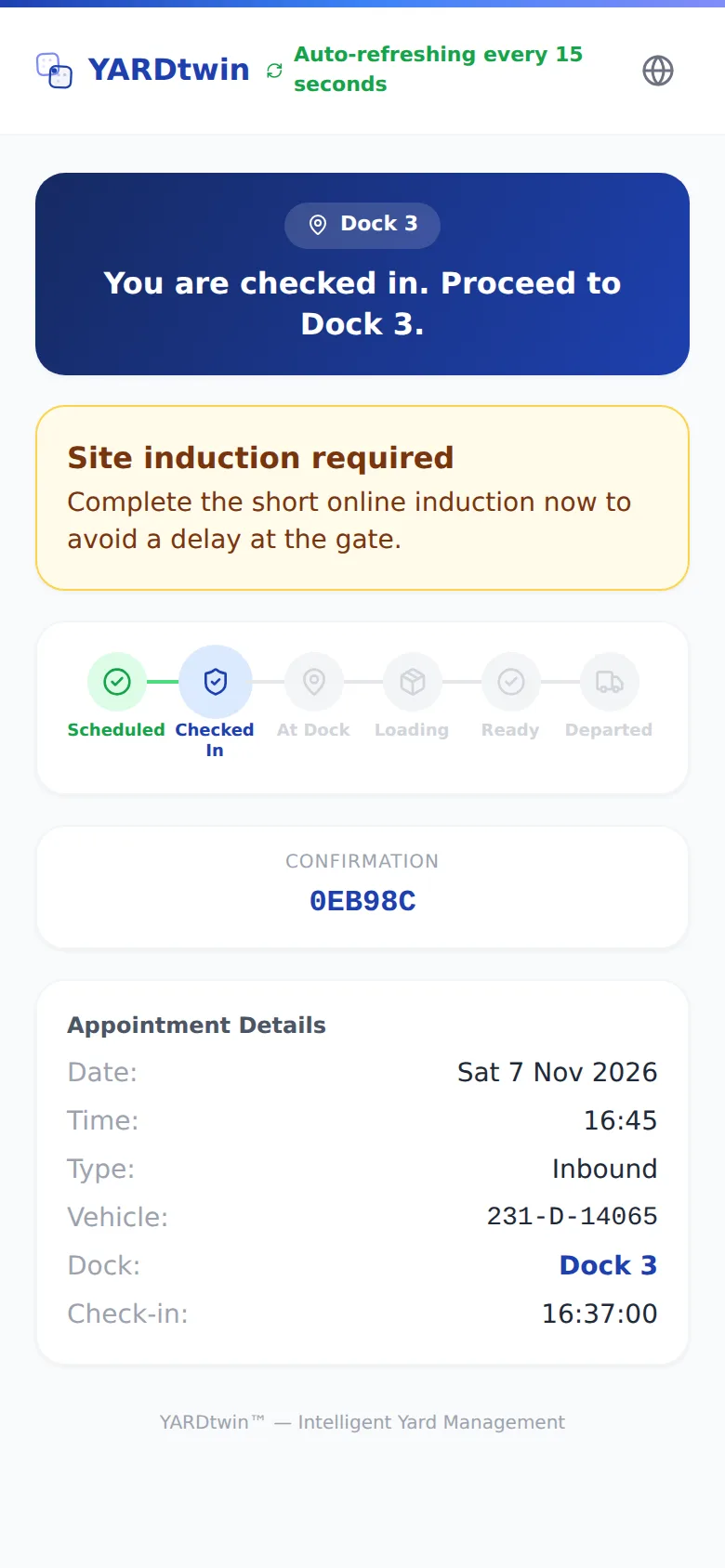
Drivers don't need an app or a login. Their booking pass and text messages link to a page on their phone. It shows the booking, where to go, and each step as it happens: checked in, at the dock, loading, ready, departed. The page refreshes by itself.
A regular driver can also have an account with the Driver role. They start on Scheduling, which shows only their own bookings, and also see Documents and Notifications.
First day for administrators
Six steps take a new site from empty to its first truck.
Administrators see Getting Started at the top of the menu, yellow until setup is done and green after. It lists the six things a site needs, and ticks each one off as you complete it.
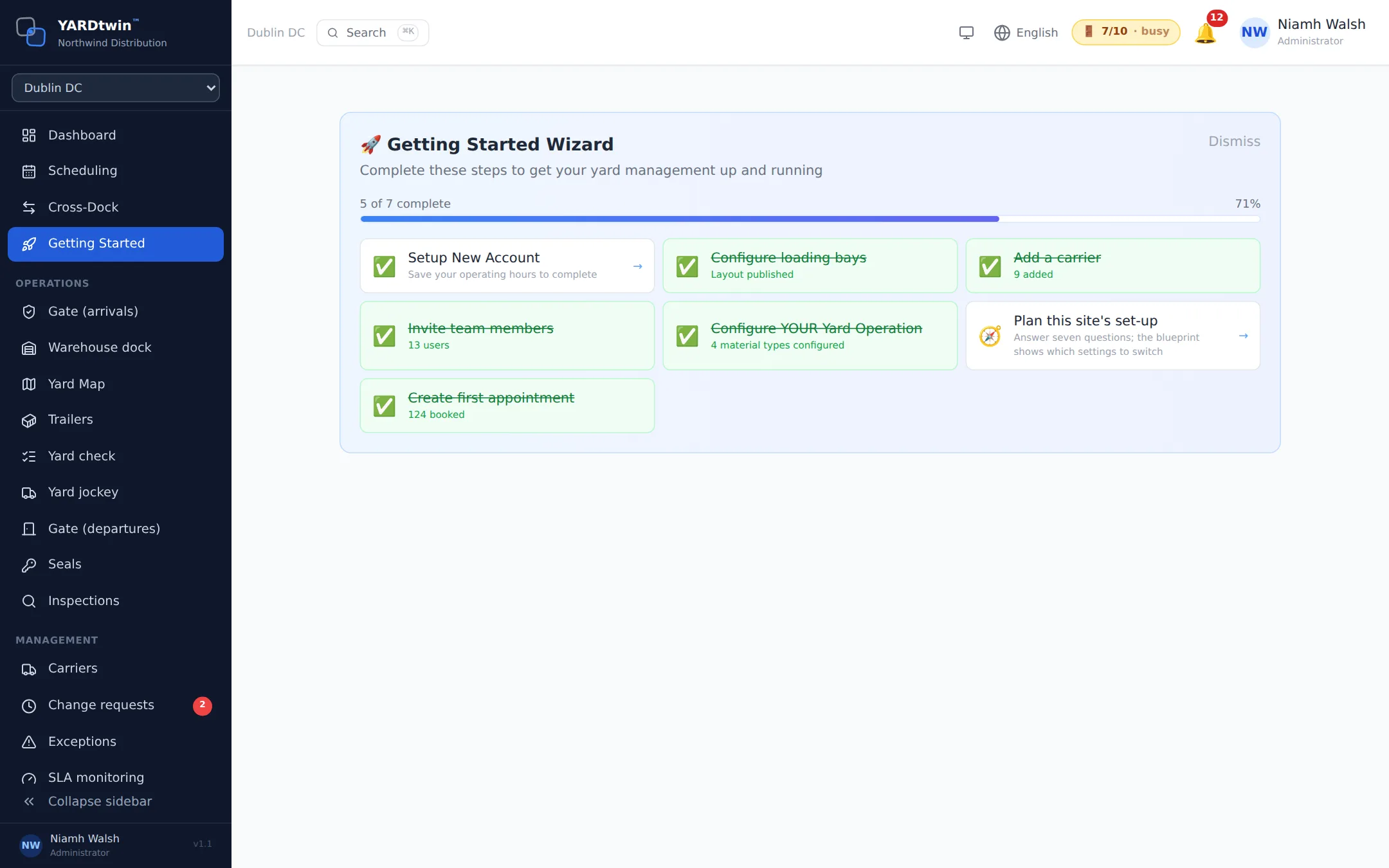
- Setup New Account: your site's operating hours and details.
- Configure loading bays: draw your docks, gate and yard in the Layout Builder and publish it.
- Add a carrier: the hauliers who deliver to you or collect from you.
- Invite team members: under Settings → Users, give each person the role that matches their job.
- Configure YOUR Yard Operation: material types, seal and temperature rules, in Site Admin.
- Create first appointment: book a truck, then follow it through the gate and the dock.
Click a step to go to the right screen. The full manual covers every Site Admin setting under Administration.
New accounts start on a 30-day trial with every feature. Your plan and usage are under Site Admin → Billing.
Getting help
Where to look when you're stuck.
- The full manual at yardtwin.com/help has a step-by-step page, with screenshots, for every screen and task. Search it the way you'd ask a colleague: "seal doesn't match", "add a user", "move a booking". You can also open it from the menu under your name → Help Centre, or press Ctrl + K and type help.
- The assistant: the round chat button at the bottom right of every screen. It knows which page you're on and what your role can do.
- Report a problem: Settings → Report a Bug sends us what you saw.
- E-mail: admin@yardtwin.com.
The manual and this guide are rebuilt automatically every time YARDtwin changes, so the screenshots always match the product you're using.