This page is for carriers: the hauliers who deliver to and collect from a site that uses YARDtwin.
The carrier portal is where you book slots at the site, keep your bookings up to date and see how your trucks are performing. You need a portal login: the site sends you an invite by e-mail. See Register for the carrier portal.
When you sign in, the portal opens on Self-Service Booking.
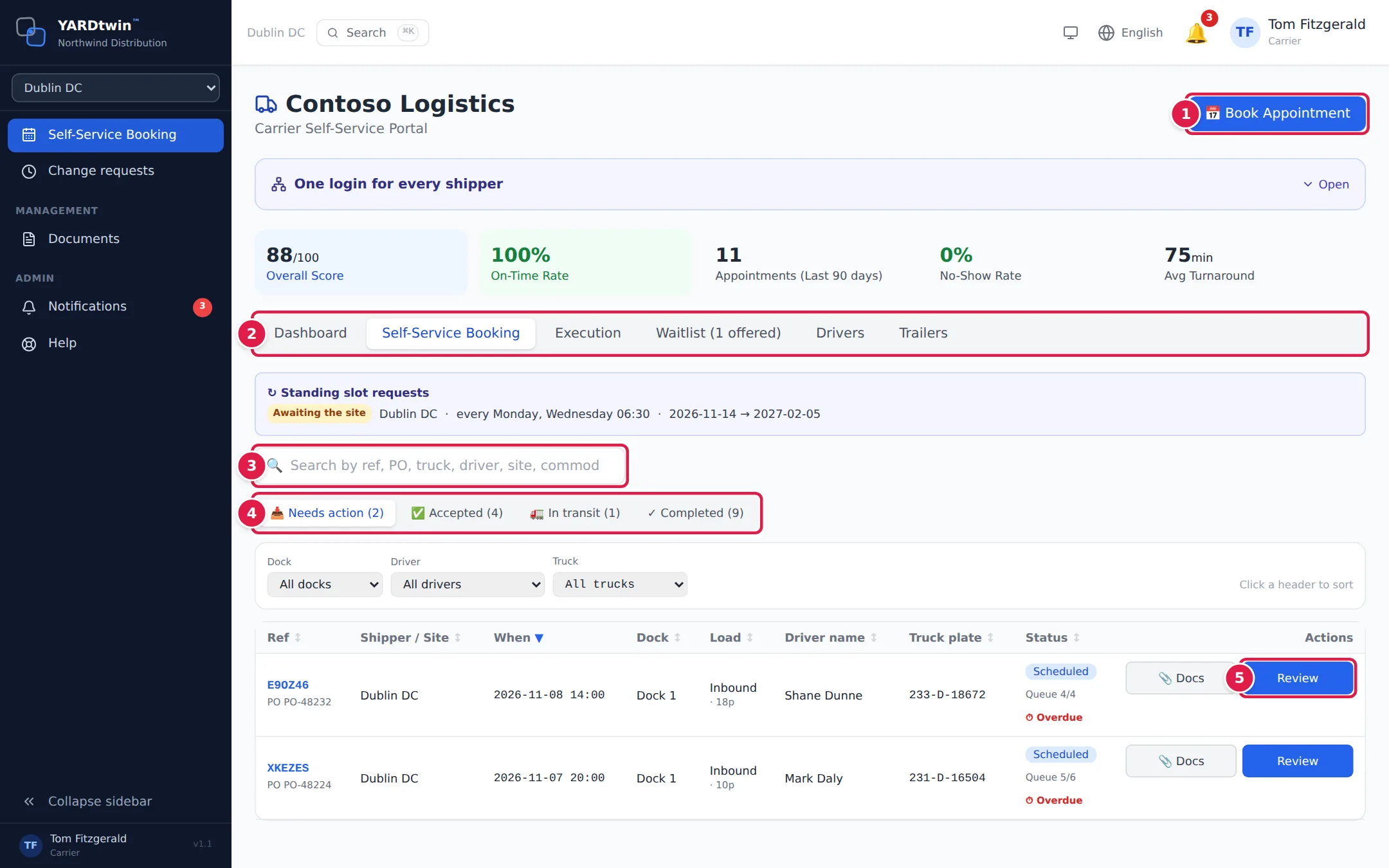
- Book Appointment books a new slot. See Book a slot as a carrier.
- The tabs: Dashboard, Self-Service Booking, Execution, Waitlist, Drivers and Trailers. Your change requests are under Change requests in the menu on the left.
- Search your bookings by reference, PO, truck, driver, site or commodity.
- Your bookings are sorted into four lists:
- Needs action: slots waiting for you to accept, and bookings Awaiting approval by the site.
- Accepted: confirmed bookings, still to arrive.
- In transit: trucks that have arrived and are at the gate, in the yard or on a dock.
- Completed: visits that have left, been cancelled or not shown up.
- Each row has buttons for the next thing to do. Review opens a slot the site has proposed.
If you have asked the site for a standing slot, ↻ Standing slot requests above the search box lists each request with its pattern and dates, marked Awaiting the site, Approved, Declined or Ended, and the site's note if it left one. See Book a slot as a carrier.
Above the tabs, five figures sum up your performance: your Overall Score, On-Time Rate, appointments in the last 90 days, No-Show Rate and Avg Turnaround. The panel One login for every shipper lets you use one login for every site that uses YARDtwin; click Hide to fold it away.
Use the Dock, Driver and Truck filters to narrow a long list, and click a column header to sort by it. Under the status, a booking still to be accepted shows how long you have: ⏱ Due in …, ⏱ Urgent (< 4h) or ⏱ Overdue. The deadline is the site's change cut-off before the slot. Queue, for example Queue 1/4, is the booking's place among that day's open bookings at the same dock.
Accept or counter a proposed slot
When the site books a slot for you, it appears under Needs action with Review.
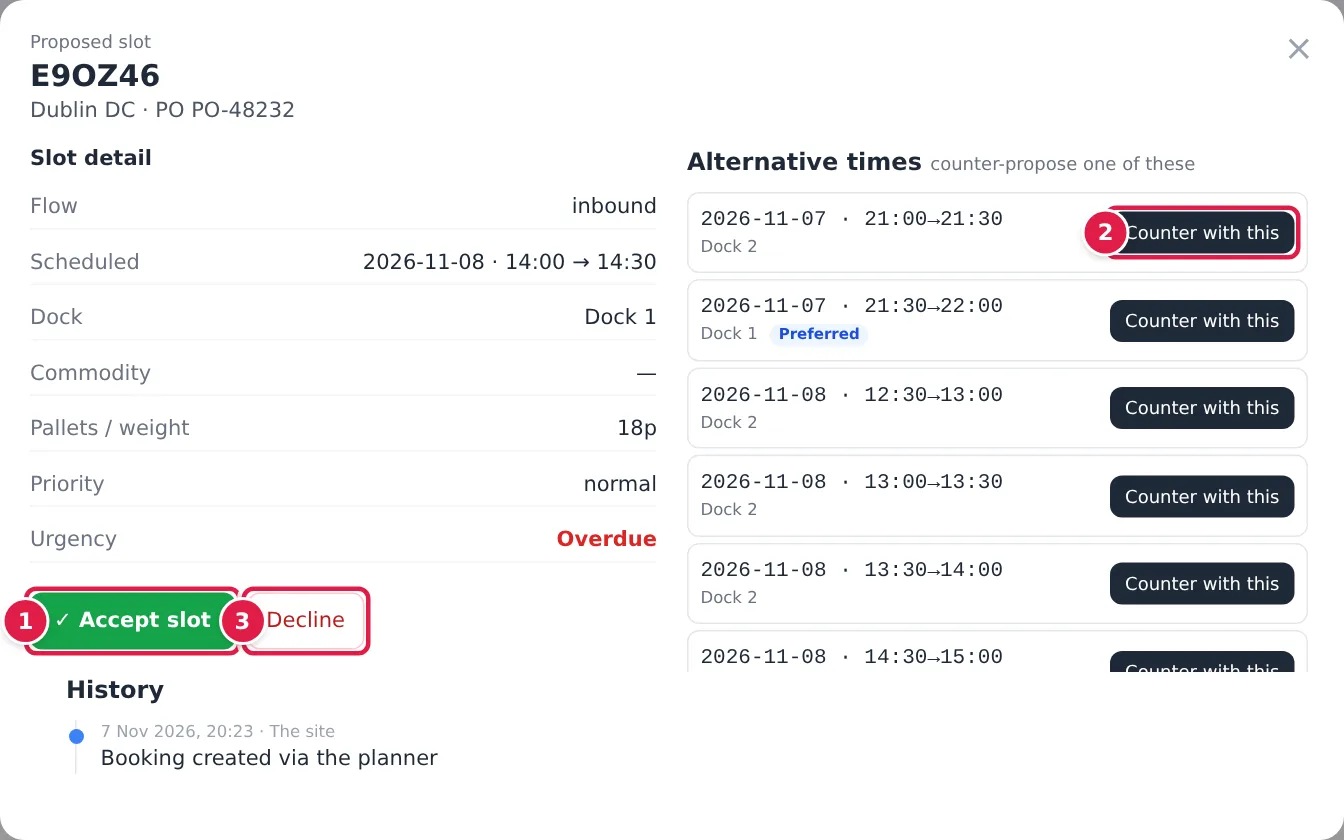
- ✓ Accept slot confirms the booking. It moves to Accepted.
- If the time doesn't suit, pick one of the Alternative times and click Counter with this. The booking moves to that time. Depending on the site's rules, it may need the site's approval, or come back for you to accept. The alternatives are as long as the proposed slot. They come from its day and the nearest days either side (never in the past), with up to six times a day around the proposed time, listed in date and time order. The proposed time itself is not repeated.
- Decline opens a form to tell the site why (see Raise a dispute below).
The History under the slot shows every change to the booking so far.
Assign a driver and trailer
For a booking under Accepted, click Assign (or Reassign).
- Pick the Driver from your roster. YARDtwin shows whether their licence is valid, expiring soon or expired, and warns if there's no e-mail to send the gate pass to.
- Pick a trailer under Trailer from roster, or type the Truck reg and Trailer number. For a cold-chain load, only refrigerated trailers are offered, and the trailer's cold-chain certificate must be valid on the day.
- Click Save assignment.
The driver receives a gate pass with a QR code by e-mail. If you replace a driver, the previous one is told they're no longer needed.
Change, delay or cancel a booking
For a booking under Accepted, click ✎ Edit and choose what you want to do:
- ✎ Edit driver / vehicle details changes the driver, truck, trailer, seal number and declarations. These changes apply at once. ✉ Re-send driver email sends the driver their gate pass again.
- ⏱ Request slot / dock / date change asks the site for a new Time slot, Date, Pallet count, Commodity or PO reference. For a new time or date, pick from Available slots. Enter a Reason, which is required, and click Submit request. Nothing changes until the site approves it. You can follow your requests under Change requests in the menu, marked ⏳ Pending, ✓ Approved or ✗ Rejected, and you get a notification when the site decides.
- ✕ Cancel this booking frees the slot. Choose a Reason (for Other (please specify), describe it in at least 5 characters) and click Cancel booking. The site and the driver are told.
Running late or early on the day? When the slot is less than 24 hours away, click 📍 Update ETA on the booking. Pick how much earlier or later you'll be, give a Reason and click Send ETA update. The slot and the new arrival time are shown in the site's time, wherever you are. The slot stays the same; the site sees your new arrival time. The button then shows whether the site has approved it.
A cancellation can't be undone. Cancelling within the site's late-cancellation window, usually 24 hours before the slot, is recorded as a late cancellation on your scorecard. Some sites don't accept online cancellations or slot changes that close to the slot; the portal tells you to contact the site instead.
Documents
📎 Docs on any booking opens its documents. Compulsory documents lists what the site needs for this material, with a template to download where the site provides one; Attach a file uploads yours. You can also add Additional documents. The button turns green when every compulsory document is in, and red while any is missing.
Raise a dispute
For a completed visit, Raise dispute tells the site you disagree with something recorded against you, such as a late arrival, a detention fee or a damage claim. Pick a reason, describe it, attach up to 5 files of evidence and send it. The site manager reviews it, and you see the outcome in your notifications.
The other tabs
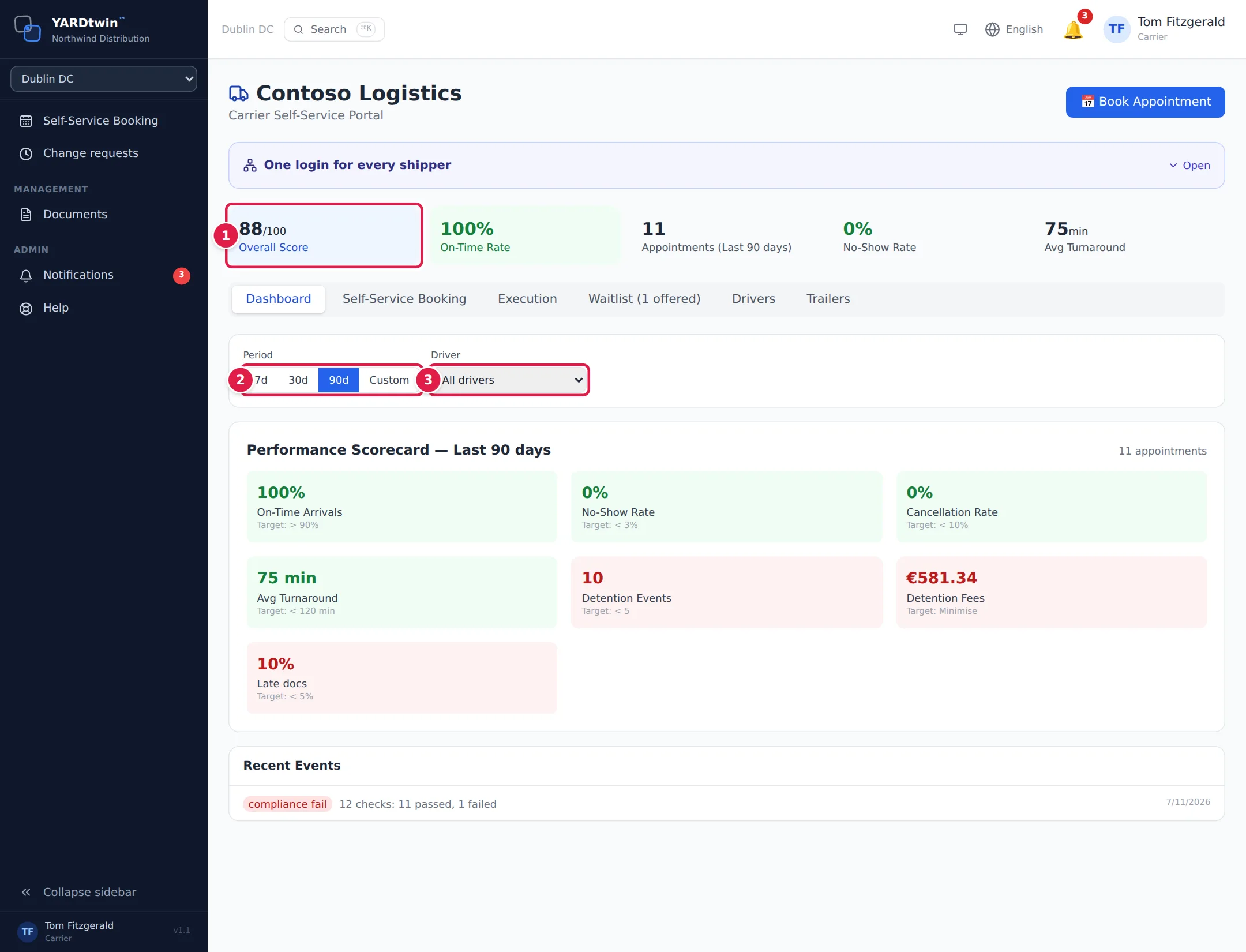
Dashboard is your scorecard.
- Overall Score out of 100, worked out by the site from your last 90 days: arriving on time, no-shows, cancellations, documents sent before arrival and detention.
- Period: the last 7d, 30d or 90d, or Custom dates.
- Driver: see one driver's figures.
On-Time Arrivals counts your completed visits where the truck arrived no more than 15 minutes after the slot started, in the site's time. Visits with no arrival recorded are left out. It's the measure the site's own dashboard uses.
The Performance Scorecard shows On-Time Arrivals, No-Show Rate, Cancellation Rate, Avg Turnaround, Detention Events, Detention Fees and Late docs, each green when on target and red when not, with the target underneath. Recent Events lists events recorded against your bookings in the period, such as a compliance check at the site (with how many checks passed and failed), a cancellation or late cancellation, and feedback from your drivers.
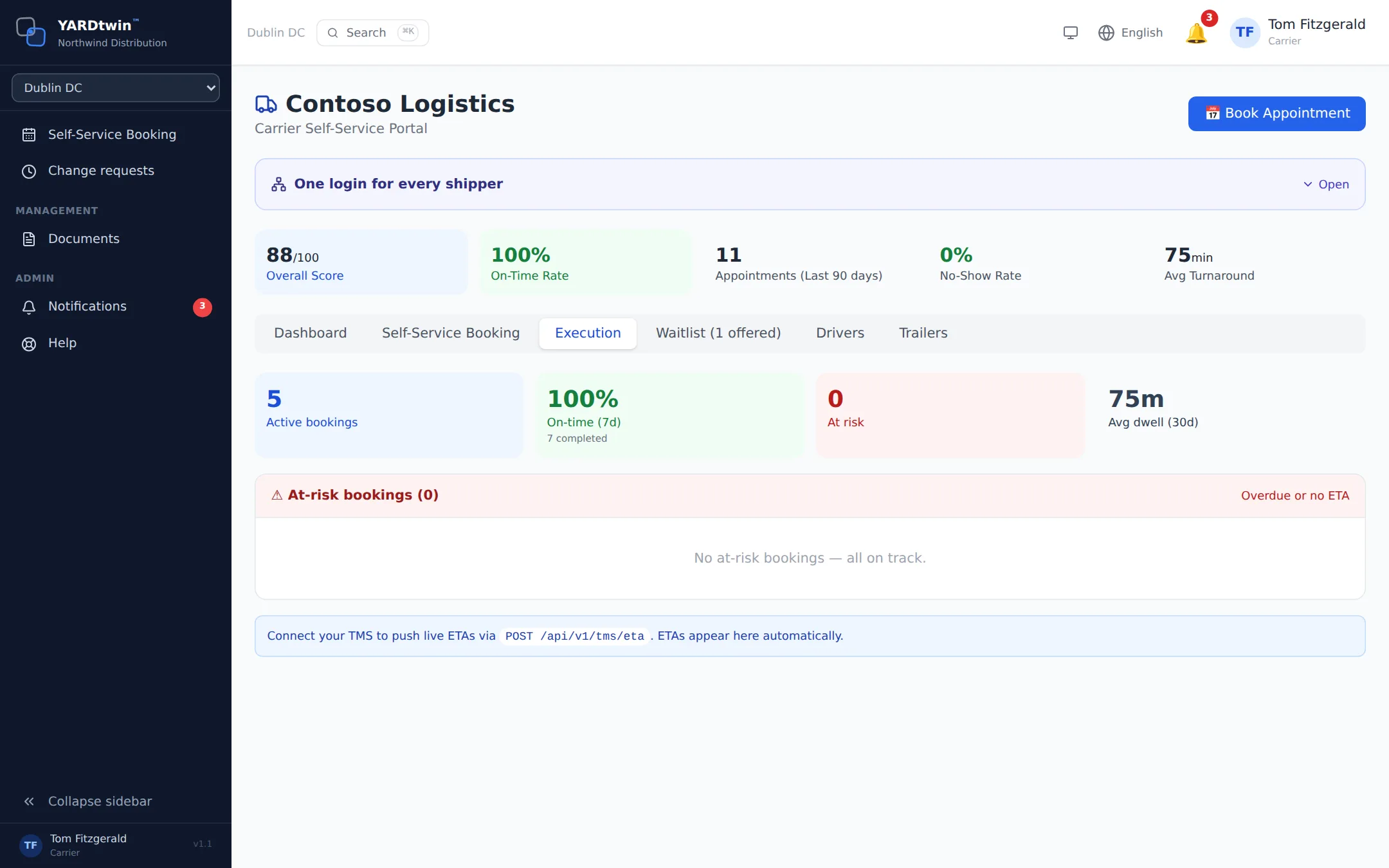
Execution shows your bookings in progress today: Active bookings, On-time (7d), At risk and Avg dwell (30d). On-time (7d) is the same measure as On-Time Arrivals, over the last 7 days. At-risk bookings lists trucks that are more than 30 minutes past their slot (in the site's time, within the last 12 hours) and not yet arrived, with 📞 Call driver when the driver's phone is known. Its ETA is in the site's time too. Avg dwell (30d) covers every completed visit, checked-out ones included.
Waitlist lists your requests for a slot on a full day, and any slot offered to you. See Book a slot as a carrier.
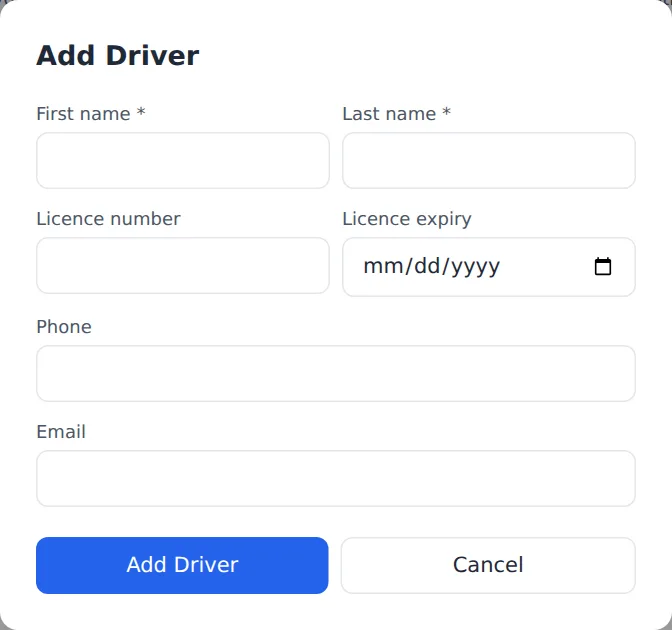
Drivers and Trailers are your rosters. Click + Add Driver or + Add trailer, fill in the form and save. Drivers need a first and last name; add the licence number and expiry, phone and e-mail so the site can check them and send gate passes. For a trailer, enter the Trailer number, its Type, and for a refrigerated trailer its Cold-chain cert expiry. Remove takes a driver or trailer off your roster; bookings already assigned to them keep it.
If something goes wrong
- "No carrier account linked to your user." Your login isn't connected to a carrier. Contact the site administrator.
- "Carrier insurance has expired. Please update before continuing." The site's record of your insurance has lapsed. Send the site your new certificate.
- "Driver licence expired on …. Cannot assign to a booking after this date." Pick another driver, or update the licence in Drivers.
- "Driver already assigned to an overlapping booking" That driver is booked on another truck at the same time.
- "Cold-chain load requires a refrigerated trailer." or "Trailer cold-chain cert expired on …" Pick a refrigerated trailer with a valid certificate.
- "Slot changes cannot be requested online inside … hours of the slot. Send an ETA update or contact the site." It's too close to the slot to move it. Use 📍 Update ETA, or phone the site.
- "Bookings at this site cannot be cancelled online inside … hours of the slot. Please contact the site." Phone the site to cancel.
- "Cannot request a change on a … booking" or "Cannot cancel a … booking" The booking has already finished, left or been cancelled.